Workflows, Credentials and Templates
What It's For
Automations is where you run the workflow automations on your Agenteous install. These are built in n8n: each workflow is a fixed sequence of steps that runs on a schedule or when something triggers it, which is a different shape from the conversational agents. In the Operator Console, open Automations. It has three screens: Workflows, Credentials and Template Library.
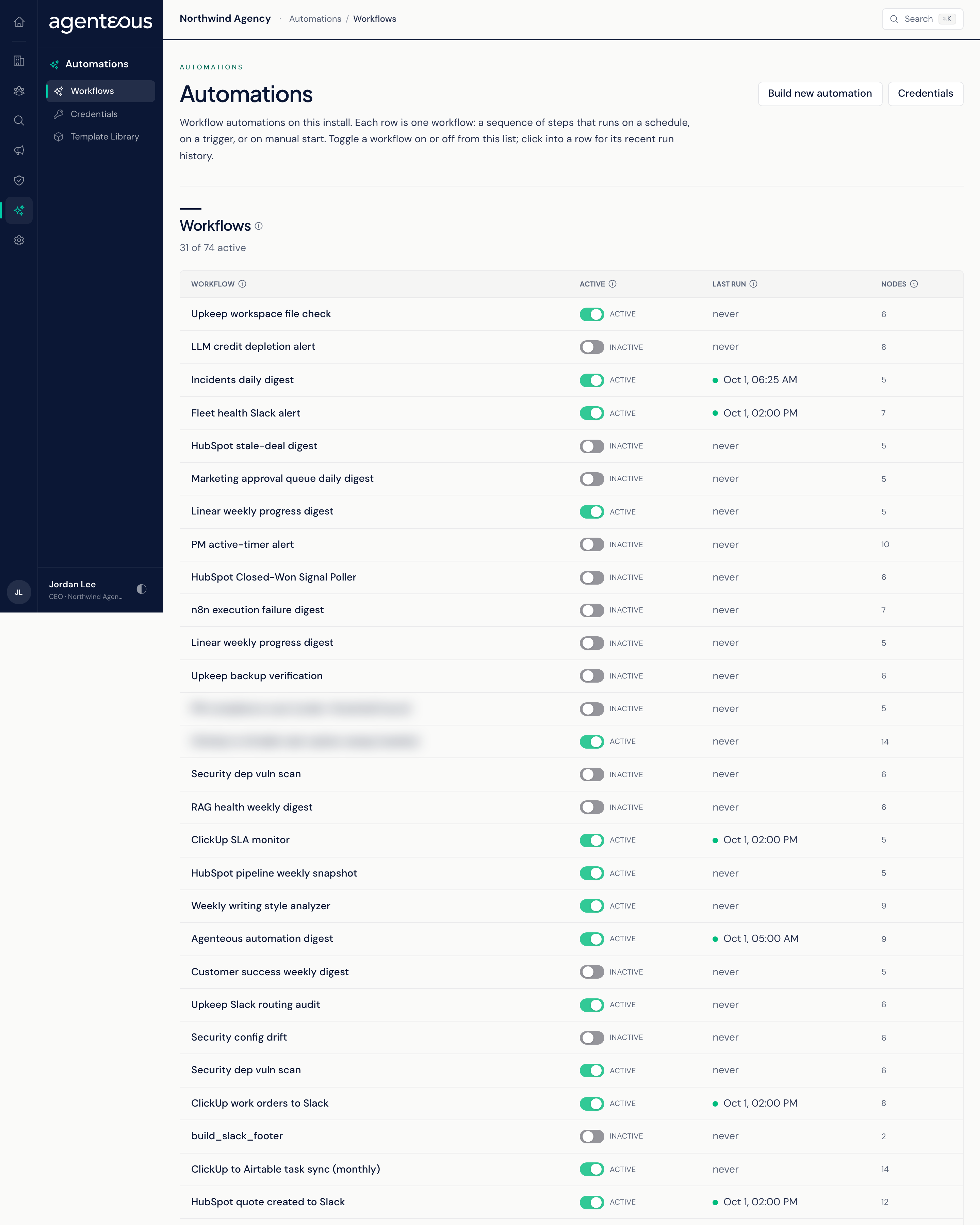
From here you switch workflows on and off, check their recent runs, adjust each workflow's settings, give n8n the sign-in tokens it needs for your tools, install ready-made templates, and describe a new automation in plain English to have one built for you. Editing a workflow's individual steps is done in n8n's own editor, not on these screens.
Workflows
The Automations list. A count above the table shows how many workflows are active out of the total. Each row shows:
- Workflow: the name, with any tags beneath it. Tags group related workflows, such as all reporting flows.
- Active: a toggle. On means the workflow runs when its schedule comes due or its trigger fires; off means schedules and triggers are ignored. Switching it takes effect immediately.
- Last run: when it last ran and whether that run succeeded. A workflow with no recent run shows "never".
- Nodes: how many steps it contains.
Click a workflow to open its detail page:
- Status: whether it is active (with the same toggle), its Workflow ID (quote this if you need help with it) and Last updated.
- Recent executions: its last 20 runs, newest first, with Execution, Status (Success, Error, Running, Waiting or Canceled), Started, Duration and Mode (a schedule, a webhook, a manual start or a retry).
- Edit Settings: opens the workflow's Settings, the values its template lets you change, such as the Slack channel it posts to, an Airtable base, or how often it runs. Schedules offer Hourly, Daily, Weekly or Custom. A Slack channel field has a Probe button that checks the channel exists and whether the bot is a member. Click Save Settings to write the new values onto the workflow. A workflow that did not come from a template with declared settings shows This Workflow Has No Settings.
If n8n cannot be reached, the list shows Automations Couldn't Load. The usual causes are that n8n has not been set up on this install yet, or it is stopped.
Build a New Automation
Click Build new automation on the Workflows screen.
- What should this automation do? Describe it in a paragraph: when it should run, where the data comes from and what should happen to it.
- What does this automation produce? Choose Signals (one event at a time, for things your team should see, such as a deal closing) or Data (rows in a typed dataset, for records you want to search and query).
- Which extension carries it? An extension is a named connection the workflow uses to send its results into Agenteous, with only the permissions it needs. If none exists yet, the page reads No Extension Is Bound Yet. Installing a one-click template from the Template Library creates one.
- Test and auto-repair before preview: when ticked, the button reads Build and test. The builder runs the workflow for real in a private test, and if the run fails it reads the error and rewrites the workflow, up to three tries, before showing you the result. When unticked, Generate recipe gives you the first draft straight away for you to test yourself.
The Generated recipe shows a summary, the trigger (a schedule or a manual start), each workflow step and what it does, the signal kinds or datasets it will produce, how to verify it after deploying, and any Open questions to settle before you switch it on. You cannot edit the recipe here; if something is wrong, describe it more clearly and generate again. The Test and repair log records each attempt. If the builder could not get it passing, it says Needs your review and the workflow will deploy switched off so you can fix the last issue in n8n.
Under Deploy, Activate immediately is off by default, so the new workflow lands switched off. Click Deploy workflow to create it, or Discard and start over. The confirmation lists the workflow, whether it is active, and any warnings, with Open on Automations and Build another.
Credentials
The sign-in tokens n8n uses to reach your tools. Secrets are stored in n8n's encrypted vault and are never shown again after you save them: the page lists only names and types.
Add a Credential: pick a type, fill in its fields and save. The types offered are ClickUp, Slack (bot token), HubSpot (private app), GitHub, OpenAI, n8n (loopback), Airtable (personal access token) and the Agenteous API. Credentials that sign in through a browser window, such as Gmail, are not offered here; set those up in n8n's own editor.
Stored Credentials lists each credential's Name, Type and Created date, with a delete button. Deleting asks you to Confirm delete. Any workflow that used the credential stops working until you give it another one.
Use your own agency's accounts for every credential: each tool runs on your account and your billing.
Template Library
Ready-made workflows for Agenteous. Each template card shows its name, its version, a badge, and the permissions it grants.
- One-click templates install with a single action. There are two: a recurring scheduled task for an agent, and an inbound webhook that turns an incoming message into a signal.
- Documented setup templates are references you build in n8n by following their steps. Click Setup steps to read them, and Hide to close. The library includes digests and syncs such as ClickUp to Airtable syncs, a HubSpot stale-deal digest, a weekly pipeline snapshot and an incident digest.
To install a one-click template, click Install and fill in:
- Extension id: a unique id using lowercase letters, digits and underscores, starting with a letter.
- Display name: optional; defaults to the template name.
- Activate the workflow immediately: off by default, so you can set the workflow's settings first.
Installing sets up everything the template needs: the extension and its permissions, the n8n workflow, and the credential that connects them. The confirmation lists the permissions granted and any settings still to fill in, with a link to Open the workflow to set its knobs and activate.
Who Uses It
- Operations leads: keep workflows switched on, check failed runs and adjust schedules and channels.
- Whoever manages your tool accounts: add and retire credentials.
- Switching workflows on or off, managing credentials, installing templates and deploying built automations need the Ops Admin, Admin Operator or CCO role.