Connections
What It's For
Connections is where your agency stores the credentials for every third-party tool the agents work with, and links the Google accounts the assistants act through. In the Operator Console, under Agency, open Connections. Each person who wants the assistants to triage their own inbox and read their calendar uses the companion screen, Connect My Google, in the same part of the sidebar.
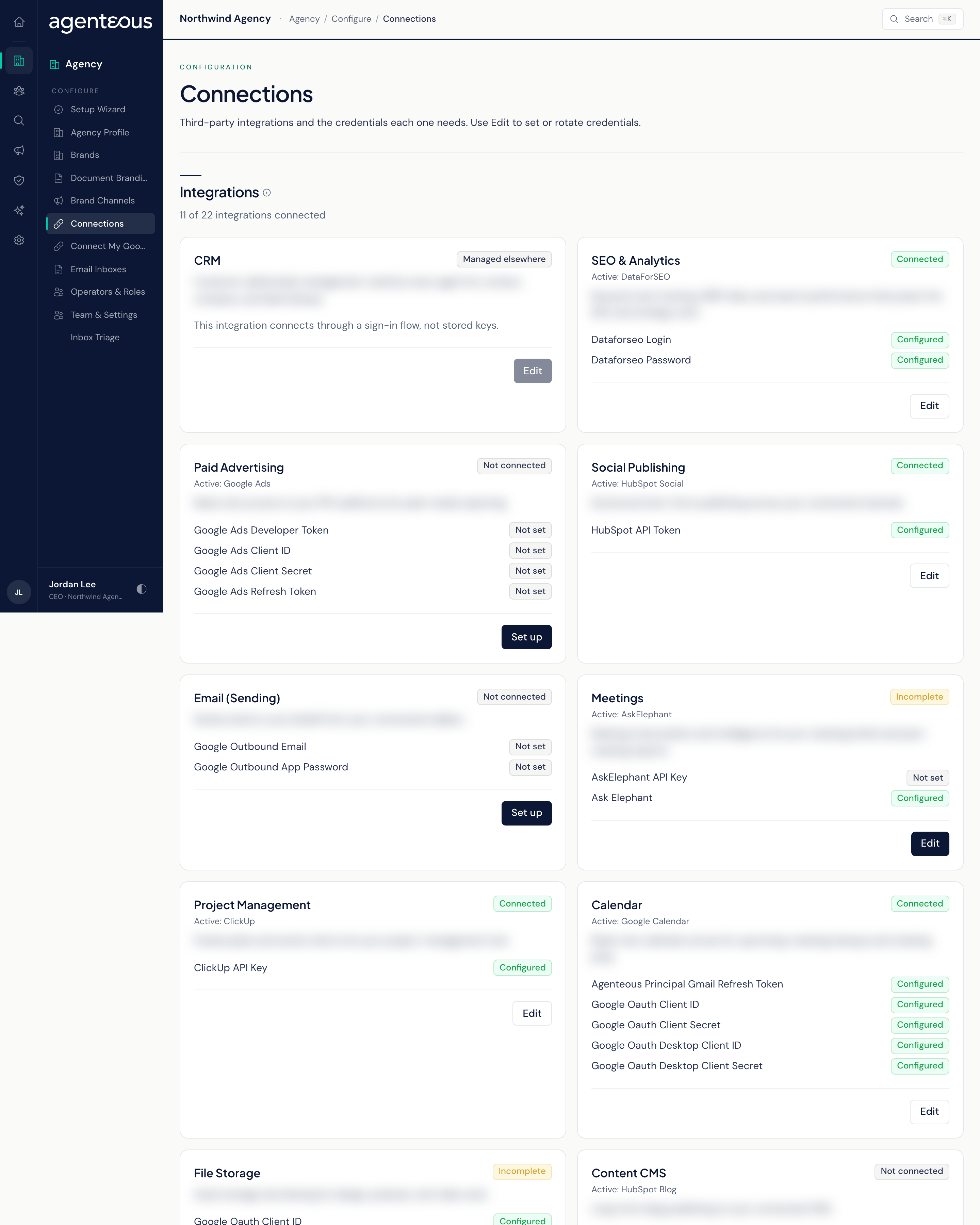
Connections
Integrations
The header counts how many integrations are connected out of the total. Below it, each integration has its own card naming its active provider and a status:
- Connected: every credential the active provider needs is stored.
- Incomplete: some of its credentials are stored, but not all.
- Not connected: none of its credentials are stored, so the integration is offline.
- Managed elsewhere: the provider connects through a sign-in flow rather than stored keys, so there is nothing to enter here.
Click Edit (or Set up on a card that has nothing stored yet) to open the credentials window. Each field shows Configured or Not set. Credentials are write-only: once you click Save credentials they are stored securely and are never shown again, not even to an administrator. To rotate a credential, type the new value; leave a field blank to keep the value already stored.
The card shows the active provider but cannot switch it. Changing which provider an integration uses is done in the Setup Wizard, which tests the new provider before switching to it.
Every credential save is recorded in the Audit Log by the name of the credential changed, never its value.
Google Connections
Below the cards, Google Connections links Google accounts through Google's own sign-in, so your Google password is never stored in Agenteous.
- Principal Google Account (badge: Sends mail): the executive the assistants act for. It gives calendar, Gmail and Search Console access, and powers meeting prep, email drafts, inbox triage and SEO analytics. The assistants can read this inbox, draft, and send mail as this person. Use Connect Google Account, Re-authenticate or Disconnect; these need the Manage Connections capability, so anyone without it sees a permission message instead.
- Google Drive (Shared Drives) (badge: Knowledge sync): read-only access to Shared Drives for knowledge document sync. Connect the Google account that can see your team drives, tick the drives you want under Shared Drives, and click Save Selection. Only the drives you tick are synced. Saving the selection needs the same Manage Connections capability.
- Staff Google Connections: a table of your staff with Staff Member, Enabled and Connection columns. Turning a person on here is what allows them to connect their own account on Connect My Google. Only an administrator can change this; staff cannot enable themselves.
Connect My Google
This page is for one person: you. It shows a single card, Your Google Account, with Connect Google Account (or Re-authenticate once connected) and Disconnect. Connecting sends you to Google to approve access, then back to the console.
The page describes connecting as enabling inbox triage and calendar intelligence. The badge on Connections calls this "Inbox And Calendar Access." The permission Google asks you to grant is wider than reading: it covers labelling and archiving mail and editing calendar events. Agenteous does not send mail from staff mailboxes, so no email goes out from your account.
If pressing Connect Google Account shows "Google connection not enabled for your account," an administrator has not turned you on yet: ask them to enable you under Staff Google Connections. "Not a recognized staff member" means your email is not on the team roster. If the page shows Google Connection Not Available instead, it could not load your connection; refresh, and tell your administrator if it persists.
You can disconnect your own account at any time. Disconnecting anyone else's account needs an administrator.
Who Uses It
- Ops Admin, Admin Operator, CCO: set and rotate integration credentials, enable staff for Google connect, connect or disconnect the principal and Drive Google accounts, choose the synced Shared Drives, and disconnect another person's Google account.
- Everyone else signed in to the console: can look, but cannot connect, re-authenticate or disconnect the principal and Drive Google accounts, or change the Shared Drives selection. Those actions need the Manage Connections capability, which Ops Admin carries (Admin Operator and CCO inherit it). Without it the console answers "Your role cannot change the principal or Drive Google connections or the synced Shared Drives" and nothing changes.
- Any signed-in staff member: connects or disconnects their own Google account on Connect My Google, once enabled.