Setup Wizard
What It's For
The Setup Wizard walks you through connecting your own accounts so the agents can work: your AI provider, CRM, Google Workspace, Slack and the optional tools you use. Each step tells you where to find the key, what access it needs, and lets you test it before you move on. In the Operator Console, under Agency, open Setup Wizard; the page heading reads Install Wizard.
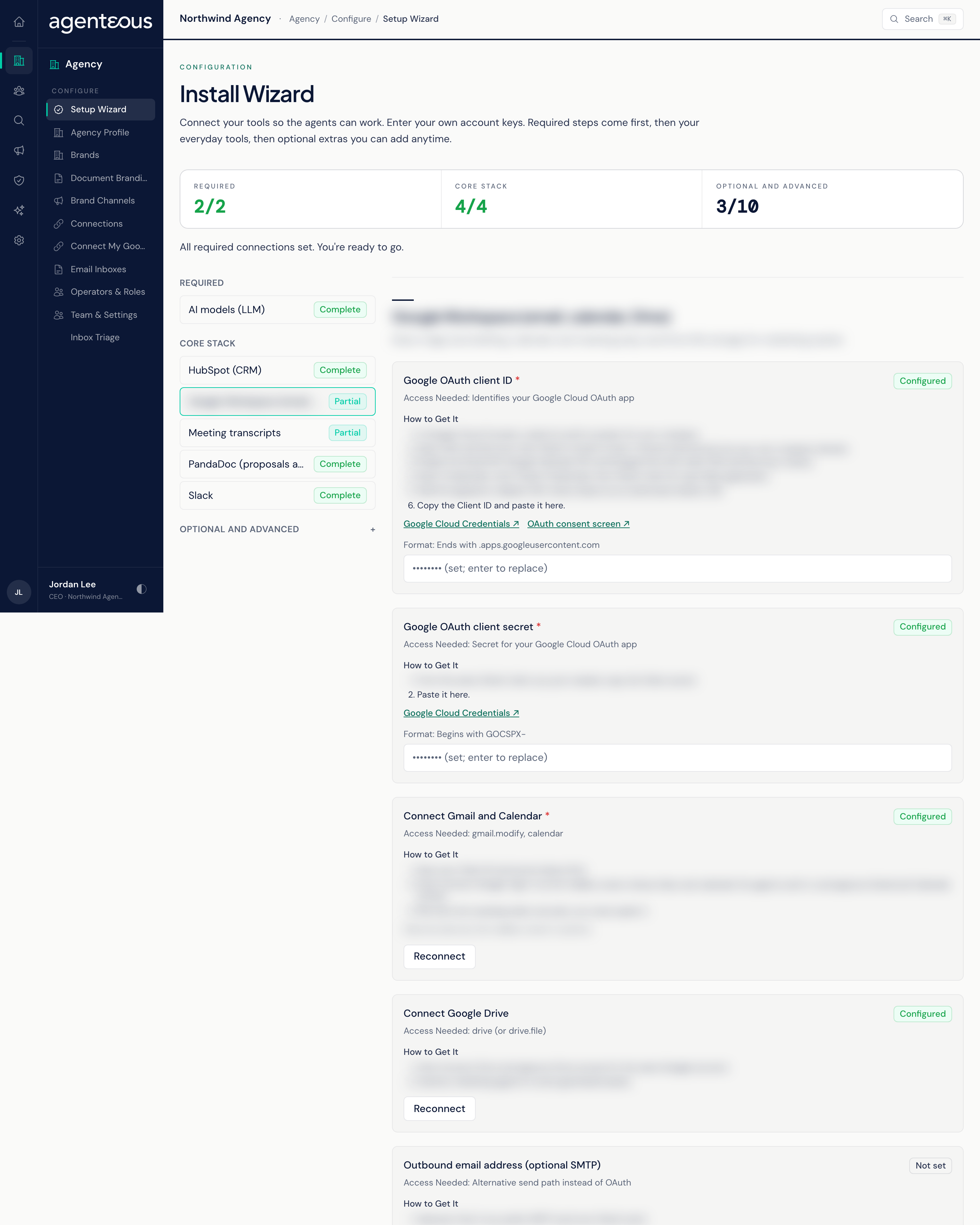
Progress
The top of the page tells you how far along you are, for example "2 of 3 required connections set". When every required connection is in place it reads "All required connections set. You're ready to go."
Steps
The steps are grouped in the order you should tackle them:
- Required: the AI models the agents run on.
- Core Stack: HubSpot (CRM), Google Workspace (email, calendar, Drive), meeting transcripts, PandaDoc (proposals and e-signature) and Slack.
- Optional and Advanced: SEO and search analytics, paid advertising, project management, blog and CMS publishing, audio and video transcription, video generation and publishing, text-to-speech, social scheduling (Buffer) and hiring signals.
Each step carries a badge: Complete when everything it needs is stored, Partial when some of it is, and Not Set when nothing is.
The Selected Step
Click a step to open it. You see:
- Heads Up: a note about anything unusual in this step, when there is one.
- Which Tool Do You Use?: for steps that support more than one provider, the choices and which one is active.
- One field per key, with Configured or Not Set beside it, the Access Needed for the key, How to Get It instructions, links to the provider's own pages, and the expected Format.
Paste a key and press Save. Keys are stored securely and never shown again: a stored field reads "set; enter to replace", and leaving it blank keeps the stored value. Press Test Connection to run a live check against the provider; it reports pass or fail and changes nothing.
Google Workspace and Drive use a sign-in instead of a pasted key: press Connect Google or Connect Drive and approve access in Google. Once connected the button reads Reconnect.
Where a step offers several providers, Switch to a provider makes it the active one. The switch tests the connection first and changes nothing if the test fails. Some services pick up the new provider only after a restart, and the page tells you when that applies. A few steps also have Load Options, which reads choices (such as projects) from the connected account so you can pick from a list.
Work top to bottom. Get the required step green first, then the core stack, and come back for optional extras when you need them.
Who Uses It
- Ops Admin, Admin Operator and CCO: save keys and switch providers. Every save is recorded in the Audit Log.
- Anyone signed in: can open the wizard and run Test Connection to check that a tool is still connected.