Audit Log
What It's For
The Audit Log is the searchable record of significant actions on your install: settings saved, drafts approved and published, rule checks that allowed or denied an action, and more. Use it for compliance reviews, for working out after the fact who did what, and for producing a record of decisions. It is read-only: nothing in it can be edited or deleted.
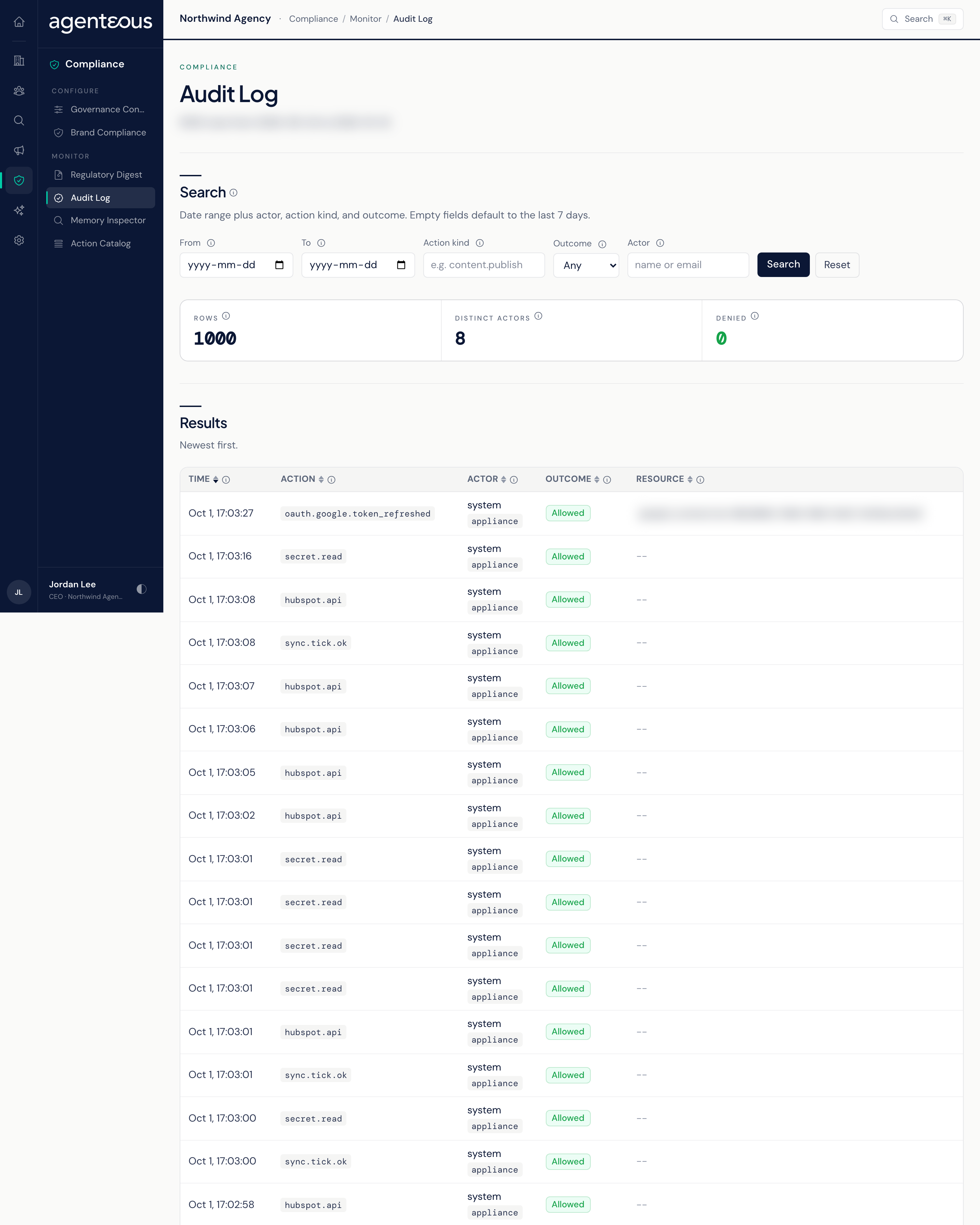
You find it in the Operator Console under Compliance.
Search
Fill in any of the fields and click Search. Reset clears them.
- From and To: the date range, both days included. Leave them empty to search the last 7 days. Dates follow UTC, so an action late in your evening may sit under the next day.
- Action kind: the type of action, written as area and verb, for example outbound.sent or outbound.compliance_gated. This must match exactly.
- Outcome: Any, Allowed (the action went through), Denied (a rule blocked it), or Error (it failed to complete).
- Actor: the person or agent who took the action. Part of a name or email address is enough.
The search covers at most 120 days at a time and returns at most 1,000 rows. If you hit either limit, narrow the date range. A one or two day window is quicker to read and review.
Your search is part of the page address, so you can bookmark it or send the link to a colleague, and the back button returns to your previous search.
Results
Three tiles sum up the search:
- Rows: how many actions matched.
- Distinct actors: how many different people or agents appear in them.
- Denied: how many were blocked by a rule. Zero is normal; anything else is worth a look.
The Results table lists matching actions newest first, showing the time, the action, the actor, the outcome, and the resource the action touched (a draft, a campaign, a setting, a brand). The actor can be a person on your team, an agent acting for a clients, or the platform itself.
There is no export button on this screen.
Who Uses It
- Compliance officers: review decisions and denied actions for a period.
- Agency owners and operations administrators: check who changed a setting or approved a piece of content.
Related
- Monitoring: the Events tab shows the latest 200 entries from the same record, without a search.
- Governance
- Brand Compliance
- Memory Inspector