Brand Compliance
What It's For
Brand Compliance is where you control the brand check that Brand Guard runs on marketing drafts. You set each brand's rules, choose whether the check runs and whether it can hold a draft back, and review every check it has made. It has three tabs: Rules, Gate, and Brand Guard.
You find it in the Operator Console under Compliance. It is available on every install.
The check runs at the point a marketing item is about to go out: when you approve an email, landing page, web page, podcast episode, or video; when a blog or LinkedIn post publishes, including a scheduled post that publishes on its own; before a design is posted for approval; and when PPC ad copy is generated. Whether it runs, and what it can do, depends on the gate mode on the Gate tab. The shipped setting is Warn, so on a new install drafts are checked and their flags are recorded, but nothing is held back until you change it.
Rules
The brand rules Brand Guard checks a draft against. Each brand keeps its own set, and Brand Guard reads them fresh for every draft it checks.
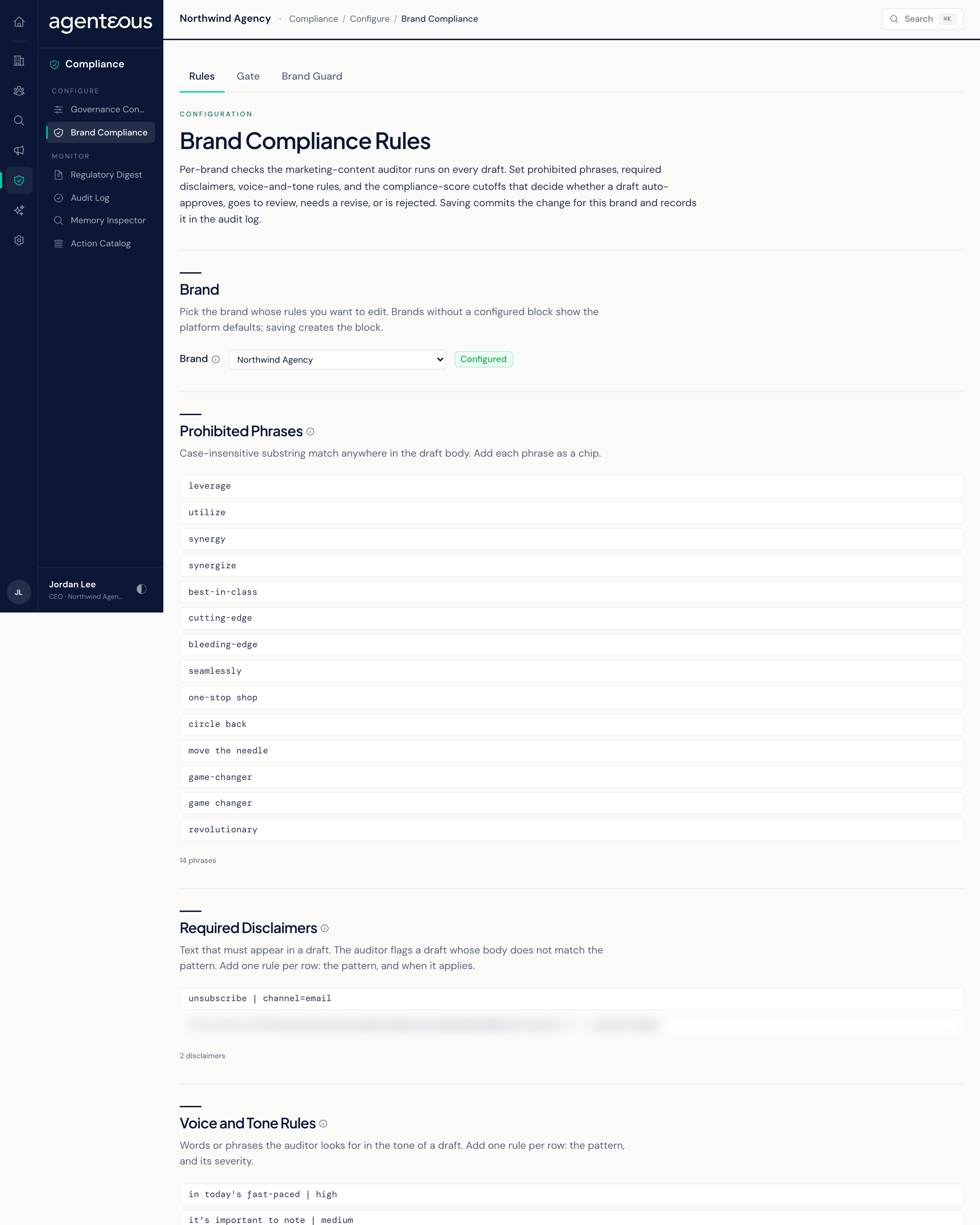
Pick a brand at the top. A Configured badge means the brand has its own rules; Platform Defaults means it has none yet and the defaults apply. Saving creates the brand's own set. Click Edit to open the rules for that brand:
- Prohibited Phrases: words or phrases that must never appear. Matching ignores capitals and catches the phrase anywhere in the text, even inside a longer word or hashtag. A single hit rejects the draft whatever its score, so keep this list short. A phrase inside quotation marks or on a quoted line is not counted. Every brand also blocks "guaranteed ROI" and "100% satisfaction". Separately, a draft is rejected whatever its score if it cites an outside source, makes a performance claim that does not appear word for word in one of your approved proof points, or names a term on your white-label list.
- Required Disclaimers: text a draft must contain, such as a paid-promotion disclosure. Each row has a pattern and a When setting: Always, On First Mention, When Discussing... a topic you name, or Custom.... Always requires the disclaimer in every draft. When Discussing... requires it only when the draft mentions the topic you type (matching ignores capitals). On First Mention requires it only when the draft mentions the term you type, and the disclaimer must appear at or after that first mention, not above it. Both need a topic or term: with none typed, the rule runs as Always, and the page says so under the row. A Custom value of "channel=" followed by a channel name limits the rule to that channel, and "contains:" followed by a phrase limits it to drafts containing that phrase. A draft missing a required disclaimer is rejected whatever its score.
- Voice and Tone Rules: words or phrases Brand Guard notes when it finds them. Each row offers a severity: Low (noted, light tilt on the score) and Medium (flagged, tilts the score) are shown to the scoring model, so they tilt the compliance score but never decide the outcome alone. High (never auto-approves) stops a draft from auto-approving, so it goes to a human, and brings in the stronger scoring model. Block (reject outright) rejects the draft, the same as a prohibited phrase.
- Compliance Score Cutoffs: Brand Guard scores each draft from 0 to 100 against the brand (the compliance score, shown on screen as BCS). At or above Auto-Approve (85 by default) the verdict is auto-approve. From Review (70) up to Auto-Approve it is review, and from Revise (50) up to Review it is revise; both come with suggested edits. Below Revise it is reject. What each verdict does to the draft depends on the gate mode (see Gate). The cutoffs must run in order: Auto-Approve at least Review, Review at least Revise.
- Scoring Model Escalation: which AI model scores a draft. Auto uses the stronger model only when a High or Block rule or a prohibited-text check fired on the draft; Always uses it on every draft (slower and costlier); Never always uses the standard model. It only picks the model: the verdict cutoffs apply the same either way, and it does not notify anyone.
Click Save Rules to apply. The next draft for that brand is checked against the new rules. Saving needs a role that can manage admin configuration, and every save is recorded in the Audit Log.
Gate
The screen is titled Brand Compliance Gate. At the top, the gate mode decides what happens when someone approves a marketing draft for publishing:
- Enforce: the check runs and can hold a draft back. Blog posts and LinkedIn posts publish only on an auto-approve verdict. For email, landing pages, web pages, podcasts, video, and designs, only a reject holds the draft; review and revise verdicts go through. If the check itself cannot run, the draft is held too.
- Warn: the check runs and records its flags, but never holds a draft back. Blog and LinkedIn posts publish whatever the verdict, and a draft the check rejects still goes through when someone approves it in Marketing Email, Marketing Landing Pages, Web, Podcast, or Video, and a design the check rejects is still posted for approval. The rejection is recorded as warned, so you can see what would have been held. The one exception, in every mode except Off: a draft the check could not run on is held. This is the shipped setting.
- Off: no brand check runs, and approved emails send and Marketing Landing Pages assets publish as normal.
A held draft is marked blocked. Overriding the decision on the Brand Guard page in the app records the override but does not release the draft. A blocked email, landing page, web page, podcast episode, or video can be overridden from its own page in the app, which marks it approved; an overridden email or landing page asset is currently still refused when you send or publish it.
Changing the mode needs a role with the Edit Governance Rules capability. It applies straight away to every brand.
The Gate tab holds only the gate mode. The score cutoffs are each brand's own, on the Rules tab.
Brand Guard
A read-only record of every check Brand Guard has made on this install, newest first, 25 to a page. The four tiles at the top count the checks by outcome: Audits is every check, Approved counts auto-approve verdicts, Redline counts review and revise verdicts, and Blocked counts reject verdicts plus checks that could not run (gate_failed). The Decision column shows the outcome of each check; under Warn it keeps the check's own decision, so a reject that was let through still reads reject.
The Recent Audits table shows, for each check, the draft, its brand, the agent that asked for the check, the kind of draft, its compliance score, the decision, the severity of the worst problem found, how long the check took, and when it ran. Decisions are auto-approve, review, revise, reject, or gate_failed (the check could not run).
Checks come from Marketing Content, Marketing Social, Marketing Email, Marketing Landing Pages, Marketing Video, Marketing Podcast, Marketing PPC, Marketing Web, and Marketing Designer. To re-run a check or record an override, use the Brand Guard page in the app.
Who Uses It
- Compliance officers: set the gate mode and keep each brand's rules current.
- Brand and marketing leads: maintain prohibited phrases, disclaimers, and tone rules for each brand.
- Account managers: look up why a draft was held back or sent for revision.