Brand Channels
What It's For
Brand Channels holds each brand's settings for the places its content goes: the voice its videos speak with, the blog its long-form posts land on, its LinkedIn presence, the syndication platforms it may use, and which publisher handles each social network. In the Operator Console, under Agency, open Brand Channels. Five tabs run along the top: TTS, CMS, LinkedIn, Syndication and Social Publishing. Every tab starts with a Brand picker; the default brand is selected first, and saving changes only the brand you picked. Social Publishing is the exception: it opens on Default (All Brands), and saving there sets the routing for every brand that has no override of its own.
If no brands exist yet, each tab asks you to add one on Brands first.
TTS
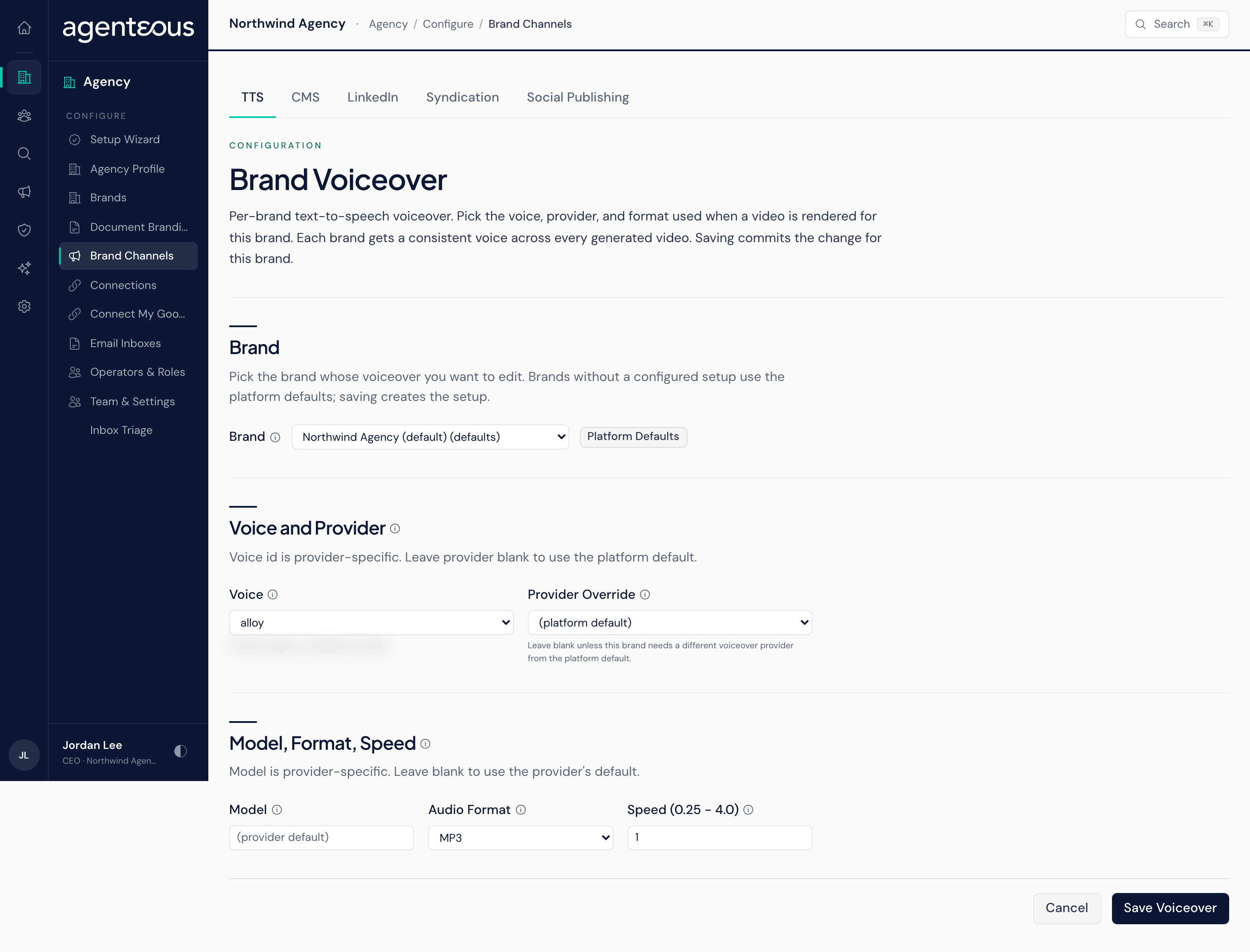
The page heading reads Brand Voiceover. It sets the text-to-speech voice used when Marketing Video renders a voiceover for this brand, so every video for the brand sounds the same. A brand you have not set up shows Platform Defaults; saving creates its own setup and the badge changes to Configured.
- Voice and Provider: pick the Voice. Provider Override uses a different voiceover provider for this brand only; leave it on the platform default unless you need one. The voice list follows the provider you choose.
- Model, Format, Speed: Model is provider-specific; leave it blank for the provider's default. Audio Format is the file type of the voiceover (MP3 is the usual choice; WAV is lossless but larger). Speed runs from 0.25 to 4.0, where 1.0 is natural.
Press Save Voiceover. The change applies to the brand's next voiceover.
CMS
The page heading reads Brand Publishing. It sets where this brand's long-form content (blog posts, articles, case studies) is published.
- Provider: HubSpot Blog, WordPress, or none. None opts the brand out of long-form publishing.
- For HubSpot Blog, enter the numeric Blog ID of the destination blog.
- For WordPress, enter the Site URL and the Username the posts are published as. The WordPress password is not entered on this tab.
- Defaults: a Default Author Email, Default Category and Default Tags, used when a draft does not set its own.
Press Save Publishing Setup. This tab only chooses the destination: publishing is a separate step on each approved post. If brand checking is set to Enforce, a post that fails the check is marked blocked and nothing is published; in Warn, the shipped default, it is flagged but still goes out; Off skips the check. See Brand Compliance. A post for a brand with no provider, or an incomplete one, is marked failed.
The page heading reads Brand LinkedIn. LinkedIn posts go out through your install's social publishing provider, HubSpot Social by default; with HubSpot Social, each account you list here must also be connected as a social channel in your HubSpot account.
- Company Page: the Company ID, which starts with "urn:li:" (find it in your LinkedIn company page admin under Settings), and a Channel Name most brands leave on its default. Leave both blank to opt the brand out of company page posts.
- Staff Accounts: the team members this brand may post as. Each row has a Staff ID, a Display Name (how they appear on approval cards and in the audit trail) and a Channel Name. Use Add Staff Account and Remove to manage rows; rows with no staff id are dropped when you save.
A brand with neither a company id nor staff accounts is opted out of LinkedIn. The publisher refuses a company post for a brand with no company id, and a staff post for anyone not listed here. Press Save LinkedIn Setup; it leaves every other brand setting untouched.
Syndication
The page heading reads Brand Syndication. It controls which long-form syndication platforms this brand may use: Hashnode, Dev.to, Medium, Reddit and Newsletter.
- Platforms: switch each platform on or off for the brand, then press Save Platform Toggles. A new brand starts with every platform on. A platform that is off is refused for this brand, even if someone asks for it directly.
- Credentials: one block per platform, showing whether each field is Set or Empty. Enter values and press Save on that platform. Values are stored securely and never shown again. Medium and Reddit use exported browser cookies, which expire and need exporting again from time to time. Newsletter only needs the from-address, because it creates a draft in Gmail rather than sending anything.
A platform can be on but still missing credentials; it shows a warning until you add them. Syndicated versions of a post wait for review. An approved item with a scheduled time is published automatically when that time arrives.
Social Publishing
Routes each social network to a publisher. Pick Default (All Brands) to set the routing every brand uses, or pick one brand to override it.
The Platform Routing table has one row each for Twitter / X, Bluesky and Threads:
- Publisher: Buffer, HubSpot Social or Manual Link. Manual Link posts nothing for you: the post is marked published and you post it by hand.
- Buffer Channel: which connected Buffer channel to use. Auto (Single Channel) works only when exactly one channel is connected; otherwise pick one, or the post fails.
- Source: whether the row comes from this Brand, the Default, or the built-in Fallback.
Out of the box all three go to Manual Link; Buffer is used only if you choose it. For each network, a brand's own setting wins, then the default, then the fallback.
LinkedIn is not in the table: LinkedIn posts always publish through the LinkedIn connection, using the LinkedIn tab's settings.
Press Save Routing to apply. Test Buffer Connection checks that Buffer is reachable and changes nothing. Social posts are published only after you approve them.
Who Uses It
- Ops Admin, Admin Operator and CCO: save the TTS, CMS, LinkedIn and Syndication platform settings. Each save is recorded in the Audit Log.
- Marketing Operator: saves Syndication credentials and Social Publishing routing, along with the administrator roles.