Principal Inbox
What It's For
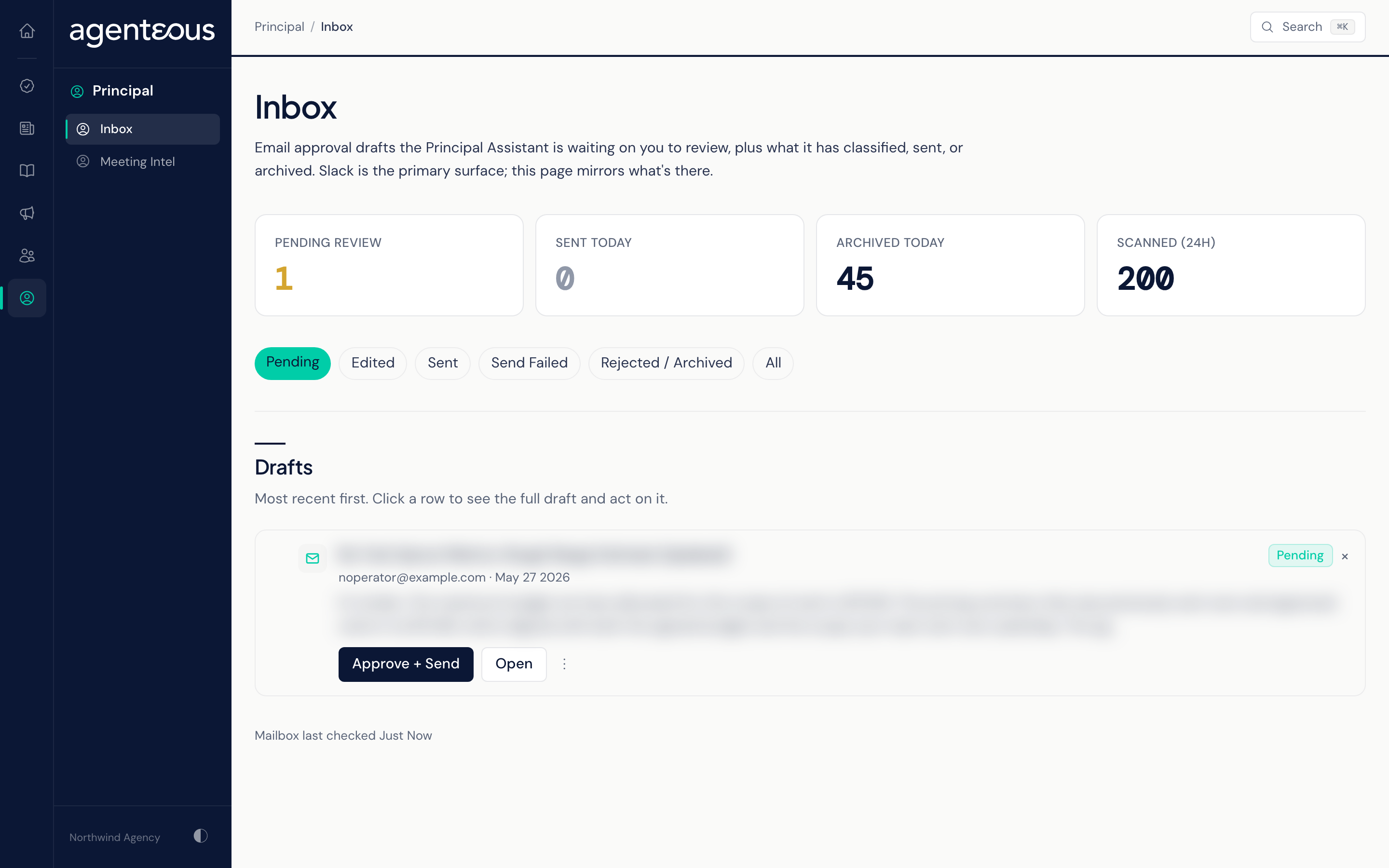
Principal Inbox (labelled Inbox under Principal in the rail) holds the email replies the Principal Assistant has drafted for your agency's principal. You read each proposed reply and decide: send it, reject it, or archive the email without replying. Approve + Send sends the email straight away from the principal's own mailbox. The same drafts appear as cards in the principal's Slack channel and in the Work Queue; this page mirrors them.
How Drafts Arrive
The Principal Assistant checks the principal's mailbox every few minutes. It sorts each new email, and for one that needs action it drafts a reply in the principal's voice, learned from their recent sent mail. Each draft then waits for a person to decide it.
Counts
- Pending Review: drafts waiting for a decision.
- Sent Today, Archived Today and Scanned (24H): drafts sent, drafts rejected or archived, and emails sorted. These are counted over the most recent 200 drafts and sorted emails rather than strictly by date, so on a busy mailbox they can include older items.
Drafts
Filter the list with the pills at the top: Pending (the default), Edited, Sent, Send Failed, Rejected / Archived and All. The Rejected / Archived pill shows rejected drafts only; use All to see archived ones.
Each row shows the subject, the sender, when it arrived, the start of the original email and a status pill. A draft that is still waiting has:
- Approve + Send: sends the reply right away, without opening it first.
- Open: shows the full draft.
- In the row's menu, Archive (no reply).
You can also hide a row with its close control. That only hides it in this browser; it does not decide the draft.
The footer reads "Mailbox last checked", with how long ago the assistant last looked at the mailbox. When a filter has nothing in it, the page reads "No Drafts in This View" and reminds you that a quiet inbox is normal.
Draft Detail
Opening a draft shows the Recipient, the Proposed Subject and the Proposed Body. The Recipient is the person who wrote to the principal, but the reply goes to everyone on the original email: the sender, plus everyone else who was on it, copied in. The body is shown without a signature: the principal's usual signature is added when the reply is sent, with the earlier messages quoted underneath. You cannot edit the subject or body on this page.
While the draft is undecided, three buttons appear under "What do you want to do?":
- Approve + Send: sends the reply now from the principal's mailbox, as a reply-all with their signature, records the send, and archives the original email once the reply has gone out.
- Archive (no reply): drops the draft and removes the original email from the inbox without replying.
- Reject: drops the draft and leaves the original email where it is.
Each draft can be decided once, here, in Slack or in the Work Queue. If someone has already acted on it elsewhere, the draft opens showing what was decided, with no buttons.
Approve + Send emails the recipient from the principal's account the moment you click it. Read the full draft first.
When Something Looks Off
- "Inbox API Not Reachable" means the page could not load. Refresh in a moment; nothing in the mailbox is lost.
- "Could not apply that action." means the decision did not go through, or you do not have permission to decide it. Try again, or ask a teammate with access.
- A reply failed to send. If the mailbox refuses the send, the page shows the reason ("Why This Failed: ..."), the row's pill reads Failed, and the draft is listed under Send Failed, not Sent. A failed reply cannot be approved again, so reply from the principal's mailbox instead and tell your operator.
- The "Mailbox last checked" time is old: ask your operator to check the Principal Assistant and its Gmail connection.
Who Uses It
- Principals: clear email replies quickly, in your own voice.
- Executive assistants and chiefs of staff: review and send replies on the principal's behalf.