Work Queue
What It's For
The Work Queue is the one list where every item that needs a human decision lands: client replies, the principal's email replies, marketing pieces, queued outbound messages, proposals, suggested targeting changes and testimonial candidates. Items are grouped by deadline so the most urgent work sits at the top.
Acting here is real. Depending on where an item came from, a button can send an email to a client straight away, send a proposal to a prospect, or schedule a marketing piece to publish. Read What Each Action Does before you work the list for the first time.
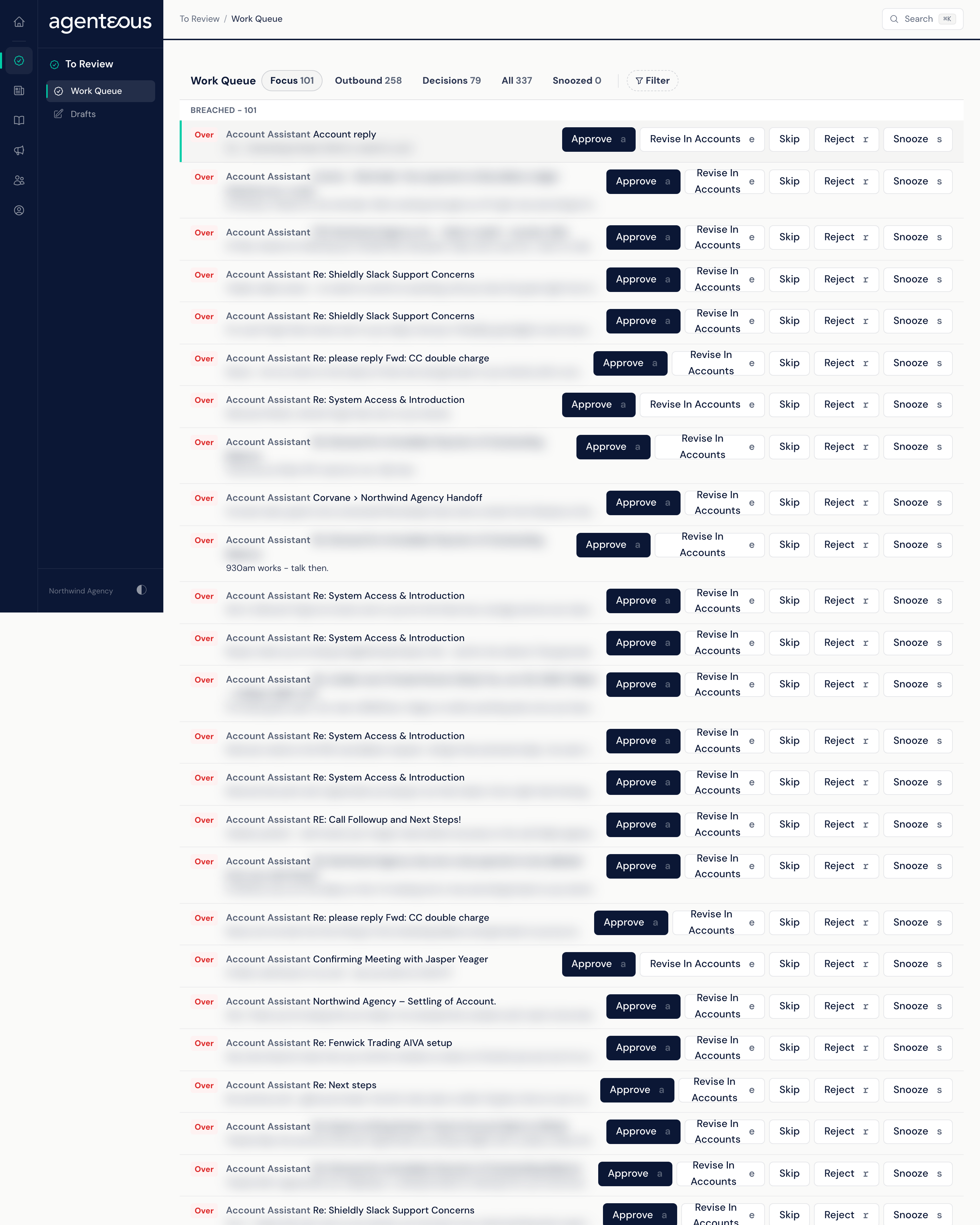
Views
Five tabs sit across the top, each with a live count:
- Focus (the default): items that are past their deadline or due today. Only client replies and the principal's email replies carry a deadline, so Focus shows only those.
- Outbound: drafts and messages waiting to go out.
- Decisions: yes-or-no calls, such as a proposal to send, a targeting change or a testimonial candidate.
- All: everything, with or without a deadline.
- Snoozed: items you have set aside.
Marketing pieces, proposals, outbound actions, targeting changes and testimonials have no deadline, so they never appear in Focus. Look for them under Outbound, Decisions or All.
Filter
Filter narrows the list to one or more agents. Each agent you pick shows as a chip you can remove, and Clear appears once you have picked two or more. The view and filter are part of the page address, so you can bookmark or share a filtered view.
Deadline Groups
Within each view, items are grouped under three headings:
- Breached: past the response deadline. Handle these first.
- Due Today: on the clock for today.
- No Deadline: waiting, but with no response deadline.
The chip on the left of each row reads Over (past deadline), Due (has a deadline that has not passed) or OK (no deadline). The row also names the agent, gives a title and a one-line preview, and, when the item has a Slack card, the channel it was posted in.
What Each Action Does
The buttons on a row depend on where the item came from. Not every row has every button.
| Item | Buttons | What happens |
|---|---|---|
| Client reply from the Account Assistant | Approve, Revise In Accounts, Skip, Reject | Approve sends the reply to the client right away from the connected mailbox, as a reply-all with the earlier messages quoted, and archives the original email. |
| Principal email reply | Approve, Reject, Archive | Approve sends the reply right away from the principal's mailbox. Archive files the email without replying. |
| Marketing piece | Approve, Reject | Approve passes your decision to the agent that wrote it. For Marketing Content and Marketing Social, approving schedules the piece into the next open publishing slot, and it is published automatically at that time. For Marketing Email and Marketing Landing Pages, sending or publishing is a separate step (see below). |
| Outbound message (text, LinkedIn message, voicemail drop, video, mail or gift) | Approve, Cancel | Approve records your approval, but Agenteous does not deliver the action itself: nothing is sent, posted or shipped (see below). A message that failed its check shows Cancel only. |
| Proposal | Approve & Send, Reject | Approve & Send sends the proposal straight away. With the shipped settings it creates or updates the HubSpot deal, sends the proposal document to the prospect for signature, and moves the deal to Proposal Sent. |
| Targeting change | Approve Change, Dismiss | Approve Change accepts the suggested change to who you target; Dismiss turns it down. |
| Testimonial candidate | Approve, Reject | Approve accepts the testimonial; Reject turns it down. |
More detail on the buttons that behave differently from what their name suggests:
- Revise In Accounts (client replies only) opens the draft in Accounts, where you can rewrite it with Revise. Pressing e does the same.
- Skip (client replies only) is permanent for that draft: the draft is closed and cannot be decided again, while the client's email stays open and its deadline keeps running. To set an item aside for later, use Snooze instead.
- Reject on a client reply marks the thread rejected and stops its deadline. No new draft is written until the client sends new mail.
- On marketing pieces, what follows Approve depends on the agent. Approving a Marketing Content or Marketing Social piece gives it the next open publishing slot, usually the next weekday morning, and it is published automatically when that time arrives. Only approve what you are ready to see go live. Marketing Email sends only when someone sends the campaign, and only if your agency has turned outbound email on. Marketing Landing Pages go to HubSpot only when you choose Publish to HubSpot, which creates a HubSpot draft unless you choose to push it live.
- For Marketing Email, Landing Pages, Podcast, Video and Web Pages, approving runs the brand check when your operator has set it to Enforce or Warn. Under Enforce, a piece the check rejects is marked Blocked instead of approved, even though the queue shows "Approved"; check the piece on its agent's page. Under Warn (the shipped setting), a rejection is recorded as warned and the piece is approved. See Brand Guard for how each mode behaves.
- On outbound messages, Approve marks the action approved and the row leaves the queue. The confirmation names the kind of action, for example "Approved. Nothing was sent from here: carry out this Text Message yourself." No delivery channel is connected, so no text, voicemail drop, video, mail or gift goes out. Carry out the approved action yourself. A LinkedIn message is never sent by the product in any case, because LinkedIn does not allow it: copy the approved text and send it from your own LinkedIn account.
Decision Rows
A decision row shows a Review button. Click it, or anywhere on the row, to open the Why This Surfaced card: a short explanation, the proposed change and what it affects, with a See Detail link when there is more to read. The card shows the main button (for example Approve Change) and the alternative (for example Dismiss). The alternative opens a box marked "Reason (optional)" before you confirm it.
Snooze
Every row has Snooze, with three choices: In 2 Hours, Tomorrow 9 AM (in your workspace's business-hours time zone) or Custom... for an exact date and time. A snoozed item leaves the list and comes back on its own. Open the Snoozed view and use Wake Now to bring one back early.
Snoozing does not decide anything. It leaves the item, and any Slack card for it, untouched, and the response deadline keeps running.
Slack Cards
When an item also has a Slack card, deciding it here clears the card, and the confirmation reads, for example, "Approved - Slack card cleared". Snooze is the exception: it leaves the card alone. The card is cleared only when the decision went through.
Keyboard Shortcuts
- j and k move down and up the list.
- a, e and r approve, open in Accounts and reject the selected item when it is a draft row with that button.
- s snoozes the selected item for two hours. In the Snoozed view, s wakes it instead.
Skip has no shortcut.
Permissions
Every row shows its buttons whether or not you are allowed to use them. If your role cannot decide an item, clicking a button shows "Could not apply that action. Try again." and the item returns to the list. Ask a teammate who has access to make that call.
Proposals have an extra rule: only the person who ran the sales call, a designated approver or the principal can decide one. Anyone else sees the same error and the proposal stays in the list.
When Something Looks Off
- "Nothing Is On The Clock" on Focus means nothing is past due or due today. Check All for everything else.
- "Queue Is Clear" means the view is empty.
- "Could not load:" followed by a source name means one source failed to load. The rest of the queue still shows.
- "Work Queue Is Unavailable Right Now" means the queue itself did not respond. Try again in a moment.
- A red message appears and the row stays. If an action could not be carried out (for example a proposal whose HubSpot or document step failed, one you are not allowed to decide, or one someone else already handled), the row stays in the list and a red message explains why. Open the item from its own page for more.
- A reply you approved did not reach the recipient. If a client reply or a principal reply could not be sent, for example because the mailbox is disconnected, a red message says the reply was not sent and gives the reason. The draft still counts as decided and does not come back here. Reply from the mailbox; the draft shows under Send Failed in Principal Inbox for principal replies.
Who Uses It
- Account managers: approve, reject or skip client replies before their deadline.
- Principals and their assistants: send or archive the principal's email replies.
- Marketing staff: approve or reject marketing pieces from every writer agent.
- Agency owners and sales leads: decide proposals, outbound messages, targeting changes and testimonials.