Accounts
What It's For
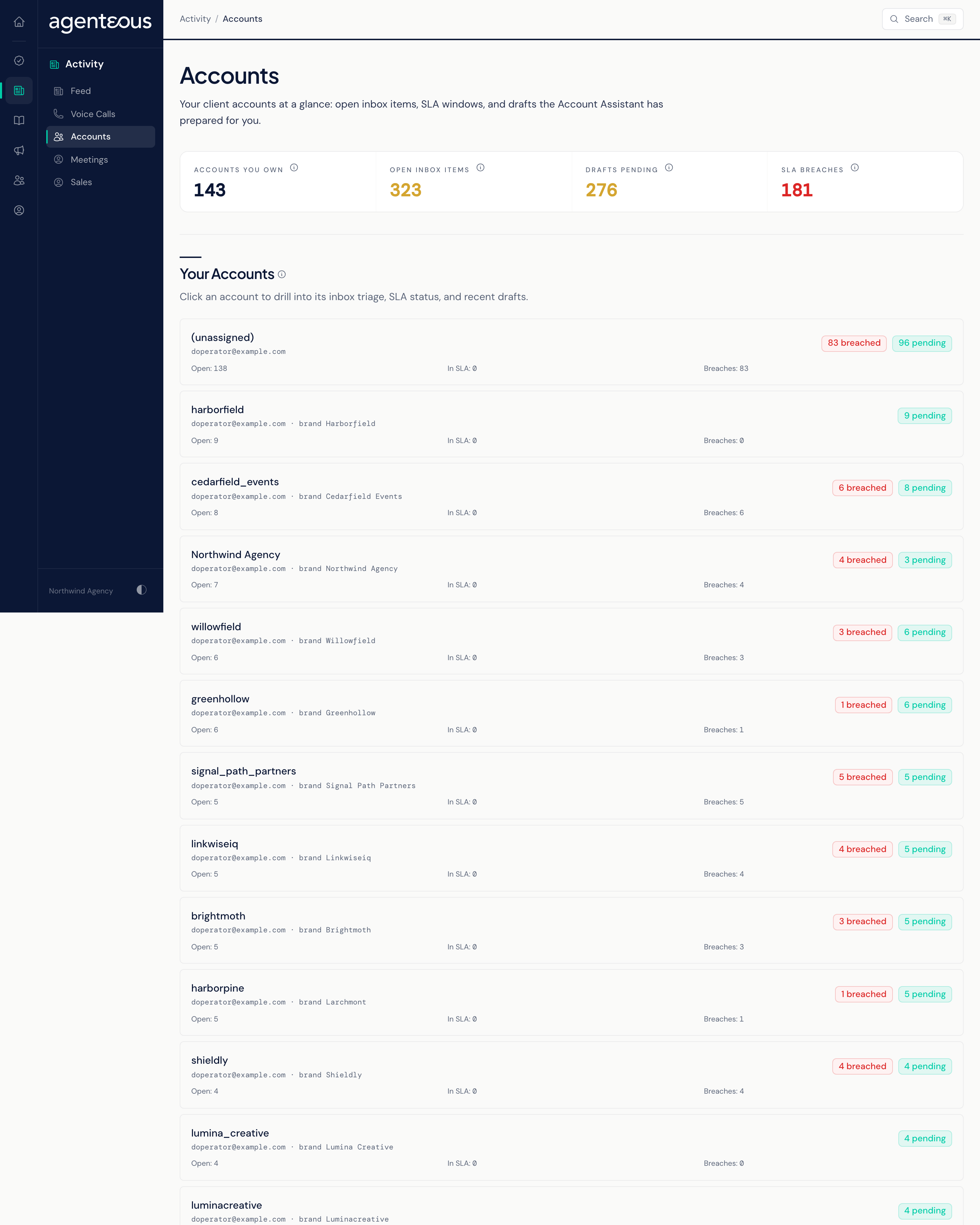
Accounts is the account manager's view of the Account Assistant's work: one card per client account, with the client email that needs answering, the response deadlines, and the replies the assistant has drafted. You drill into an account to see its inbox and drafts, and open a draft to approve, revise, reject or close it.
Approving a reply here sends it to the client straight away. Read Review Draft before you act on your first one.
How Mail Reaches This Page
The Account Assistant checks the connected mailbox every few minutes. It sorts each new client email into one of four categories: Response Required, FYI, Escalation Signal or Not a Client Email. Only Response Required and Escalation Signal emails get a drafted reply; FYI and Not a Client Email never do. The reply is written in the account manager's voice, learned from their past sent mail.
Each email gets a response deadline from the client's service tier. About every 30 minutes the assistant checks those deadlines and reminds the owning account manager as a deadline nears, passes, and needs escalating.
An account appears on this page once the assistant has sorted mail for it.
Accounts
Four counts sit at the top:
- Accounts You Own: the client accounts the assistant is watching for you.
- Open Inbox Items: client emails that need a response and have not yet been decided.
- Drafts Pending: drafted replies waiting for your decision.
- SLA Breaches: emails whose response deadline has passed without a decision.
Under Your Accounts, each card shows the account manager, the brand, badges for breaches and pending drafts, and counts of open items, items still within their deadline, and breaches. Click a card to open the account. The cards only display; you act from the account and draft pages.
If there are no accounts yet, the page reads "No Accounts in View Yet". If the page cannot load, it reads "Accounts Are Unavailable Right Now".
Account
An account page shows four counts (Open Items, Within SLA, SLA Breached, Drafts Pending), then two sections:
- Inbox Triage: the most recent client emails for this account, each with the assistant's category and its deadline position.
- Recent Drafts: the replies drafted for this account, newest first. Open one to review it.
Open all related threads opens the full inbox for the account.
Inbox
The inbox lists every client email the assistant sorted for this account, newest first, with From, Subject, Category, Status, SLA and Received. Filter it with the pills at the top:
- All
- Needs Reply: sorted and waiting for a reply.
- Awaiting Approval: a draft is ready for your decision.
- Sent
- Rejected / Skipped
Open Draft on a row takes you to the draft.
Review Draft
The draft page shows the Inbound Thread with the assistant's category, the Proposed Reply, Why This Draft (the assistant's reasoning and the voice example it followed), a Decision area and a History of what has happened to the draft.
The Decision area has a Reason / New Body box and four buttons:
- Approve and Send: sends the reply to the client right away from the connected mailbox, as a reply-all with the earlier messages quoted. The original email is archived and its deadline is met.
- Revise (Send New Body): paste your own full reply into the Reason / New Body box first. Your version is sent to the client right away in place of the draft, and the change is kept so the assistant can learn your voice. If the box is empty, the page asks you to paste a body.
- Reject: turns the draft down. Put a short reason in the box if you like. The thread is marked rejected and no new draft is written until the client sends new mail.
- Snooze (Leave Open): closes this draft without sending anything. The client's email stays open and its deadline keeps running. This is not a timed snooze; the draft does not come back.
Approve and Revise send email to your client immediately. There is no second step in Gmail.
Approving is the send: it does not depend on the platform's outbound email switch, which governs campaigns and other generated email. Sending approved replies has its own switch, set by your administrator (approved_reply_send_enabled in the outbound channel settings), and it is on unless they turned it off. When it is off, Approve and Revise send nothing and the page shows "Not sent: sending approved replies is turned off for this install".
If the reply could not be sent, for example because the mailbox is disconnected, the page shows a red error naming the cause and does not show the success message. The draft counts as decided and cannot be approved again, so reply from your mailbox.
Customer Success outreach drafts
A draft that came from a Customer Success Draft outreach button has no client email behind it, so it is never sent from this page. On these drafts the buttons read Approve and Save to Gmail Drafts and Revise (Save New Body to Gmail Drafts). Both save a new draft in the account manager's own Gmail Drafts, with their signature, addressed to the client's contact when one is on file and blank otherwise, and send nothing. The original is not archived and no deadline is met. The page then shows Saved To Gmail Drafts and "Approved and saved to the account manager's Gmail Drafts. Nothing was sent". Open the draft in Gmail, check the recipient and send it yourself. If Gmail refuses the draft, the page shows "Approved, but the draft was NOT saved to Gmail Drafts" with the cause. The same drafts appear in the Work Queue with an Approve and Save to Gmail Drafts button.
Each draft can be decided once. Afterwards the page shows the decision and reads "This Draft Has Already Been Decided". The same client replies also appear in the Work Queue, and a decision made in either place, or on the Slack card, counts for all of them.
Who Uses It
- Account managers: keep on top of client email and approve replies before their deadline.
- Client services leads: see which accounts have breaches or a backlog of drafts.