Companies and Contacts
What It's For
Companies and Contacts let you browse every company and contact from your HubSpot account, with client status, lifecycle stage and the Prospector's research shown alongside. Use them to find a record, queue research on it, or reach out. Most of what you see is read-only, but a few buttons do act: some queue research, some write to HubSpot, and some put an outbound message in the Work Queue for approval. Each one is described below.
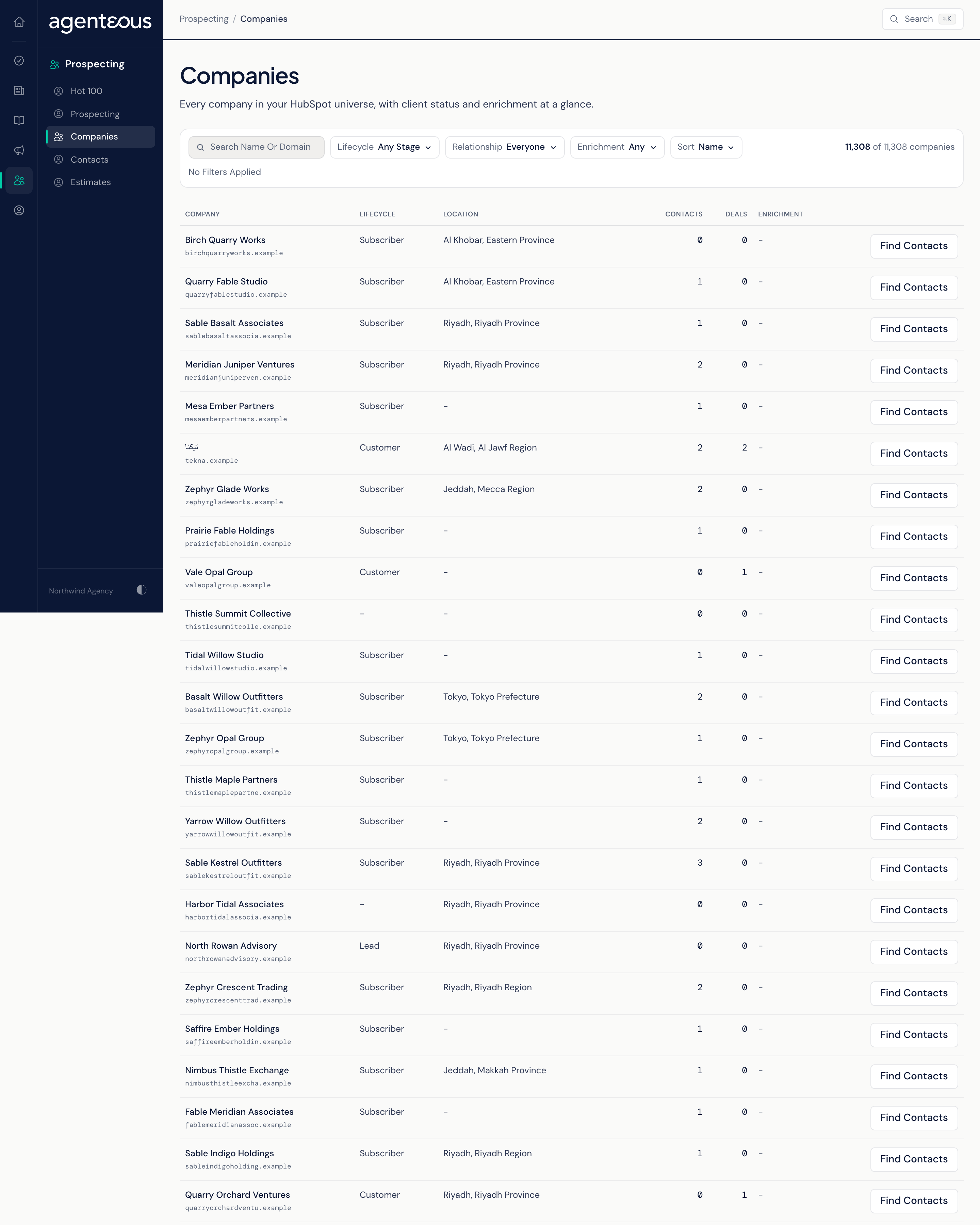
Companies
The Companies page lists every company, a page at a time.
Finding a Company
- Search Name Or Domain.
- Lifecycle: the HubSpot lifecycle stage, or Any Stage.
- Relationship: Clients Only, Prospects Only or Everyone.
- Enrichment: Enriched, Not Enriched or Any.
- Sort: Name, Most Contacts or Newest. Most Contacts is the slowest sort on a large account; it can take a few seconds.
Your filters are kept in the page address, so you can bookmark or share a filtered view. Clear All resets them. The count shown is every company that matches, not just the page in front of you, and search looks at all of them, not only the current page. Results can run up to a minute behind a fresh HubSpot sync.
The List
Columns are Company (with a Client badge for current clients, and the domain), Lifecycle, Location, Contacts, Deals and Enrichment (research status and ICP grade). Every company with a domain has Find Contacts, which queues the Prospector to find people at that company. The button then reads Queued, or Already Discovered if it has been done before. Nothing is sent to anyone.
When nothing matches, the page reads "No Companies Match". If the list cannot load, it reads "Companies Not Ready".
Company Detail
Click a company to open it. The header has the Client badge, Find Contacts, an Other Actions menu and the HubSpot button. The page shows:
- About: industry, lifecycle, location and domain.
- Contacts: the company's contacts, each linking to its contact page.
- Deals: with stage, amount and close date.
- Prospector Intelligence: research Status, ICP Grade, Readiness and the Discovered People the Prospector found, each with a confidence level.
- Activity: emails, meetings and notes logged in HubSpot.
Contacts
The Contacts page lists every contact, a page at a time.
Finding a Contact
- Search Name, Email, Or Company.
- Lifecycle, HubSpot List and Enrichment filters.
- Sort: Name, Company or Newest. Contacts with no name sort to the end of the list. Company is the slowest sort on a large account; it can take a few seconds. A text search on a very large account can also take a couple of seconds the first time you run it.
The List
Columns are Contact, Title, Company (a link to the company), Lifecycle and Enriched (the date it was last researched). Each row has Enrich, which queues the contact for research; the button then reads Queued, or Already Queued. When the research finishes for a contact that is already in HubSpot, it fills in the contact's job title and LinkedIn link if they are empty, records when the contact was last researched, and adds a note with what it found on LinkedIn or in the news. It does not overwrite a job title or LinkedIn link that is already there.
Enrich All (with a count) queues every contact that matches your current filters, up to 500 per click. Contacts with free personal email addresses are skipped. If more than 500 match, narrow the filter and click again. Research progress shows on the Prospecting page's Enrichment tab.
When nothing matches, the page reads "No Contacts Match".
Contact Detail
Click a contact to open it. It shows Profile (email, phone, title, lifecycle, LinkedIn and company), Prospector Intelligence with Last Enriched, Deals and Activity. The header has Enrich, an Other Actions menu and the HubSpot button. A contact that has not been researched reads "This contact has not been enriched yet".
Reaching Out From a Contact
Other Actions on a contact opens a short compose panel for one of these:
- Text Message
- Draft LinkedIn Message
- Voicemail Drop
- Personalized Video
- Handwritten Note or Printed Letter (check the mailing address before you approve)
- Gift
Write or edit the message, then click Queue For Approval. Nothing is sent at this point: the message waits in the Work Queue until someone approves it. If the automatic check flags your message, the panel says so; edit it and queue it again.
Approve in the Work Queue records the approval, but Agenteous does not deliver these actions itself: no text, voicemail drop, video, note, letter or gift goes out, and the queue's confirmation says nothing was sent. Carry out the approved action yourself. A LinkedIn message is never sent by the product, because LinkedIn does not allow it: copy the approved text and send it from your own LinkedIn account.
The HubSpot Button
The HubSpot button opens a side panel of HubSpot actions for the record you are on. These write to your live HubSpot account directly and do not go through the Work Queue:
- Open In HubSpot: opens the record in HubSpot.
- Enroll In Workflow: enrolls the contact in one of your HubSpot workflows immediately.
- Enroll In Sequence: enrolls the contact in a HubSpot sequence, which then sends the emails you wrote in it from your connected inbox.
- Add A Task: creates a HubSpot task, with a due date and assignee. Undo removes it again.
- Segments (on the Contacts list): Create Segment makes a static HubSpot list from every contact matching your current filters.
Sequence enrollment sends real emails from your inbox. Check the sequence in HubSpot before you enroll anyone.
Who Uses It
- Business development staff: find people at target companies and queue them for research.
- Account managers: look up a client's contacts, deals and recent activity.
- Sales leads: build HubSpot lists and queue personal touches for approval.