Engagement Health
What It's For
Engagement Health shows your whole book of clients ranked by a daily engagement score, lowest first, so you can see who is drifting before they tell you. A second tab keeps the history of at-risk alerts and holds the switch that decides whether those alerts go out. In the Operator Console, under Clients, open Engagement Health; the page has two tabs, Engagement Health and Engagement Health Alerts.
How the Score Works
Once a day at 9am, Agenteous records a health snapshot for every client, looking back over the last 28 days of activity from your connected sources. The score is an equal-weight average of the parts that have data. Three parts are always scored:
- Recency: how recently there was contact. Contact today counts fully; a client with no contact for 30 days scores zero on this part.
- Frequency: how much contact there was. The first few touches lift the score quickly and extra volume adds less, up to about ten in the window.
- Source diversity: how many different sources the contact came through, such as email and HubSpot, up to three.
Three more count only when the client has the data behind them: the sentiment of recent messages, the client's history of missed response deadlines, and the client's contract value tier, where a higher-value relationship lifts the score. A part with no data is left out of the average rather than counted as zero.
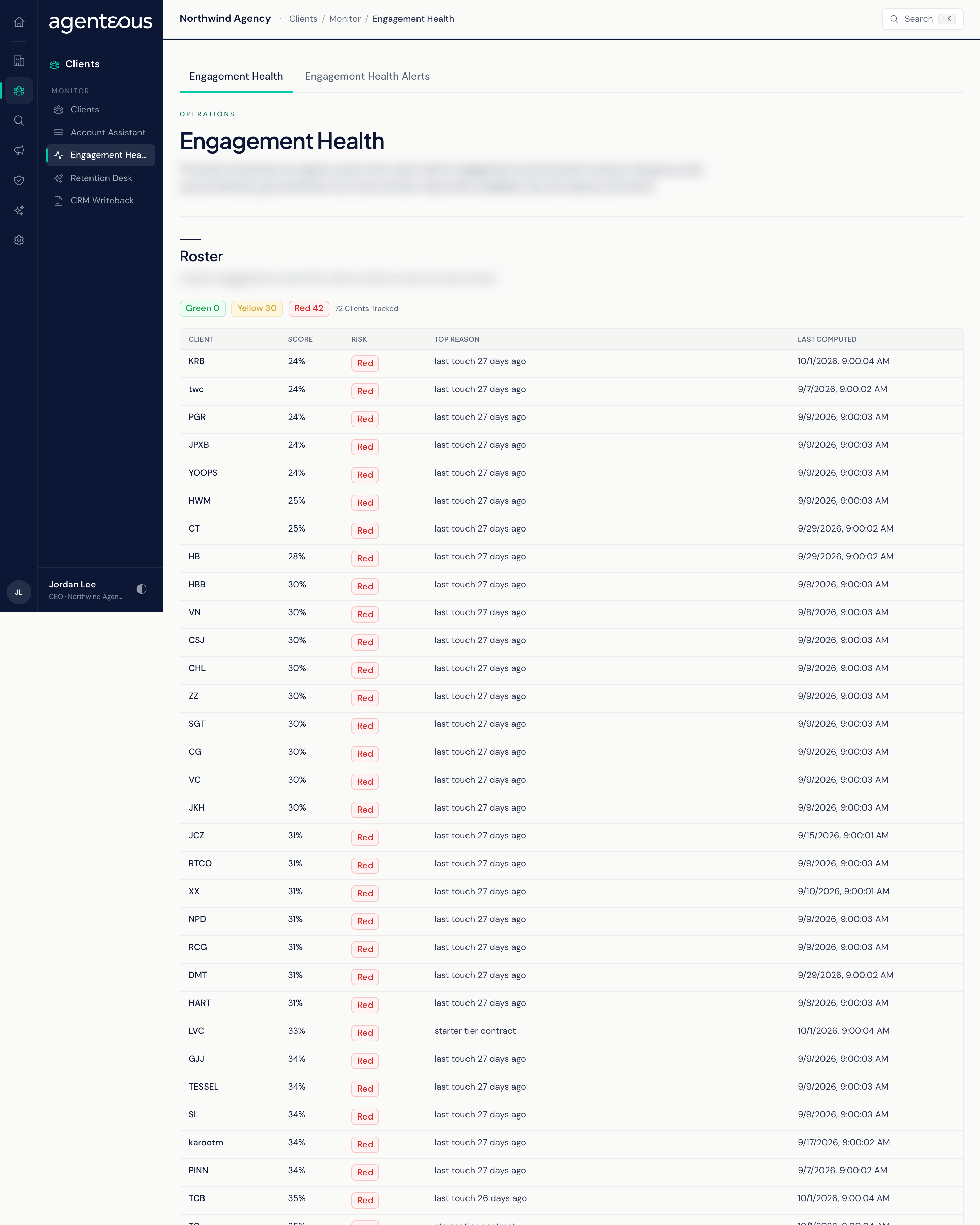
The score maps to a band: 70 percent or higher is Green, 40 percent or higher is Yellow, and anything lower is Red. The Top Reason names the weakest part, so you know why a score is low without reading the math. Viewing the page does not recompute anything; it shows the latest snapshot.
Engagement Health Roster
The roster of tracked clients, lowest score first.
- Summary chips count how many clients are Green, Yellow and Red, and the total tracked.
- The table shows Client, Score (as a percent), Risk, Top Reason and Last Computed.
- Click a client row to open its score history for the last 90 days.
The tab is read-only. Before the first daily snapshot, it reads "No Snapshots Yet" and fills in after the first run.
Engagement Health Alerts
When a client's daily score crosses down into the Red band, Agenteous can send one Slack alert: a direct message to the fallback owner and a copy to the customer success channel. An alert fires only on the crossing, so a client that stays Red is not alerted again. If a client recovers and falls back into Red within 14 days of its last alert, no second alert is sent.
Alert Settings
Click Edit Settings to change two fields, then Save Settings:
- Fire Slack Alerts On At-Risk Crossings: turns the alert on or off. When it is off, no alert is sent and nothing new is recorded on this tab.
- Fallback Owner Email: the person who receives the direct-message copy of every alert, when the address matches someone on your team. Clients do not carry individual owners, so this is the owner shown for every alert. Leave it empty to send alerts to the customer success channel only.
Changes apply from the next daily run; nothing needs restarting. A badge shows Alerts On or Alerts Off at a glance. Saving needs the Ops Admin, Admin Operator or CCO role, and every save is recorded in the Audit Log.
At-Risk Crossings
Counters show Total Crossings, Clients and Owners for the last 30 days. Below them, one row per alert that fired, newest first: Time, Client, Score (from 0 to 1), Risk Level, Owner and Summary. Click a column header to sort. When nothing has fired, it reads "No engagement health alerts recorded yet."
Engagement Health is separate from the Retention Desk. Engagement Health measures contact patterns; the Retention Desk tracks objections, risk signals and wins on clients that came through the Deal Desk. A client can sit in different bands on each.
Who Uses It
- Admin Operator: scans the roster each morning and follows up on Red and Yellow clients.
- Ops Admin: turns the at-risk alert on or off and sets the fallback owner.
- Viewer: a read-only view of engagement health for leadership.