Reliability
What It's For
Reliability shows what has gone wrong on your install and whether it is still open. It has two tabs: Errors, for monitoring alerts and repeated failures, and Incidents, for the serious problems that were escalated. Both are read-only. An empty screen is the healthy state.
You find it in the Operator Console under System.
Errors
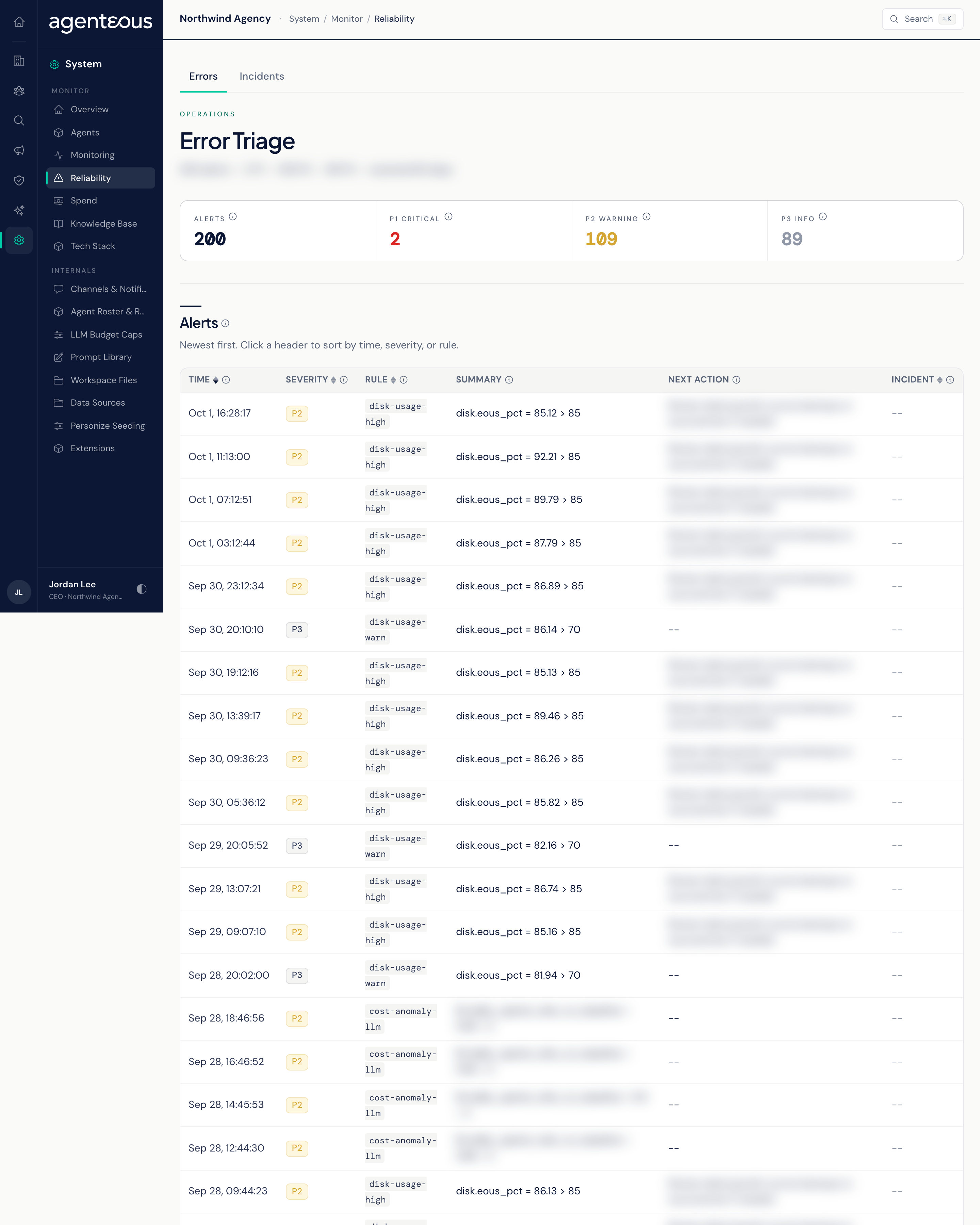
The screen is titled Error Triage. It has three parts.
Alerts. The latest 200 monitoring alerts raised on your install, looking back up to 60 days, such as error-rate spikes, stale backups, or low disk space. The tiles count the alerts shown: Alerts, P1 critical, P2 warning, and P3 info. The table shows each alert's time, severity, the rule that fired, a summary, the suggested next action, and an incident number when a P1 alert opened an incident. Click a header to sort. "No Alerts Have Fired" means nothing has gone wrong in that period.
Error Trend. A daily bar chart of actions that were denied, blocked, or failed over the last 14 days. The shaded part of each bar is errors seen for the first time that day, so you can tell a new problem from a familiar one.
Recurring Errors. Failures grouped by signature, most frequent first, over the last 60 days. Similar messages that differ only in numbers, such as IDs or counts, are grouped together. Each row shows the signature, the service, the category, the total count, the count in the last 24 hours, and when it was last seen.
Errors that individual services report to the central monitoring service are tracked separately and do not appear here. This tab has no acknowledge or mute buttons.
Incidents
Serious problems that were escalated. An incident opens automatically from a critical alert, with that alert linked, or when someone on the operations team declares one. Each incident moves through stages, from declared through contained, until it is closed or dismissed.
The tiles count Incidents, Open, and P1 critical. The Incident roster lists incidents with the newest declared first, showing the incident number, title, severity, scenario, stage, when it was declared, and whether it is open or closed. An incident stays open until it is closed or dismissed.
You cannot open, advance, or close an incident from this screen; the operations team does that. "No Incidents" is the normal state.
Who Uses It
- Operations administrators: work through new alerts and spot a failure that keeps coming back.
- Agency owners: confirm that nothing serious is open.