The Marketing Workspace
The Marketing Workspace is where the marketing work for your clients comes together. Each marketing specialist (the one that writes posts, the one that drafts emails, the one that builds landing pages, and the rest) has its own space here, and the front door gathers everything that needs you across all of them. You brief a piece, watch it get drafted, review it, and approve it, all from the same set of screens.
Once you learn the rhythm of one space, you know them all. Almost every specialist follows the same shape, so a screen you have never opened still reads the way you expect. A few spaces do something different, and those are called out at the end of this page.
What You See
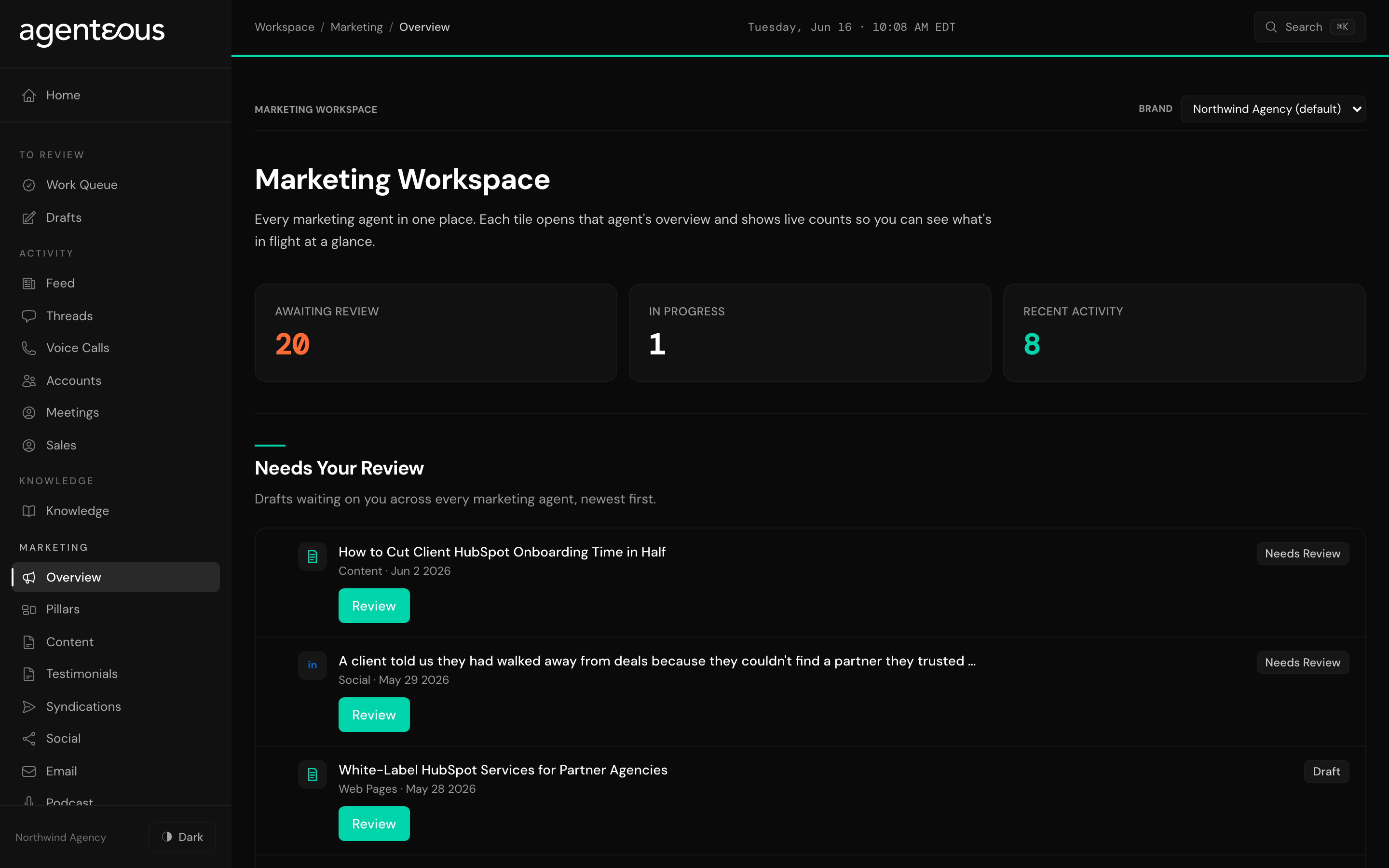
The front door of the Marketing Workspace is a single overview that pulls together the work across every specialist:
- A glance band at the top with three numbers: how much is awaiting your review, how much is still in progress, and how much your specialists have produced recently.
- A "Needs Your Review" list: the drafts waiting on your sign-off, gathered from every specialist into one place so you do not have to check each space separately. Each row shows a short summary, which specialist made it, and how recent it is.
- A "Recent Activity" list: what your specialists have been doing lately, whether or not it needs you.
- A "By Agent" row of shortcuts: a chip for each specialist, with a small badge showing how many of its items are waiting on you. Click a chip to open that specialist's own space.
Inside any one specialist's space, the layout repeats. You get a header with the specialist's name and a short description, a glance band of counts (the total, how many are in review, how many are live, and how many are blocked), and a feed of that specialist's work grouped by stage: awaiting your review, scheduled or in progress, and recently published. Each item in the feed carries a short summary, the brand it is for, how old it is, and a status pill telling you where it stands.
What You Can Do
The front door is built for triage. Start your marketing review here, work down the "Needs Your Review" list, and use the per-specialist shortcuts when you want to focus on one area.
Inside a specialist's space, the rhythm is the same every time:
- Start a request. A "New" button opens a short form: the topic, a brief, the audience, and the brand voice. The brand defaults to the one you have selected, so you usually only fill in what is specific to this piece.
- Browse the feed. Look through that specialist's recent work, from items waiting on you down to what has already gone out.
- Review and approve. Act on an item right from its row: approve it, edit it, reject it, or ask the specialist to try again. You can also do all of this from The Work Queue, which gathers approvals across the whole app.
- Open the detail view. Click into an item to see the full draft, the brand-audit notes, and the actions you can take on it.
Every draft a specialist produces runs through the brand auditor before it can publish, so what reaches your review is already checked against your brand standards.
Workspaces That Work Differently
Most spaces follow the rhythm above. A handful work in their own way:
- Brand Guard does not produce content for you to approve. It reviews everyone else's work. Its space is a history of audits: each one shows the draft it checked, the decision it reached (approve, send to review, ask for changes, or reject), and a brand-consistency band. It runs automatically on every draft the other specialists make, and you can also send it a piece for an audit on demand.
- Analytics builds a reporting roll-up, not content. You pick a brand and a time window (including quarter-to-date and year-to-date), and it shows what every marketing specialist produced in that window, with a tile per specialist that drills into its own detail.
- SEO and PPC each bundle several kinds of analysis into one space. SEO covers keyword research, on-page audits, and answer-engine visibility checks. PPC covers campaign performance reviews, ad-copy reviews, and budget recommendations. You open any item for its full breakdown.
- Designer produces images rather than words. You describe what you want, it returns a finished image, and you can attach that image to a content draft to finish the piece.
How It Connects
The Marketing Workspace is one view of work that also shows up elsewhere in the app. Drafts that are still being written appear in Drafts in Progress before they are ready for you. Once a draft is ready, it lands in The Work Queue, which is where every approval across the app happens, so the approve, edit, and reject actions you take here are the same decisions you make there. What each specialist actually produces, and what it needs from you to do its best work, lives in the Marketing Agents section, with a page for each one.
Use the front door for triage and the individual spaces for focus. When you want to clear everything waiting on you, work the "Needs Your Review" list at the front door. When you want to brief a new piece or study one area, open that specialist's own space.