Visibility Overview
The Visibility workspace is where you see how a client site is found: in search results, in AI answer engines, against its competitors, and in its own technical health. It opens on the Overview, a one-screen summary of the site you pick, with a rail on the left that leads to every other view.
What It's For
Use the Overview to check, in a minute, whether a client site's search presence is improving or slipping, and what deserves attention first. Everything here is read from data the monitors have already collected, so it is a summary, not a place to change anything. When something stands out, follow the rail to the view that explains it.
The Visibility Workspace
The workspace takes over the whole window: the usual app header and Marketing bar step aside, and the workspace's own rail runs down the left edge.
At the top of the rail:
- Back To Agenteous returns you to the Marketing Overview.
- The client-site picker lists every tracked client site by name and domain. Pick one and every view switches to that site. If you switch while on a view, you stay on the same view for the new site.
Below the picker, the rail groups the views:
| Group | Views | Covered in |
|---|---|---|
| Overview | Overview | This page |
| Search Performance | Rankings, Search Console, Traffic, Domain & Backlinks | Search Performance |
| AI Presence | AI Overview, Prompts, Citations, Actions | AI Presence |
| Competitive | Competitors, Moves & Recon, Keyword Gap | Competitive |
| Site Health | Audits, Core Web Vitals, Index Coverage | Site Health |
| Growth | Opportunities, Strategy, Reports | Growth and Reports |
The Opportunities entry carries a small count when the site has open opportunities from the last 28 days.
Adding your first client site
Until at least one client site exists, every view shows an Add Client Site form above an empty state that reads "No Client Sites Yet". The form asks for:
- Subject Id, Display Name and Primary Domain (all three are required).
- Location and Language for search results (they start as United States and en, the language code).
- Keyword Cap: how many tracked keywords the rank tracker checks on each run (starts at 100).
- Search Console property and GA4 property id (optional). Adding these lets the monitor fill in Search Console history and traffic and conversion history. Without them, the Search Console and Traffic views stay empty.
- Report Brand Color, Report Logo URL and Report Prepared By (optional). These style the monthly report PDF. Prepared By defaults to your agency name.
Select Add Site and the workspace opens on the new site. A site added here starts with SEO tracking switched on.
Date range
Most views share one date-range control. Pick Last 7 Days, Last 28 Days, Last 3 Months, Last 6 Months, Last 12 Months or Year to Date, or set your own start and end dates. Compare To sets what the changes are measured against: Previous Period (the default), Same Period Last Year, Custom Range, or No Comparison. Views open on the last 28 days. Changing the range only changes what you see. Small freshness chips next to the control show when Search Console, rankings and GA4 data were last collected.
Overview
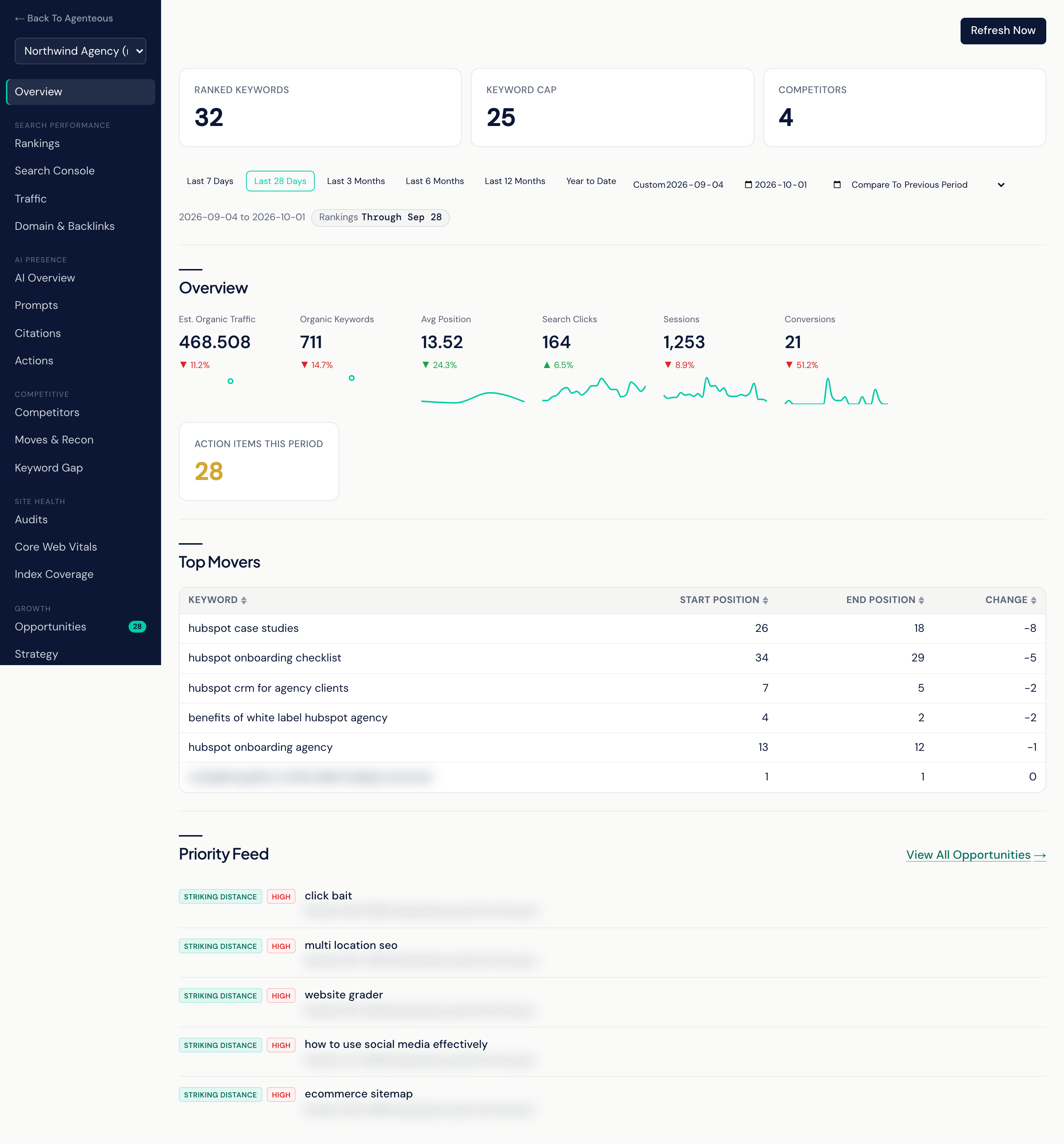
The Overview is the first view in the rail. For the selected site it shows:
- A row of site counts: Ranked Keywords (keyword rankings the rank tracker has recorded), Keyword Cap, and Competitors (how many competitor domains the site is measured against).
- Overview: headline numbers for the chosen range, each with its change against the comparison period and a small trend line. These include estimated organic traffic, organic keywords, average position, search clicks, sessions and conversions, depending on which data the site has. Average position is a number where lower is better, and its change is colored that way. An Action Items This Period card counts the open opportunities and opens the Opportunities view.
- Top Movers: the tracked keywords whose position changed most, with the start position, end position and the change.
- Priority Feed: the top five opportunities, with View All Opportunities to see the rest.
Refresh Now runs every monitor for this site immediately: rank tracking, the site audit, the domain snapshot, Search Console, GA4, Core Web Vitals and the competitor keyword gap. The domain snapshot and keyword gap draw on your DataForSEO account, so each refresh uses a small number of credits. New numbers show up as each run finishes.
If the view shows "SEO Lens Off For This Client Site", SEO tracking has been switched off for that site, and the search views show that message in place of data.
Who Uses It
- SEO and content leads: a weekly read on each client site before deciding what to work on.
- Account managers: a quick answer to "how is the site doing?" before a client call.
- Agency owners: a consistent view of search performance across your clients.