AI Visibility
What It's For
AI Visibility shows how often your brand turns up when people ask AI assistants about your space, which sources those assistants cite, and what your competitors are changing on their sites. It has six tabs. Most of them are for reading; you manage the competitor watchlist, produce monthly reports, and score draft content here.
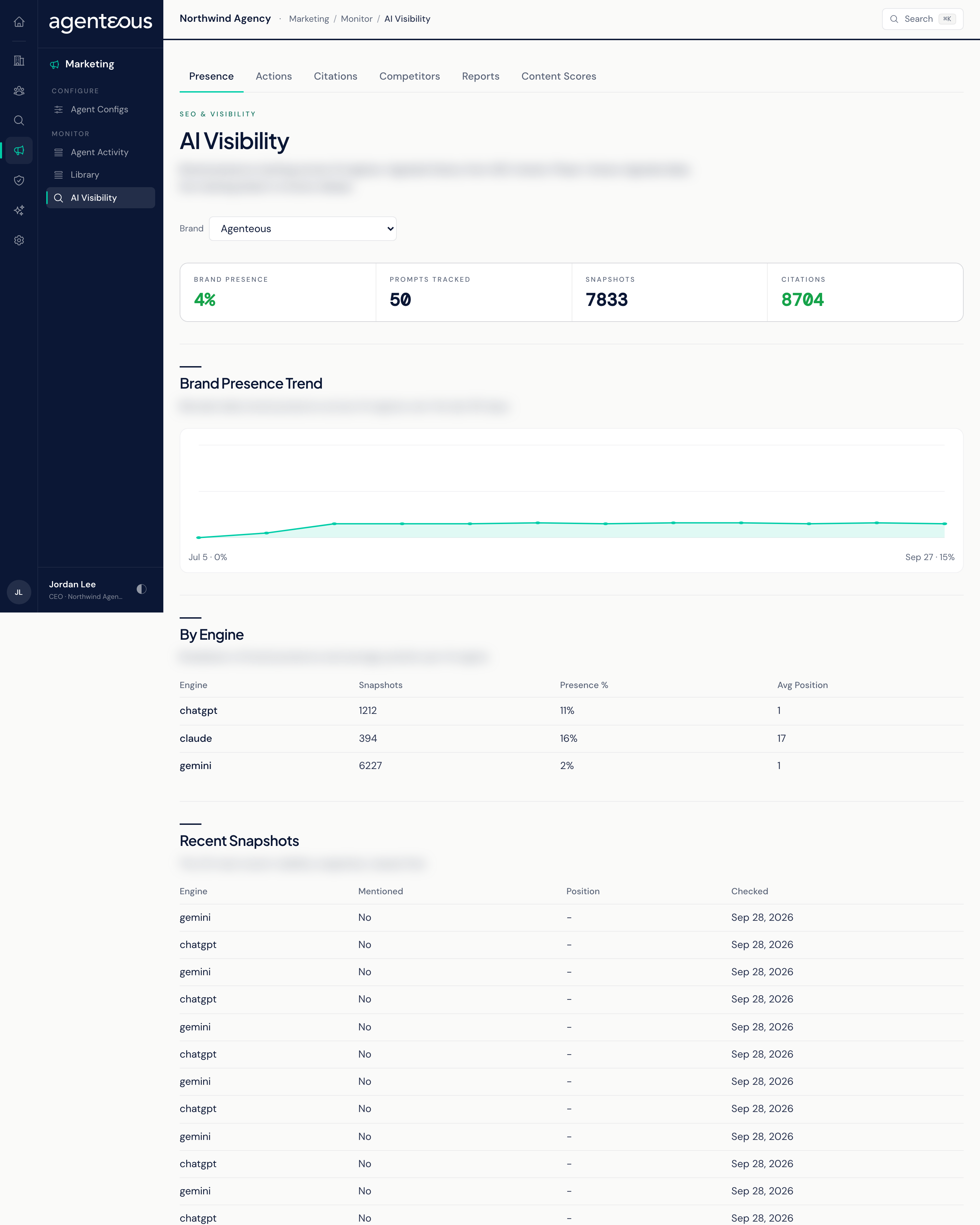
You find it in the Operator Console under Marketing. When your install tracks more than one brand, a Brand selector appears at the top of each tab; otherwise the tab shows your one tracked brand.
Where the data comes from:
- Every Monday morning a visibility check asks each due brand's tracked questions to the AI engines chosen on the SEO tab of Marketing Agent Configs. Perplexity is asked only when your install has a Perplexity connection; if none of the chosen engines can be asked, the check asks Google and ChatGPT. How often a brand is due (weekly, monthly, or manual) is set there too. When mentions are gained or lost since the last check, a short summary posts to Marketing SEO's Slack channel; if nothing changed, nothing is posted.
- Every morning a competitor check visits the watched competitor pages that are due, compares them with the last visit, and rates each change. Critical and high-urgency changes post to the same Slack channel.
- On the 2nd of each month a report for the previous month is produced for each brand and posted to that channel as a PDF. It is not emailed to your clients.
Presence
How often AI answers mention your brand. The tiles show Brand Presence, Prompts Tracked (the questions being asked), Snapshots (individual answers recorded), and Citations.
Below them:
- Brand Presence Trend: the daily presence rate, all engines blended, over the last 90 days.
- By Engine: for each AI engine, the number of snapshots, the share that mentioned you, and your average position in the answer when you were mentioned.
- Recent Snapshots: the 25 newest answers, with the engine, whether you were mentioned, your position, and when it was checked.
Actions
Suggested fixes for gaps the visibility checks found, sorted into four buckets: Do Now, Quick Win, Plan, and Deprioritize. Tiles at the top count each bucket. Each action can explain why it matters, what to do, and why competitors are winning that answer.
This tab lists open actions only and has no buttons. Creating, completing, and dismissing actions happens outside this screen.
Citations
The web sources AI engines cite in answers about your brand and your space. Total Citations and a tile per source type sit at the top, followed by By Source Type (the share of each), Top Cited Domains, and Recent Citations (the 50 newest, with source, type, engine, and date).
Each cited source is given one type, checked in this order:
- Owned: your brand's own site.
- Competitor: a tracked competitor's site.
- Editorial: a well-known business, technology, or marketing publication.
- Institutional: an address ending in .edu, .gov, or .org.
- Unknown: anything else.
Competitors
The one tab where you manage data. It has three sections:
- Competitors: the roster tracked for this brand. Enter a name and, optionally, a website to add one. Archive takes a competitor off the roster without deleting its history.
- Watchlist: the competitor pages watched for change. Pick a competitor, enter a page address and, optionally, a page type, and add it. Pause a page to have the daily check skip it, resume it to start again, or Remove it to stop watching for good.
- Change Feed: changes the daily check found, newest first, each with an urgency, a change type, and a significance rating. Use the Minimum Significance filter (1+, 5+, 7+, 9+) to cut the noise. Acknowledge marks a change as triaged; it does not change the competitor or the watched page.
Changes here are recorded in the Audit Log. Adding and editing needs a role that can manage marketing content.
Reports
Monthly AI visibility reports as PDFs. Each covers a written summary, headline numbers, the presence trend, the per-engine breakdown, competitor mentions, citations, completed actions, and questions where you do not appear.
- Generate Report: enter a month, or leave it blank for the most recent complete month, and click Generate Report. The new report appears under Past Reports. It uses the same branding and period rules as the monthly run.
- Past Reports: every stored report with its period, when it was generated, a summary, and a download link.
Generating a report does not send it anywhere. Share the PDF with your clients yourself when you are happy with it.
Content Scores
Score a draft against a rubric for answer engines (GEO, AEO, and E-E-A-T) before it goes out. Under Score Content, paste a title, an optional primary keyword, and the body, then run the score. The result is added to Scored Content, which lists each piece with its three scores, a combined score, its source, and when it was scored.
Scoring never changes the draft itself. If the scoring service fails, the result is stored as zeros; run it again rather than reading a zero as a verdict.
Who Uses It
- SEO and content leads: track presence by engine, see which sources the engines trust, and score drafts before publishing.
- Account managers: produce the monthly report for a clients and keep the competitor watchlist current.