Sales Assistant
What It's For
This is where you narrow which dormant prospects the Sales Assistant looks at, and review what it found and drafted. In the Operator Console, under Sales & Meetings, open Sales Assistant. Two tabs run across the top: Configure and Monitor.
Every weekday at 10am (or when someone runs a scan from the app's Sales page), the Sales Assistant scans your HubSpot deals, HubSpot contacts and Gmail threads for prospects that have gone quiet, writes a re-engagement email for each new one and posts it on an approval card in Slack. Approving the card puts the email in Gmail Drafts, and you send it from Gmail. Configure limits which prospects it considers; Monitor shows what it flagged and where each draft ended up. You approve drafts on the Slack card; the app's Sales page lets you dismiss a draft or run a scan now.
Configure
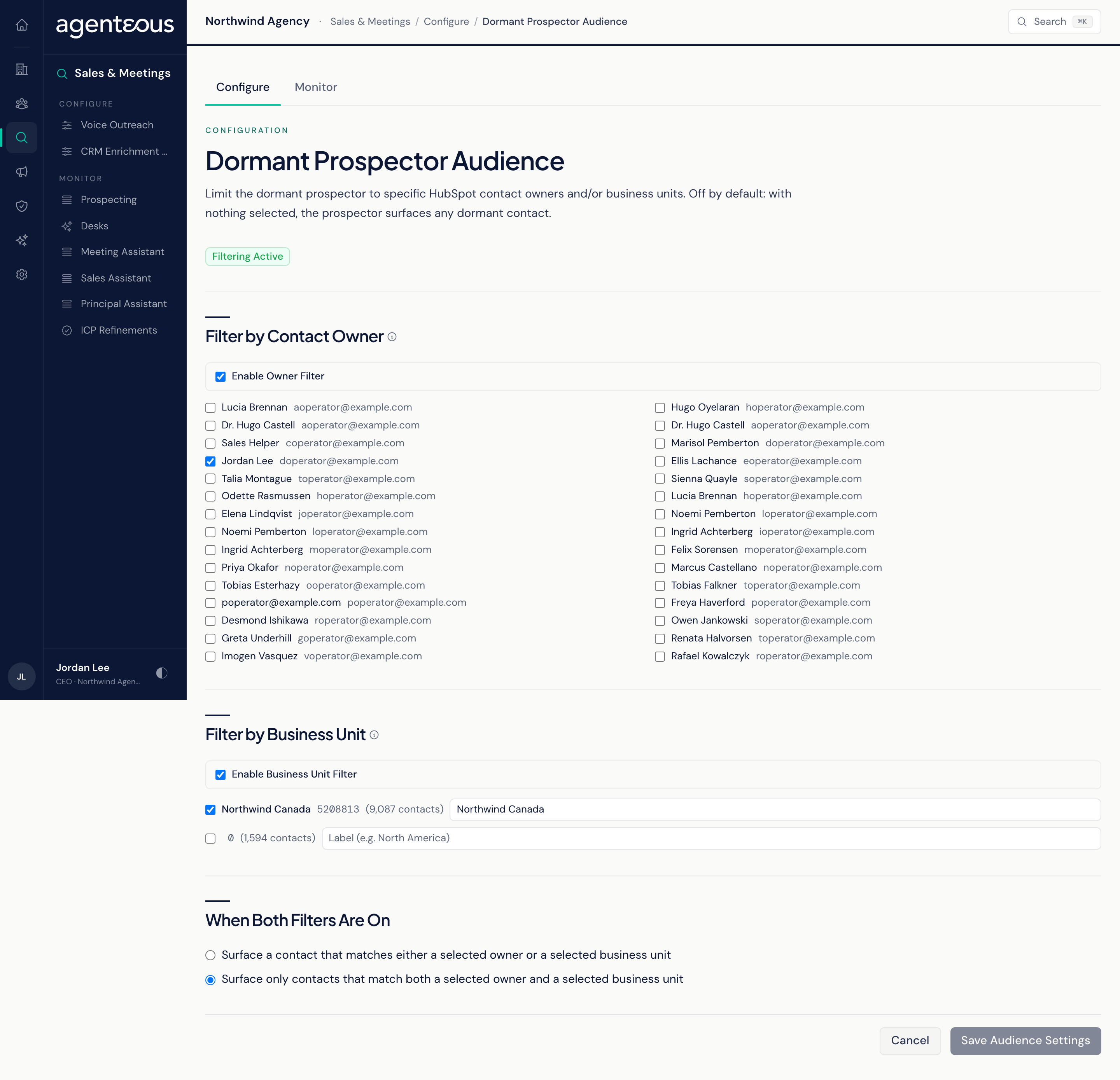
The Dormant Prospector Audience screen. It is off by default: with no filter on, the Sales Assistant considers every dormant contact. A badge reads Filtering Active or Surfacing All Contacts.
- Filter by Contact Owner: turn on Enable Owner Filter, then tick the HubSpot users whose contacts should be considered. Each owner is listed by name and email.
- Filter by Business Unit: turn on Enable Business Unit Filter, then tick HubSpot business units. Each unit shows its contact count, and you can type a friendly label for it. The label is only a display name.
- When Both Filters Are On: choose whether a contact must match either a selected owner or a selected unit, or both.
Contacts outside the filter are dropped before anything is drafted. Click Save Audience Settings; the next weekday scan uses the new audience.
Monitor
A read-only review. There are no buttons on this tab.
Pipeline Status
Four totals: Total Signals, Drafts in Gmail, Drafts Pending (not in Gmail: waiting for Approve on the Slack card, or rejected or dismissed) and Drafts Blocked (the mail step failed).
Recent Dormancy Signals
One row per prospect the scan flagged as dormant: Scanner (deals, contacts or Gmail threads), Contact, Company / Deal, Dormant, Last Signal, Status and First Seen. A signal starts as New and becomes Drafted once a draft exists; it stays Drafted after you approve. Rejecting or dismissing the card marks it Dismissed, so the prospect does not resurface until its dormancy window resets. It is marked Superseded when another scanner flags the same person again.
Recent Re-Engagement Drafts
One row per draft: Recipient, Subject, Gate, Gmail, Slack, Operator Action, Model and Created. When brand checking is set to Enforce or Warn in Brand Compliance, each draft goes through the compliance check as one-to-one correspondence, so bulk-email rules such as unsubscribe footers do not apply. With Off, the check is skipped and Gate shows every draft as marked for changes; under Warn, the shipped default, a draft the check would have rejected also shows as marked for changes. Gate shows the result. The check does not block a draft: a draft it rejected or marked for changes still gets an approval card, with the verdict noted, and approving it still writes it to Gmail Drafts. Read the verdict before you approve. Operator Action reads Awaiting until someone acts on the card, then Approved, Rejected or Dismissed.
Nothing is sent for you: approving puts the draft in Gmail Drafts, and you send it from there.
Who Uses It
- Sales leads and agency owners: decide whose dormant prospects are worth chasing.
- Whoever works the re-engagement drafts: use Monitor to check nothing is stuck.
- Saving the audience needs the Ops Admin, Admin Operator or CCO role.