Prospecting, Prospector and Hot 100
What It's For
Prospecting is where you watch your agency's new-business pipeline and tune the two engines that feed it: the Prospector, which works through the company domains you give it, and the Hot 100, a self-maintaining list of the accounts you are actively pursuing. In the Operator Console, under Sales & Meetings, open Prospecting; three tabs run across the top, Pipeline, Prospector and Hot 100.
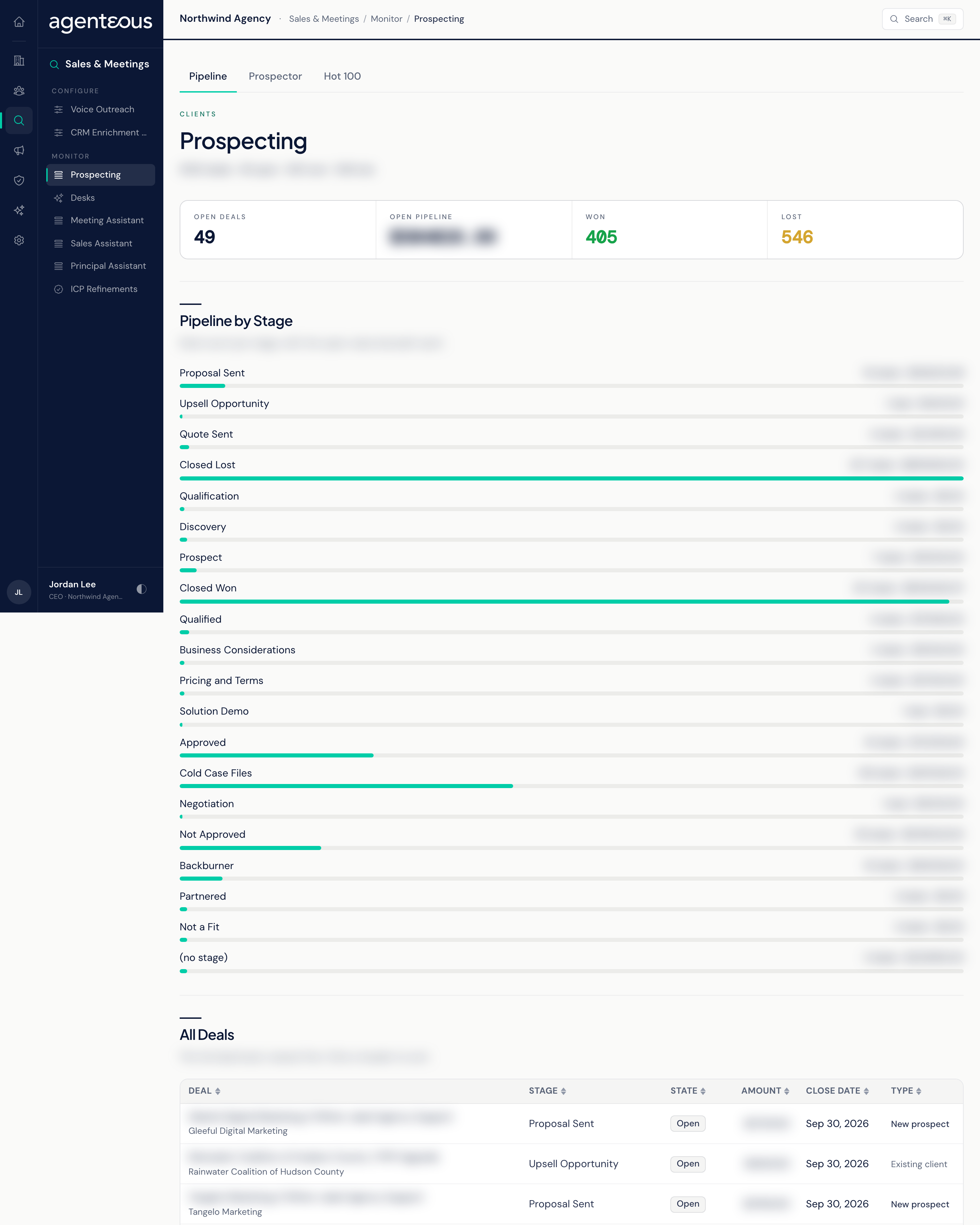
The Pipeline tab gives you a read-only picture of every open, won and lost deal coming from HubSpot, so you can see where new business stands without opening HubSpot. The Prospector and Hot 100 tabs hold the settings behind your prospecting: how fast new domains are researched, which job titles count as decision makers, and how the Hot 100 list is sized, scored and reported.
Pipeline
A live view of your deals, pulled from HubSpot. Nothing on this tab changes data: deals are managed in HubSpot.
Four totals run across the top:
- Open deals: deals not yet in a closed stage.
- Open pipeline: the combined amount of the open deals only.
- Won and Lost: closed deals. A deal counts as won when it sits in a closed stage HubSpot marks as 100% likely to close; any other closed stage counts as lost.
Pipeline by Stage shows one bar per stage with its deal count and, beneath it, the open value in that stage.
All Deals is the deal table, newest first, 25 deals to a page. Columns are Deal (with the company beneath), Stage, State (Open, Won or Lost), Amount, Close date and Type. Type reads Existing client when the deal's company is already one of your clients, and New prospect otherwise. Click any column header to sort.
The table holds your 1,000 most recently created deals. Older deals are left out of the table and the totals.
About This Pipeline restates these rules on screen. If the pipeline cannot be reached, the tab shows Pipeline couldn't load rather than an empty pipeline, so an outage never looks like a quiet quarter.
Prospector
The Prospector Discovery settings control how quickly the Prospector researches the domains waiting in its queue, and which contacts it flags as decision makers. Open it from the Prospector tab.
Drain Rate
- Domains Per Hour: how many domains are processed each hour, from 1 to 10,000. The Prospector works in a short batch every five minutes and spreads your hourly rate across those batches (at the default of 24 an hour, that is two domains per batch). Each domain uses paid research lookups, so set it lower to conserve credits and higher to clear a large upload quickly.
- Drainer Enabled: untick to pause. Nothing is lost: domains stay queued and pick up where they left off when you tick it again.
Decision Maker Roles
A list of job-title keywords. A discovered contact whose title contains any of them (case does not matter) is flagged as a decision maker and prioritised for outreach. Type a keyword and click Add, or remove a chip to drop one. The shipped list covers owners, founders, chief officers, managing directors and partners, principals, vice presidents and directors.
Exclusion Rules
Rules that stop false matches, shown for reference. Each rule names a role keyword and the surrounding words that disqualify it. For example, "partner" does not count when it appears as part of an agency or technology partner title, and "president" does not count in "President's Club". You cannot edit these rules on this screen.
Click Save Settings to apply your changes, or Cancel to put the form back. A badge reads Configured once your agency has its own settings, or Using Defaults if not.
Hot 100
The Hot 100 is a list of the accounts most worth your attention right now. Once a day Agenteous re-ranks the candidates, enrolls the members in the Prospector's research queue ahead of other work, and records every account that joins or leaves. When an account joins, its owner gets a Slack direct message. The Hot 100 is off until you turn it on.
Settings appear as four summary cards. Click Edit on a card to change that group in a pop-up, then save or cancel.
List Behavior
- Enable Hot 100 Daily Recompute: turns the whole list on or off. Off means nothing runs.
- List Size: how many accounts the list holds, from 1 to 1,000 (default 100).
- Recency Window (Days): touches older than this add roughly nothing to an account's score, from 1 to 365 (default 30).
- Hysteresis Band: an account already on the list is kept if it ranks within this band, even after it slips past the list size. This stops accounts flapping on and off from one day to the next. Set it at or above the list size.
- Drop Confirm (Days): how many days in a row an account must rank outside the list before it is dropped, from 0 to 60.
Scoring Weights
How much each signal can contribute to an account's score: Deal, Recency, Meeting and Heat (the firm's heat on the Signal Desk). Each signal contributes up to its weight, and the maximum score is the sum of the four. The defaults are Deal 40, Recency 25, Meeting 20 and Heat 15.
Morning Briefing
- Send The Morning Briefing: a daily Slack roll-up of the accounts that have newly entered the list.
- Send Hour (Local, 0 to 23): the hour it is sent (default 7).
- Slack Channel (Optional): the ID of the Slack channel the briefing posts to (copy it from the channel's details in Slack), not its name. Leave it blank and the briefing goes to the owner as a direct message.
Audience Filter
Optionally limit the Hot 100 to accounts owned by particular HubSpot users, in particular HubSpot business units, or both. Turn on Enable Owner Filter and tick owners, or Enable Business-Unit Filter and tick units (you can give each unit a friendlier label). With both on, When Both Filters Are On chooses whether an account must match either filter or both. With neither on, every eligible account can rank.
Changes apply from the next daily recompute.
Who Uses It
- Agency owners and sales leads: watch the Pipeline tab to see where new business stands.
- Whoever runs prospecting: tune the drain rate, decision-maker roles and the Hot 100.
- Saving Prospector or Hot 100 settings needs the Ops Admin, Admin Operator or CCO role. Anyone with Operator Console access can view the Pipeline tab.
Related
- Prospector
- Hot 100 and Prospecting in the app
- Signal Desk and Deal Desk
- HubSpot