Pillars
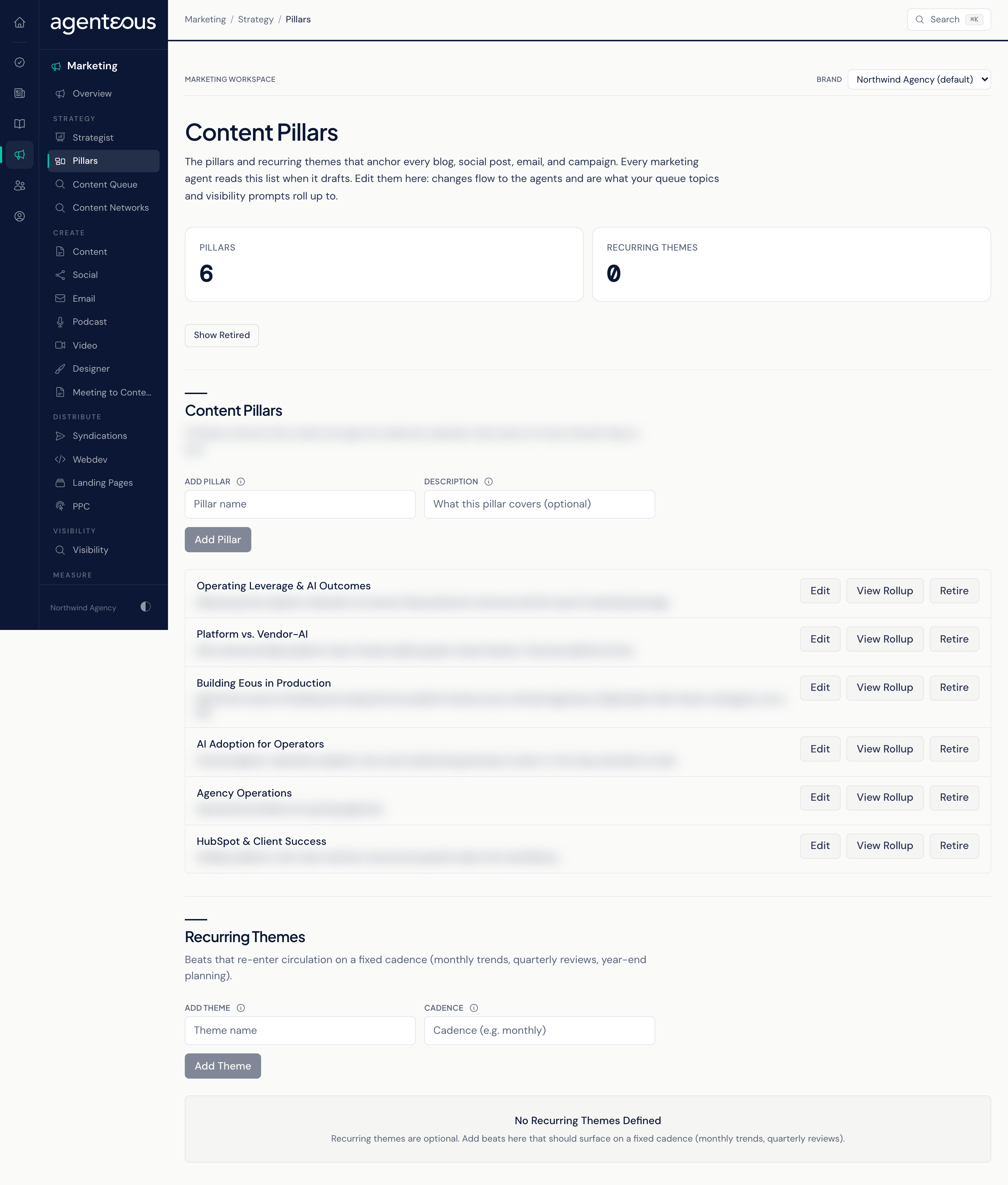
Pillars is where you manage a brand's content pillars, the handful of evergreen themes its marketing returns to, and its recurring themes, the beats that come back on a set cadence. You can add, edit, retire and restore both, and open a rollup on any pillar to see the content ideas and visibility prompts linked to it.
What It's For
Pillars give the agents that plan content a clear set of themes to work from. If your agency has turned on scheduled blog drafts (they are off by default), the writer rotates through your pillars, picking the one it has used least recently; it only creates drafts for review. The Strategist reads them when it plans a campaign, and the suggestions for search topics and visibility prompts draw on them too. Pillars also give your content ideas and visibility prompts something to roll up to, so you can see whether a theme is pulling its weight.
Band
Two counts across the top: Pillars and Recurring Themes, each counting the active items for the selected brand.
Show Retired
Retired pillars and themes are hidden by default. Turn on Show Retired to list them alongside the active ones, so you can restore one.
Content Pillars
Evergreen themes that rotate through the editorial calendar. Each row shows the pillar's name and its optional description.
- Add Pillar: type a pillar name and, if you like, a line on what it covers. The pillar is added for the brand selected in the brand picker, and agents that read pillars pick it up on their next run.
- Edit: rename the pillar or change its description in place, then Save or Cancel.
- Retire: takes the pillar out of the active list so it is no longer used for new work. Nothing is deleted, and anything already linked to it keeps its link.
- Restore: brings a retired pillar back.
- View Rollup: opens the Pillar Rollup panel.
When a brand has none yet, the section reads No Pillars Defined.
Recurring Themes
Beats that come back into circulation on a fixed cadence, such as monthly trends, a quarterly review or year-end planning. Add Theme takes a theme name and a cadence written in plain words (for example, monthly). Themes have the same Edit, Retire and Restore controls as pillars. Recurring themes are optional; with none set, the section reads No Recurring Themes Defined.
Pillar Rollup
A read-only panel showing what one pillar is producing and how visible it is:
- Content Queue: the topics linked to this pillar, grouped by status.
- Visibility Prompts: the tracked AI prompts linked to this pillar, each with its Mention Rate, plus the average across them.
Linking happens elsewhere: you attach a pillar to a topic in the Content Queue and to a prompt in AI Presence. Pillars do not decide which prompts are tracked; people choose those.
Who Uses It
- Marketing leads and strategists: set and refine the themes the brand stands for.
- Content staff: check which theme an idea belongs to before writing it.
- Account managers: confirm a client brand's themes are current.