Create Workspaces
The Create group in the Marketing rail holds seven workspaces, one for each kind of asset the marketing agents make: Content, Social, Email, Podcast, Video, Designer, and Meeting to Content. Each one lists that agent's work by stage, starts new pieces, and is where you approve, reject or publish them. What approving does differs from one workspace to the next, so each section below says exactly what happens.
What It's For
Use these workspaces to brief new pieces and to review what the agents have drafted. Each section here covers the screen; what the agent itself does, how to ask it for work in Slack, and its schedule are on that agent's own pages, linked from each section.
Brand checking applies across these workspaces. It has three modes, set in the Operator Console under Brand Compliance: Enforce, Warn and Off. Warn is the default: it runs the check and records the result but never holds anything back. Off skips the check everywhere. When the check is on, Email, Podcast and Video run the check when you approve, while blog and LinkedIn posts run it when they publish, at the scheduled time or on Publish Now. Meeting to Content checks its drafts when it creates them. The decision is recorded on the item.
- Enforce blocks an item that fails. For blog and LinkedIn posts, that means anything short of Auto-Approved, so a post you approved can still be blocked when its time arrives. For Email, Podcast and Video, it means a draft the auditor rejects.
- Warn records the findings. Blog and LinkedIn posts go through; Email, Podcast and Video still hold a draft the auditor rejects.
- Off skips the check.
Brand Guard explains the scores and decisions.
Content
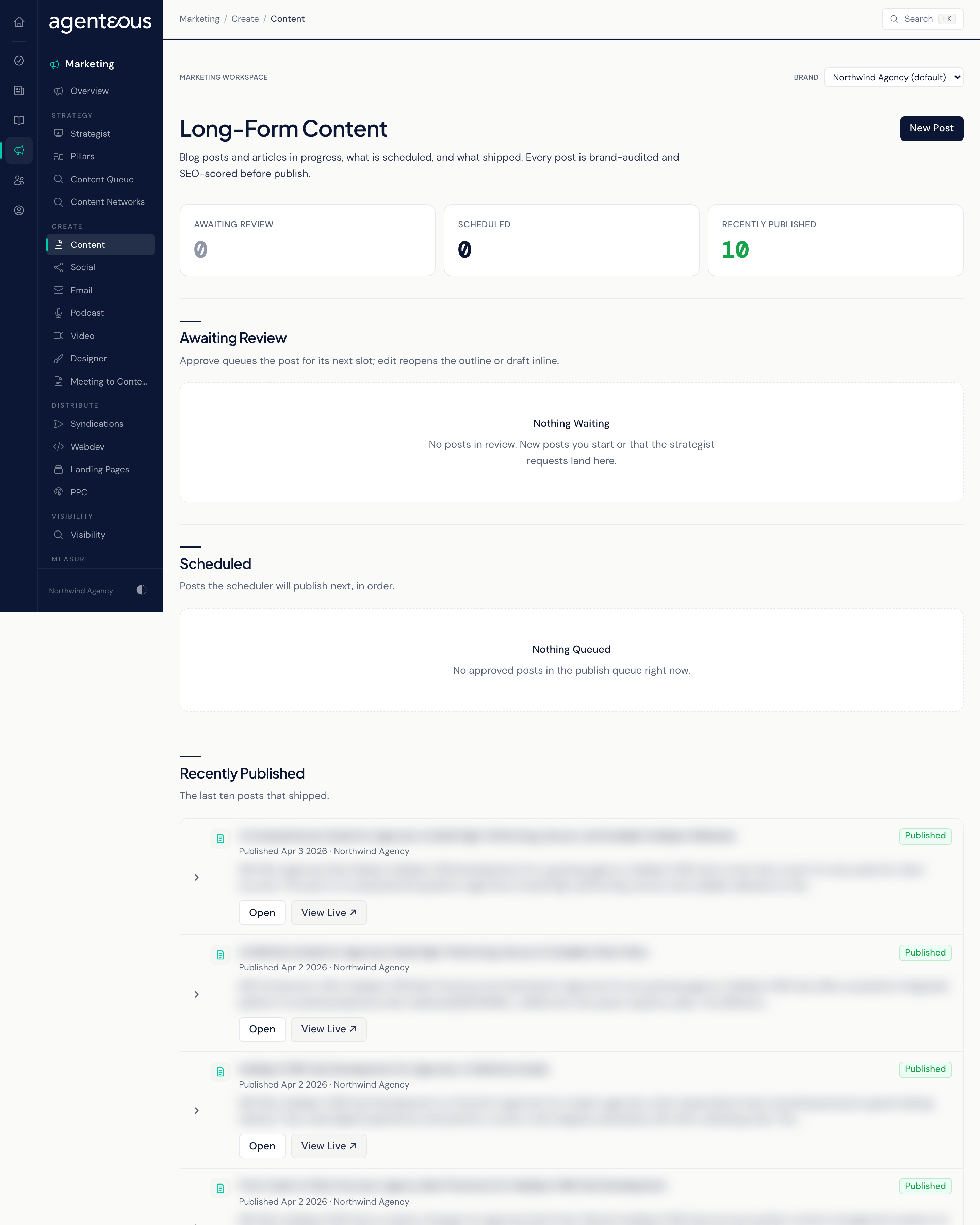
The Long-Form Content workspace holds blog posts and articles. Agent detail: Marketing Content.
- Counts and lists: Awaiting Review, Scheduled and Recently Published. Review rows show the target keyword and the post's search-visibility score out of 100.
- New Post asks for a topic and brand, with optional length, primary and supporting keywords, audience, source details and source material. With the full pipeline on, the writer researches keywords, outlines, drafts and scores the post in one pass; with it off, only the topic record is created.
- Row actions: Approve, Edit (opens the post), Reject, and a menu with Regenerate Outline and Regenerate Draft.
- Approve schedules a real publish. Approving gives the post the next open slot: a weekday between 9 and 11am Pacific Standard Time (UTC-8), whatever your own time zone, at least seven days after the brand's last scheduled or published post. If that slot is more than four weeks away, the post is set for exactly four weeks from now instead, which can fall outside the morning window. When that time arrives the post is published to your connected blog automatically, with no further click. On the post page the button reads Approve and Schedule, and Publish Now appears on a scheduled post to publish it immediately.
- Recently Published rows link to the live post.
Social
The Social Posts workspace holds LinkedIn posts. Agent detail: Marketing Social.
- Counts and lists: Awaiting Review, Scheduled and Recently Published. The review list has an Attribution filter (All, Company, Personal) so you can separate company posts from posts written in a staff member's voice.
- New Post takes a Source Story, a Brand, who it is Posting As (the company account or a specific staff member), How Many Variants, and Formats to Try. Generate Drafts writes the variants for review. Nothing is posted.
- Row actions: Approve, Edit, Reject, and a menu with Regenerate Text and Generate Blog Post (which starts a blog draft from the post).
- Approve schedules a real publish. Approving queues the post for its next slot: a weekday between 9:15 and 11:45am Pacific Standard Time (UTC-8), whatever your own time zone, at least 24 hours after the last scheduled or published post for the same brand and attribution. If that slot is more than a week away, the post is scheduled to publish about five minutes after you approve instead, so check the Scheduled list before approving into a long backlog. When that time arrives the post is published automatically: company posts to the company page, personal posts to that staff member's own connected LinkedIn account, with no click from them. On the draft page, Publish Now appears on a scheduled post to publish it immediately.
- Recently Published rows link to the post on LinkedIn.
The Email and Newsletters workspace holds newsletter and drip email drafts. Agent detail: Marketing Email.
- Counts: In Review, Scheduled, Sent and Total Drafts. Lists: Awaiting Review, Scheduled and Recently Sent.
- New Email asks for a topic, brand and audience, plus optional length, call to action, source material, sender and reply-to details, a campaign tag and expected list size. You can run the full pipeline (subject and body) now or just create the record.
- Row actions: Approve, Edit, Reject, and a menu with Regenerate Subject and Regenerate Body.
- Approve does not send. Approving marks the email approved, after the brand check if one is on. It is not queued or scheduled, so the Scheduled list stays empty.
- Sending is a separate step on the draft page. Save the Recipients, then press Send Now. Send Now sends only a draft that has recipients and has passed the brand check. With brand checking Off there is no passing result to send on, so Send Now refuses the draft.
- Test Send sends a copy to your own address only, without the brand check.
- Both go through your connected mailbox, and both are blocked unless your agency has turned outbound email on; it is off by default.
Podcast
The Podcast Production workspace runs episodes from plan to published link. Agent detail: Marketing Podcast.
- Counts: In Review, Approved, Published and Total. Lists: In Review, Approved, Awaiting Publish and Recently Published.
- New Episode takes a topic, with optional season, episode number, guest and audience, and can have the planner write the episode plan straight away.
- On the episode page you attach audio (a file location or a link), transcribe it, have clips suggested, and write show notes. Each suggested clip can have its audio extracted or be turned into a social draft for review; nothing is posted.
- Approve needs show notes first, and runs the brand check if one is on. It does not publish. If the check blocks the episode, Approve Anyway lets you approve it with a reason, which is recorded.
- Publish (for approved episodes) records the Public Episode URL and RSS Feed URL you type in. It does not upload anything to a podcast host.
Video
The Video Production workspace turns a topic into a short video. Agent detail: Marketing Video.
- Counts: In Production, Approved, Published and Total. Lists: In Production, Approved, Awaiting Publish and Recently Published.
- New Video takes a topic, with optional brand, audience, objective, target length (5 to 120 seconds), and aspect ratio, and can write the script and storyboard in the same pass.
- On the project page you generate or regenerate the script and storyboard, create an image and then render video for each shot, add a voice-over, and Assemble Video into one cut. Rendering and voice-over use paid generation services, so each run has a cost.
- Approve (on the project page, Submit For Review) runs the brand check if one is on. It does not publish. If the check blocks the video, Approve Anyway lets you approve it with a reason, which is recorded.
- Publish records the public link you paste once the video is live. It does not upload the video to any platform.
Designer
The Image Generation workspace makes brand-aware images. Agent detail: Marketing Designer.
- Counts: Total, Attached to a Post and Unattached, above a list you can narrow to images awaiting attachment or already attached.
- Generate Image takes a plain-language brief, a brand, dimensions and an optional mood. The designer rewrites your brief into a detailed image prompt and renders one image.
- On the image page you see the refined prompt, alt text and brand-fit notes. Attach to content sets the image as a blog post's featured image (you enter the post's ID). You can also save a different image link, regenerate, or delete the image permanently.
- Nothing is published or sent from this workspace.
Meeting to Content
Meeting to Content turns a meeting into draft content in one step. It has no agent of its own: it uses the same writers as Marketing Content and Marketing Social.
- Enter a Meeting Title and Brand, then choose Paste Transcript or Upload Recording (audio or video, up to 250 MB, transcribed before drafting).
- Tick Blog Post, LinkedIn Drafts, or both, and press Generate Drafts.
- The result lists the transcript size, a link to the blog draft, and how many LinkedIn drafts were created. Everything it makes is a draft for review; nothing is published or sent at this point. The blog draft appears under Awaiting Review in Content and the LinkedIn drafts under Awaiting Review in Social, where approving them schedules them to publish, as described above.
Who Uses It
- Content and social staff: brief new pieces and review drafts.
- Marketing leads: approve what goes out, and decide when to send email.
- Production staff: take podcast episodes and videos from plan to published link.