Web, Landing Pages and PPC
What It's For
Three workspaces in the Distribute group of the Marketing rail help you get work in front of people beyond your blog and social feeds. Webdev plans and drafts pages for your own website. Landing Pages builds HubSpot landing pages and can create them in your HubSpot portal. PPC analyzes paid campaigns and ad copy and recommends budget changes. Only Landing Pages ever writes to an outside system, and only when you click its publish button.
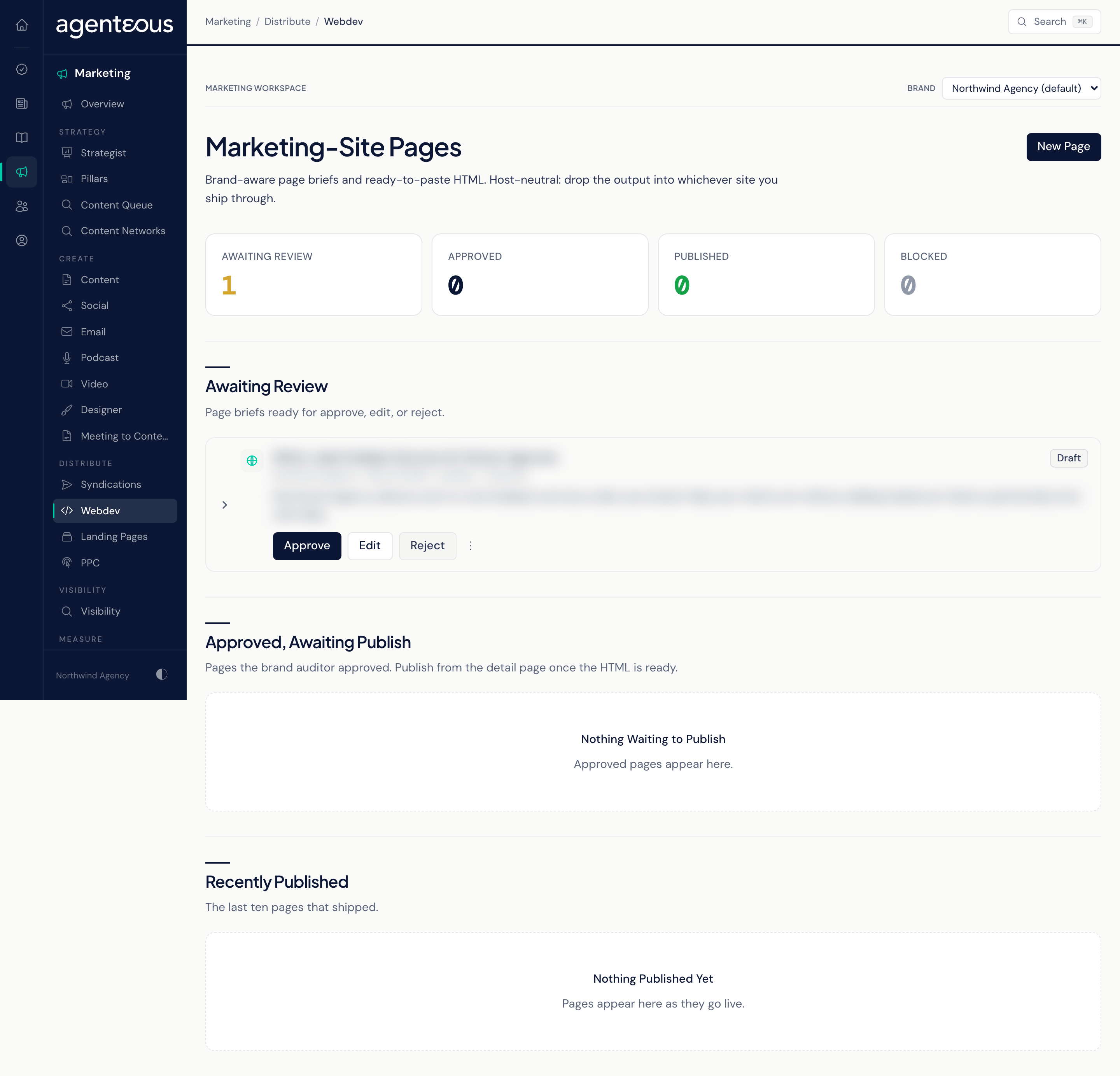
Webdev
The Webdev screen is headed Marketing-Site Pages. You give it a topic and a page kind; it plans the page section by section, writes the copy, and produces a plain HTML scaffold. You copy that HTML into whichever site builder you use. Agenteous never changes your website.
Counts: Awaiting Review, Approved, Published, and Blocked.
Lists:
- Awaiting Review: page briefs ready for a decision. Each row has Approve, Edit (opens the full page), and Reject, plus Regenerate Brief and Re-Render HTML in its overflow menu.
- Approved, Awaiting Publish: approved pages you have not yet marked live.
- Recently Published: the last ten pages marked live, with a link to each live URL you recorded.
New Page opens a form with Topic (required), Brand, Page Kind (landing page, about or company, service page, feature page, or pillar content page), Audience, and Page Goal. Two switches, Run the Briefer Now and Render HTML Right After, let it plan the sections and render the HTML in the same pass. Click Create Page.
Opening a page shows its Brief (page title, meta description, slug, and copy for each section) and the HTML Scaffold: plain semantic HTML with no inline styling, ready to paste into any builder. Under Actions:
- Regenerate Brief and Re-Render HTML rewrite the plan or the HTML.
- Approve marks the page approved. When brand checking is on, approving runs the brand auditor first; a page it blocks offers Approve Anyway, which needs a reason and is recorded. Reject sets the page aside.
- Publish (on an approved page) records the page as live, together with the Live URL you type. It does not upload or deploy anything: you put the HTML on your site yourself, then record where it went.
Landing Pages
Landing Pages drafts the copy and HTML body for a HubSpot landing page. This is the one Distribute workspace that can put a page on the public web, and it only does so when you choose to.
Counts: In Review, Approved, Live in HubSpot, and Failed.
Lists:
- Awaiting Review: pages with copy ready for Approve or Reject, plus Regenerate Copy in the overflow menu.
- Approved, Awaiting Publish: approved pages not yet sent to HubSpot.
- Recently Published: the last ten landing pages that went live on HubSpot.
- Recent Problems: pages whose publish to HubSpot failed. Open one to see why.
Pages the brand auditor blocked, and pages already created as a HubSpot draft, do not appear in these lists or in the Work Queue, so keep the page's link if you need to come back to it.
New Landing Page opens a form with Topic (required), Brand, Page Kind (landing page, lead magnet, event registration, or thank-you page), Audience, Call-To-Action Text, Call-To-Action Link, and optional Source Material to build from. Leave the full-pipeline switch on to draft the copy and HTML and run the brand pre-check in one pass, then click Generate landing page.
Opening a page shows its Copy, an HTML Body Preview (the body that goes to HubSpot; your HubSpot template supplies fonts, colors, and layout), and HubSpot State once it has landed in your portal. The actions are:
- Edit the copy fields in place, or use Regenerate Copy and Re-Render Body to rewrite the copy or the HTML. Changing the copy of an approved page sends it back to review, so it must be approved again.
- Approve runs the page through brand checking and, unless the auditor blocks it, marks it approved. Approving does not publish anything.
- Approve Anyway appears on a page the brand auditor blocked. You must give a reason, which is recorded.
- Reject sets the page aside, with an optional reason.
- Publish to HubSpot creates the page in the brand's HubSpot portal. By default it is created as a HubSpot draft, so you can preview it in HubSpot before anyone sees it; the button reads Create HubSpot Draft, and Update HubSpot Draft once the page already exists in HubSpot. Tick Push Live (Skip HubSpot Draft State) and the button changes to Publish Live: the page is created and pushed live on your site straight away. Check HubSpot State afterwards: if HubSpot refused the go-live step, the page is left as a HubSpot draft, and no error is shown.
Publish to HubSpot is only available once the page has been approved and the brand check has not blocked it. Brand checking has three modes, set in the Operator Console under Compliance in Brand Compliance: Enforce blocks a draft the auditor rejects, Warn (the shipped setting) runs the auditor and records its findings without blocking, and Off skips the auditor. On Landing Pages this has two consequences:
- When brand checking is Off or Warn, publishing is not held back by the auditor: Off records no verdict and the page can still be published, and under Warn a rejection is recorded as warned and the page can still be published.
- A page the auditor rejects is blocked in Enforce mode. Approve Anyway marks it approved, but without a passing verdict it still cannot be published from here. Revise the copy and approve again instead.
Publish Live puts the page on your public website at once. Publish to HubSpot creates the page once. If you created a HubSpot draft and reviewed it there, clicking Publish Live here afterwards updates that same draft with the latest copy and puts it live, so the page that goes live is the one you reviewed.
PPC
The PPC screen is headed Paid Media Analyst. It gives you three kinds of analysis on demand. Every result is advice on screen: Agenteous does not connect to your ad accounts, change budgets, or launch ads.
Counts and lists: Campaign Analyses, Ad-Copy Reviews, and Budget Recommendations, each listing the ten newest. Open any row for its read-only result.
New Analysis opens Run a Paid Media Analysis. Choose the Analysis Kind, fill in its inputs, and click Run Analysis:
- Campaign analysis: paste a Campaign Data (CSV) export from Google Ads or Meta Ads (one row per campaign, with at least name, spend, impressions, clicks, and conversions). Optionally add a Time Window label and a Monthly Cap. It sorts campaigns into winners and underperformers and returns the actions most worth taking next, a Per-campaign breakdown, and notes on attribution and strategic shifts.
- Ad-copy review: pick the Platform (Google Ads, Meta Ads, LinkedIn Ads, or Other) and enter the Headline and Description, with an optional Landing Page URL and Target Keyword. It scores the copy against the platform's length rules, common weak patterns, keyword presence, and call to action, then returns a verdict, a predicted click-through view, and proposed edits. When brand checking is on, the result also shows a Brand auditor decision.
- Budget recommendation: paste a Campaign List (JSON): a JSON list of campaigns, each with its name, current budget and recent return on ad spend (or cost per acquisition), in the format the field's hint describes, plus an optional Monthly Cap and Protected Campaigns to leave alone. It proposes per-campaign changes that move money toward the campaigns earning the most from each extra dollar. No single campaign changes by more than 25 percent in one recommendation, and the total stays inside your monthly cap. The result shows a Narrative, a Per-campaign changes table (current, proposed, change, and rationale), and the Assumptions it made.
To act on a recommendation, make the change yourself in your ad platform.
Who Uses It
- Web and content staff: draft site pages and copy the HTML into your site builder.
- Marketing managers: build, review, and publish HubSpot landing pages.
- Paid media specialists: get a second opinion on campaigns, ad copy, and budget splits.
- Agency owners and leads: approve pages before they go live.
Related
- Marketing Web
- Marketing Landing Pages
- Marketing PPC
- Brand Guard: the audits behind brand checking.
- Brand Compliance: where the brand checking mode is set.
- Marketing Overview