Audit Remediation
The Audit Remediation Wizard turns a list of audit findings into a priced, phased plan for fixing them. Bring it the findings from a portal audit you already ran, or a report that arrived some other way, choose which findings are actually in scope, and it produces a line-item estimate and an SOW narrative you can hand to a client.
What It's For
Use this wizard once you know what is wrong with a portal and need to price fixing it: after a Portal Audit you ran yourself, or with an audit report that arrived from somewhere else. If the portal has not been diagnosed yet, run the audit first. This wizard prices findings; it does not discover them.
How It Works
Getting findings in front of you is the easy part. However they arrive, whether read straight out of a saved portal audit or pulled out of a pasted report by a model built for exactly that extraction, every finding ends up as the same thing: a card with a severity, an area, an effort badge, and a checkbox. Only checked findings ever get priced, and everything critical, high, or already flagged as a quick win starts checked, on the assumption that those are the ones you actually want fixed.
The estimate is where the real mechanism lives, and it runs in two stages that behave very differently from each other.
The first pass is deterministic. Every finding you left checked is matched, by its text, against a hand-curated catalog of remediation items that already carry a price. A match becomes a line item labeled Catalog in the estimate's Source column, and its hours came from that catalog, not from anyone's judgment on this run.
Whatever the catalog cannot match goes to a model instead, which proposes hours, a skill tier, and a phase for that finding. Those lines are labeled AI in the same Source column. The model works from rough effort guidance for simple, moderate, complex and major work. That guidance is advice to the model, not a rule in the arithmetic, which is exactly why the Source column exists. What the arithmetic does enforce is a floor and a ceiling: every AI line is held between a minimum and a maximum number of hours, set in the Audit Remediation tab of Tools Settings and defaulting to 1 and 40. A line moved by a bound is flagged as clamped, and catalog lines are never touched. Every AI line is as editable as a catalog line, and knowing which lines came from a price list versus a guess tells you where to look first.
The estimate header states the split plainly, something like twenty-two catalog matches and eleven AI-estimated, so you know at a glance how much of the number in front of you is priced fact and how much is a first pass worth checking.
One naming trap is worth calling out directly. The findings the catalog could not match are sometimes labeled outliers. That word means only that the catalog had no entry for this finding. It does not mean the number looked statistically unusual, and there is no historical band anything is being measured against. Read outlier here as unmatched, not anomalous.
Overhead for testing, contingency and project management starts from the instance-wide Global Defaults in Tools Settings, unless an administrator has saved this wizard's own values in the Audit Remediation tab, which then win. All three are adjustable per quote in the Adjust panel. Whatever percentage is on your screen is the one actually being used for your estimate; trust it over one you remember from a previous quote.
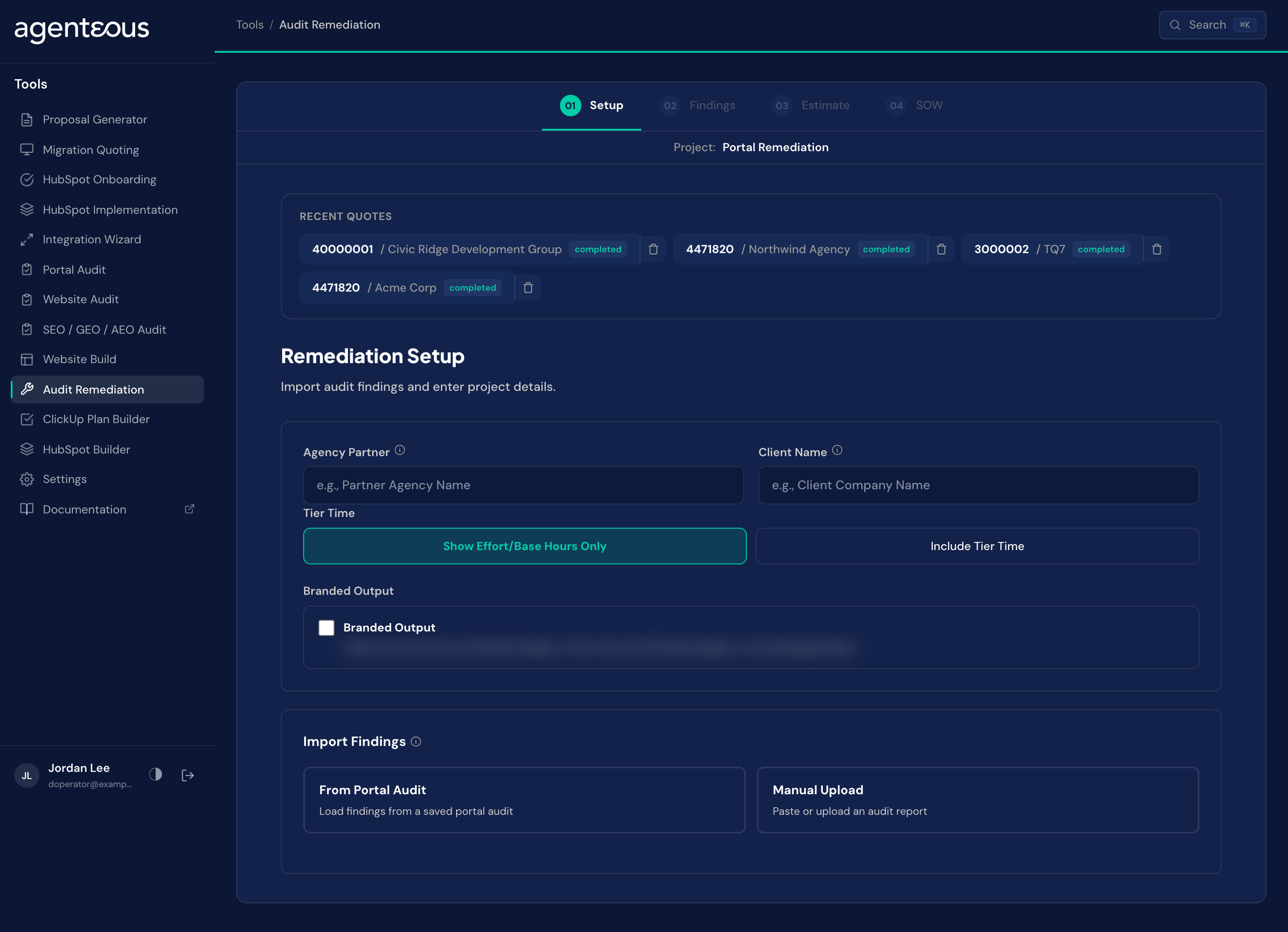
Setup
What you supply. The agency partner and client names, then a choice of how findings get in: load them from a portal audit you already saved, or paste or upload an audit report from somewhere else. If your instance has Skill Tiers on, a Tier Time choice: "Show Effort/Base Hours Only" (the default) or "Include Tier Time". If your instance also has AI Acceleration on, a Delivery Model choice: "Manual Delivery" (the default) or "AI-Assisted Delivery". Either choice is hidden entirely when its instance-wide setting is off. A Branded Output switch adds an agency-branded PDF button to the exports. Neither choice has anything to do with the AI-versus-Catalog Source tag described below, which is about where a finding's hours came from, not how the fix gets delivered.
What happens. Either path ends the same way: a full set of findings, ready to select from on the next step.
Behind the scenes. Loading from a saved portal audit involves no model at all; it reads the findings you already have. Pasting or uploading a report sends that text to a model, which extracts each finding, so a report from outside the product ends up in the same shape as one generated by a portal audit.
Findings
What you supply. A decision on each finding: leave it checked, or uncheck it if it is out of scope. Filters by severity and by area help you get through a long list.
What happens. Everything critical, high, or already flagged as a quick win starts checked. Each card shows the severity, an effort badge, whether it is a quick win, the finding itself, and the recommendation, so you can judge it without leaving the list. Only what stays checked when you move on gets priced.
Behind the scenes. No model runs here. This step only filters the findings the previous step already produced.
Estimate
What you supply. Nothing to generate the estimate itself. Afterward, adjustments in the Adjust panel if the overhead figures do not fit: hours per week, testing, contingency, project management.
What happens. Each checked finding becomes one line, tagged Catalog or AI in the Source column depending on how its hours were set. Hours round to the nearest quarter hour once a tier multiplier is applied. Lines land in one of four phases, shown as P0 Quick Wins, P1 Critical Fixes, P2 Foundation, and P3 Optimization, each with its own subtotal, alongside tiles for the grand total, timeline, complexity, and line-item count. On an AI-assisted quote, an "AI Acceleration Adjustment" line appears before the grand total, and ClickUp receives the AI-assisted hours rather than the manual figure; that adjustment is unrelated to a line's Catalog-or-AI Source tag.
Behind the scenes. Catalog lines involve no model; they are a text match against a price list. AI lines come from a model working off the effort guidance described above, and every one of those lines is editable, same as a catalog line.
SOW
What you supply. A click on Generate Agency SOW Narrative when you are ready. Nothing on this step happens until you ask for it.
What happens. The narrative writes up the remediation scope, the findings, and the recommended actions in prose, built from the numbers already settled on the Estimate step. The same regenerate and humanize actions (and the client version, when Tier Time is on) available on every wizard's document step apply here. This wizard writes nothing anywhere outside itself: it ends in a document and a Save. To turn a saved estimate into actual tasks, take it into the ClickUp Plan Builder, which can build a task plan straight from a saved quote without retyping any of it.
Behind the scenes. A model writes the narrative from fixed figures it cannot recalculate.
Recent Quotes
Saved quotes are listed under Recent Quotes on the Setup screen.
What Good Looks Like
An AI line looks too high or too low. With the default bounds a model line cannot exceed 40 hours or drop below 1, and a line that hit a bound is flagged as clamped. Read the Source column, then edit the line to match your own judgment before it goes out.
You open the Adjust panel later and the total moves by more than expected. The three overhead percentages can be changed for the instance, for this wizard, or for this quote specifically. Read the percentage on screen rather than assuming it matches a previous quote.
The header calls unmatched findings outliers, and someone reads that as these numbers are unusual. It only means the catalog had no matching entry. Say so plainly when explaining a quote; there is no historical band behind that word.
Who Uses It
Anyone on your team who can sign in to the tools, usually whoever turns audit findings into a priced fix plan. Administrators set the remediation overhead and AI estimation bounds in Tools Settings.
Related
- Portal Audit: the audit whose findings feed this wizard.
- Tools Overview: the estimate spine, Tier Time and the document steps.
- Tools Settings: the remediation overhead and AI estimation bounds.