Tools Settings
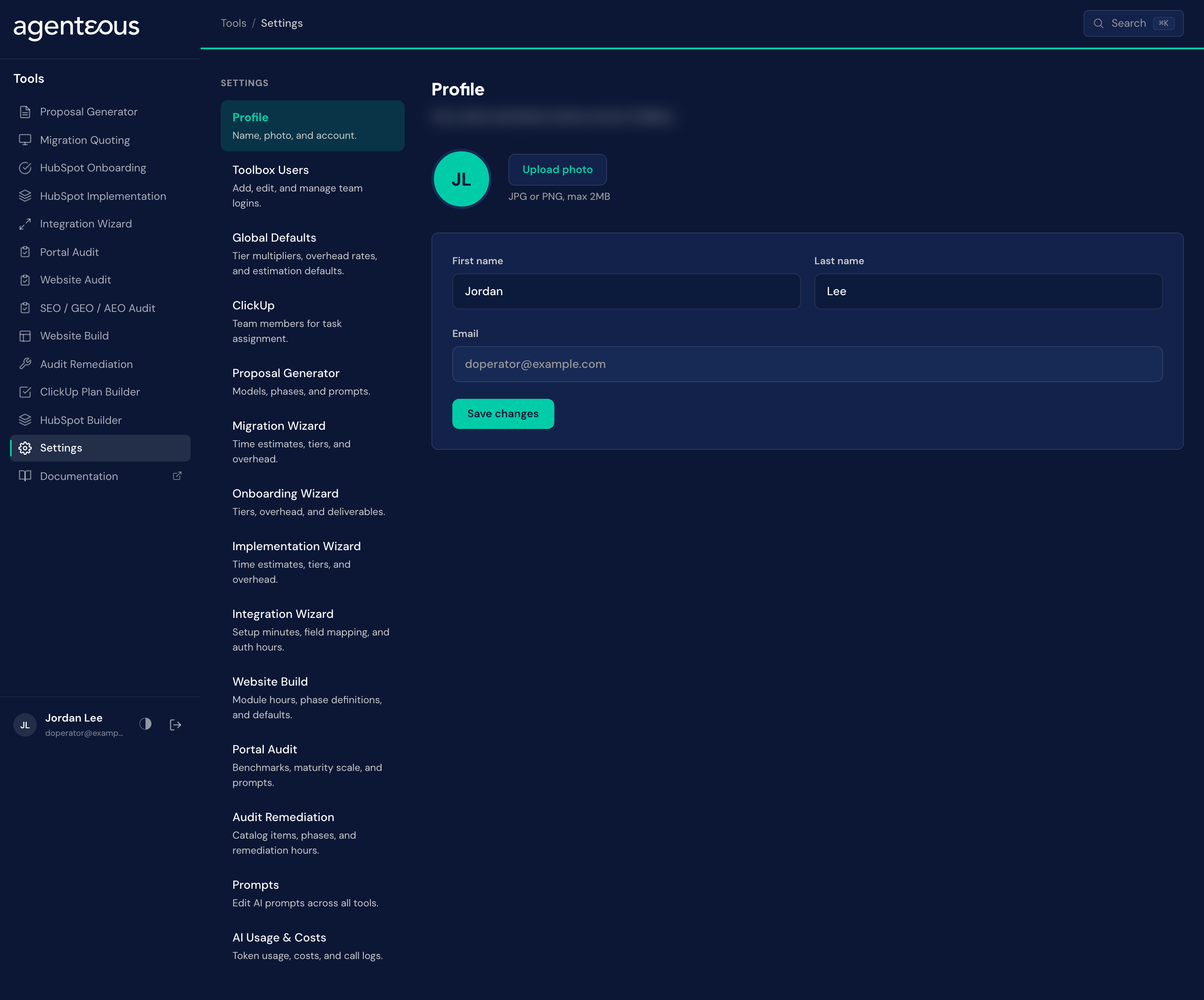
Tools Settings is where your agency sets the numbers and wording every wizard starts from: tier multipliers, overhead percentages, hours per week, the catalog hours behind each wizard, and the prompts that drive the writing. Anyone signed in can read every tab and update their own Profile. Saving any other change is limited to administrators; if you are not one, your save is refused.
What It's For
Change a default once here instead of on every quote. New quotes pick up a saved change within about five minutes.
Settings holds only what belongs to the tools. Connections to outside systems such as HubSpot or ClickUp are managed in the Operator Console, under Agency, in Connections, and there is no integrations tab here.
Profile
Your name and photo. The photo must be an image under 2 MB. The tools use your profile to attribute work and stamp documents.
Toolbox Users
A read-only list of the people who can use the tools, each marked Admin or Member. Only administrators can see it; everyone else sees a note that admin access is required. You cannot add or remove people from this screen: your administrator does that outside the tools. The tab's short description still reads "Add, edit, and manage team logins", but the screen itself only lists people.
Global Defaults
The numbers every wizard starts from when it prices work. Individual wizards can override them, and you can change them again on any single quote.
- Skill Tiers. On by default. When on, base hours are marked up by a multiplier for each tier (T1 Standard, T2 Advanced, T3 Expert), and every wizard offers the Tier Time choice. When off, every hour is billed as one hour and tier controls disappear from the wizards, estimates and documents.
- AI Acceleration. Off by default. When on, accelerable catalog lines can use AI-assisted delivery hours and the wizards that support it offer a Delivery Model choice. When off, no wizard shows any AI acceleration. See the tools overview for how acceleration is applied.
- Tier Multipliers. One multiplier per tier. Shown only while Skill Tiers is on. A wizard tab with its own Skill Tier Multipliers, and the multipliers built into the HubSpot Implementation and Audit Remediation catalogs, take precedence over these.
- Overhead Rates. Testing and QA, Contingency, and Project Management, each as a percentage. Not every wizard uses all three; the tools overview lists which do.
- Timeline. Hours per Week, the capacity that turns total hours into a timeline band.
Use Save settings to keep your changes, or Reset to Defaults to return the form to the shipped values.
ClickUp
The team members the tools can assign tasks to when a wizard creates a project. Each entry has a name, an email and a ClickUp ID. You can add people and remove them.
Proposal Generator
- Model Routing. Choose which model handles each workload tier. A change applies to new AI calls straight away.
- Estimation Overhead. The project management allocation as a percentage of base hours. It is applied before tier pricing. The estimate's range is the allowance for uncertainty; there is no separate contingency line.
- Prompts. The instructions behind each phase, editable one at a time, with Save prompt and Reset to default.
Migration Wizard
Feature Time Estimates (the minutes behind each migratable feature), Skill Tier Multipliers, Overhead (testing and contingency), and Fixed Deliverables. Save settings stores all of them together.
Onboarding Wizard
Skill Tier Multipliers and the Deliverables offered per hub, with their hours and tiers. You can download the catalog as a spreadsheet and upload an edited copy.
Implementation Wizard
Skill Tier Multipliers, Overhead Rates and Item Time Estimates for the catalog items, grouped by hub. A spreadsheet download and upload is available here too.
Integration Wizard
Estimation Constants: setup minutes per system, field-mapping minutes by complexity, authentication minutes, error-handling minutes, and the direction and volume multipliers. Reset to defaults restores the shipped values.
Website Build
Content and development defaults: the hours behind pages, templates, modules, forms, system pages, redirects, design and blog QA. Use Save settings or Reset to Defaults.
The Overhead and Timeline card is display only and shows the Global Defaults, but website quotes do not use them: every website quote starts from 5% project management, 5% contingency and 30 hours per week, whatever Global Defaults say. You change those per quote in the wizard's Adjust panel.
Portal Audit
The Maturity Scale and Audit Sections for reference, the Industry Benchmarks the audit scores against (each editable, with a Reset to defaults), and the prompts behind the analysis. Changing a benchmark changes what counts as a pass in future audits.
Audit Remediation
The remediation Phases for reference, Overhead Defaults, and the AI estimation bounds: the minimum and maximum hours a model-estimated finding can carry, which default to 1 and 40. The overhead fields are prefilled with 15% testing, 10% contingency, 15% project management and 30 hours per week; those values take effect for the Audit Remediation wizard once you save them, and until then the wizard follows Global Defaults.
Prompts
Every AI prompt used across the tools, listed by name. Open one to read or edit it, then use Save prompt, or Reset to default to restore the shipped text. A prompt you edit applies to every future run that uses it, so make a change on one prompt at a time and test it on a throwaway quote.
AI Usage & Costs
A report of what the tools have spent on AI: totals, a breakdown By Task and By Model, a Daily Breakdown and the Recent Calls list. A days selector sets the window, which starts at 30 days. Only administrators can see it.
Who Uses It
Administrators change defaults, catalogs and prompts and read the usage report. Everyone else uses it to check the numbers a wizard is starting from and to update their own profile.
Related
- Tools Overview: how tiers, overhead, Tier Time and AI Acceleration work in a quote.
- Connections: where outside systems are connected.
- Where You Work: how the tools fit beside the app and the Operator Console.