HubSpot Implementation
Price a HubSpot build out of a catalog of more than 160 individually configurable items covering every hub, then turn the priced scope into a client-ready statement of work. You choose what is in scope and how many of each countable item this build needs; the tool does the arithmetic and writes the narrative.
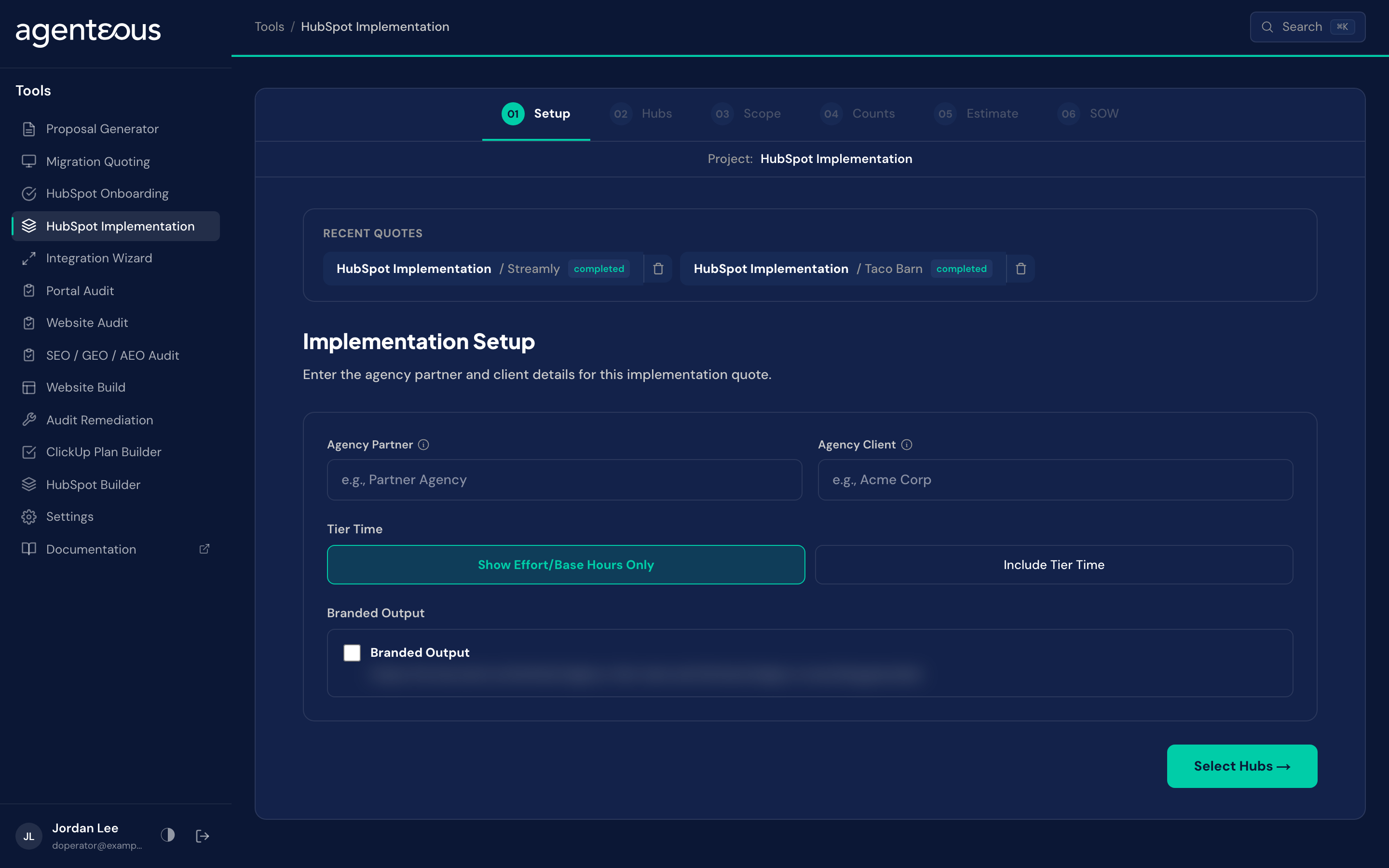
What It's For
Run the Implementation Wizard when you are scoping the work to build out a HubSpot portal itself: the properties, pipelines, automations, permissions, and reporting that live inside HubSpot for one of your clients. When the work is instead about moving data between HubSpot and an outside system, use the Integration Wizard. Many engagements need both, quoted as two separate pieces of the same build.
How It Works
Base hours come from the catalog, not from a model, and only the final narrative is model written. That is the same estimate spine every catalog-based tool on this platform shares. See the tools overview for how skill tiers, overhead, the timeline band, and the complexity label work; none of that is repeated here because it applies to this wizard exactly as described there.
What is specific to this wizard is the catalog itself and what the narrative reasons about. The items are spread across CRM Platform & Portal Setup, Marketing Hub, Sales Hub, Service Hub, Content Hub, and Data Hub (the hub the Onboarding wizard calls Operations Hub), plus Commerce Hub and a Cross-Cutting group for tasks that span multiple hubs: training, data migration, and integration setup. CRM Platform & Portal Setup is the largest group. Include the Cross-Cutting group even when only one hub is in scope; training and data migration are rarely specific to a single hub.
The narrative earns its place by reasoning about the order the hubs depend on each other, something a flat list of hours cannot show. The CRM's data model, its properties and pipelines, has to be right before marketing automation or sales workflows built on top of it can be trusted. When a build spans more than one hub, the narrative walks through that dependency chain rather than simply listing hours hub by hub.
Setup
What you supply. The client name and the agency or partner name that will appear on the quote title and later on the statement of work. If your instance has Skill Tiers on, a Tier Time choice: "Show Effort/Base Hours Only" (the default) or "Include Tier Time". If your instance also has AI Acceleration on, a Delivery Model choice: "Manual Delivery" (the default) or "AI-Assisted Delivery". Either choice is hidden entirely when its instance-wide setting is off. A Branded Output switch adds an agency-branded PDF button to the exports.
What happens. All of it carries through every later step and into the exported documents. Tier Time and Delivery Model are saved with the quote and can be changed later without losing your other work; see the tools overview for what each one does across the whole estimate.
Behind the scenes. No model runs on this step.
Hubs
What you supply. Which hubs this build touches, plus the Cross-Cutting group if training, data migration, or integration setup is part of the engagement.
What happens. Each hub you select opens its own scope panel on the next step. A hub you leave out contributes no item, no count, and no hour to the total.
Behind the scenes. No model runs on this step. Selecting a hub only opens the slice of the catalog that belongs to it.
Scope
What you supply. A checklist nested hub, then category, then item. Under CRM Platform & Portal Setup alone there are ten categories, from account and portal configuration through data import and migration. Every item starts checked.
What happens. Uncheck anything outside this engagement. What remains checked is exactly what gets counted and priced on the next step.
Behind the scenes. No model runs on this step.
Counts
What you supply. A number for each item that scales by quantity: domains, currencies, users, teams, permission sets, custom properties, automations, and similar. Items that do not scale stay at a count of one and are not shown here, so this list is shorter than the Scope list.
What happens. Every item, countable or not, carries its own plain-English explanation of the work involved. Read it when a line item's cost is not obvious. The numbers you enter here drive the base hours on the next step.
Behind the scenes. No model runs on this step.
Estimate
What you supply. Nothing new. Adjust Hours per Week, Testing percent, Contingency percent, or PM percent if the defaults do not fit this engagement.
What happens. The screen shows Base Hours, Tier-Adjusted hours, Testing, Contingency, PM, a Grand Total, a timeline in weeks, and a complexity label. The defaults are 5% testing, 5% contingency, and 10% PM, and every one of the three is adjustable, so a given quote may show different figures than the defaults if someone changed them for this instance. Trust the number on the screen: it is the one actually applied to this quote, whatever the default happens to be. Moving a rate slider recomputes the estimate but keeps any hours you already edited by hand; changing what is in scope back on the Counts step still recalculates fully. On an AI-assisted quote, an "AI Acceleration Adjustment" line appears before the Grand Total, and ClickUp receives the AI-assisted hours rather than the manual figure; see the tools overview for how the AI-assisted delivery choice works.
Behind the scenes. No model runs anywhere in this step. The catalog is the source of every base hour, and the tier multiplier, the three overhead percentages, and every total are ordinary arithmetic.
SOW
What you supply. Nothing to produce the first draft. After that, Regenerate, Humanize, and (when Tier Time is on) Client Version work the same way they do on every other wizard's document step.
What happens. You get a professional narrative describing the scope hub by hub, plus the dependency reasoning described above.
Behind the scenes. A model writes the narrative from numbers handed to it as fixed facts. It reasons about which hubs depend on which others and about what is driving the complexity label, but it never recalculates an hour.
Recent Quotes
Saved quotes are listed under Recent Quotes on the Setup screen. The estimate's export buttons are Print PDF, Branded PDF (when Branded Output is on), Copy Markdown and Download XLSX.
What Good Looks Like
The PM percentage on the estimate does not match the number you expected. This is not a bug: the three overhead percentages are adjustable per instance, and someone may have changed the default for this build. Open the Adjust panel and check what is actually set, then trust the figure on the screen over any number you remember as standard.
A hub you assumed was in scope contributes zero hours to the total. Either it was never selected on the Hubs step, or every one of its items got unchecked on the Scope step. Go back to both steps and confirm the hub is actually included before you present the quote.
The narrative starts explaining how a total was derived, or names a dollar figure. The narrative is instructed to present hours only and never to show its own arithmetic. If it does either, use Regenerate rather than editing the text by hand.
Who Uses It
Anyone on your team who can sign in to the tools, usually whoever scopes and prices HubSpot portal builds. Administrators set the implementation catalog and defaults in Tools Settings.
Related
- Tools Overview: the estimate spine, Tier Time and the document steps.
- HubSpot Onboarding: price HubSpot's onboarding programs instead.
- HubSpot Builder: build in a client's portal with an AI assistant.