Migration Quoting
Price moving a client off a legacy platform and onto HubSpot. Pick the platform they are leaving, tell the wizard which features are actually in scope and how much of each exists, and it produces an hour estimate and a scope narrative you can hand to the client.
What It's For
Run this wizard whenever a prospective or existing client needs to leave a platform they are already running and land on HubSpot instead. The wizard offers 34 source platforms in five groups: CRMs (Salesforce, Microsoft Dynamics 365, Zoho CRM, Pipedrive, and others), marketing automation tools (Mailchimp, ActiveCampaign, Marketo, and others), help desks (Zendesk, Freshdesk, Intercom, and others), WordPress as a CMS, and a recruiting platform. A platform appears in the list only once its feature catalog has been researched. If the client already has a HubSpot account and you are pricing more configuration inside it rather than a move from somewhere else, that is a different job; if they need HubSpot's hubs stood up for the first time at the tier they bought, use the HubSpot Onboarding Wizard instead.
How It Works
Counts is not the only way to size scope. Once you pick a platform, Setup offers a Migration Guide, a printable PDF for that platform covering what migrates cleanly, what needs a rebuild and what to prepare before kickoff, and a Data Collection Worksheet, a pre-filled spreadsheet your client can complete. Upload Completed Worksheet reads their counts back in and takes you to Counts with the numbers filled. This saves you from chasing counts by email.
The platform you choose in Setup is the single decision that shapes everything after it. Each source platform has its own catalog of migratable features, and that catalog determines the checklist in Features, the count fields in Counts, and which migration guide you get later. A Dynamics 365 migration and a Mailchimp migration do not share a checklist, because they are not the same kind of move.
Every feature in that catalog is tagged Syncs Natively, Manual Rebuild, Direct Rebuild, Built-in, or No Equivalent. Manual Rebuild features cost real time and appear as line items you can count. Direct Rebuild marks a feature HubSpot has a direct equivalent for: it is still rebuilt by hand and costs real time the same way. Built-in and No Equivalent features are locked: a Built-in feature is something HubSpot already provides with no rebuild needed, and a No Equivalent feature is something the destination platform simply does not do. Locked items do not affect the estimate at all. A feature the catalog marks as not rebuilt in scope also carries zero hours, which is why a few checked lines can show nothing.
A feature marked Syncs Natively costs zero minutes, and it is worth understanding why that is not a discount. It means the connector HubSpot uses to bring that platform's data across handles the transfer automatically: nobody on the delivery team spends time rebuilding it by hand, so charging for it would be charging for work that never happens. The zero is an accurate accounting of the labor involved, not a courtesy price.
Counts is where scope becomes a number. Each count you enter multiplies the per-item minutes assigned to that feature in the catalog, so a feature with a high per-item rate and a large count turns into real hours, while a small count stays small. Two kinds of items skip the count field entirely: sync-handled items, because there is nothing to size, and one-time setup tasks, which are locked at a count of 1 because they happen once no matter how much data exists.
The Estimate step assembles all of that into a single figure with no model involved anywhere in the arithmetic. Base hours come from your counts against the catalog rates. Migration effort itself is untiered: every line is priced in plain effort hours. If you turn Tier Time on, a separate pricing layer applies skill-tier multipliers afterward (see the estimate spine for how tiers and multipliers work generally). On top of the base hours sit fixed deliverables, testing at a default of 5%, and contingency at a default of 5%, both adjustable in the estimate's Adjust panel along with hours per week. Migration is one of the tools with no project-management line: nothing is added for coordination overhead, so the grand total is base hours plus fixed deliverables plus testing plus contingency (with the Tier Time layer applied on top when you choose it), and nothing else. The timeline band and the complexity label work the same way they do across every estimate in this spine.
One quirk worth knowing before it surprises you: each line's hours round to the nearest quarter hour. Ten minutes multiplied across ten instances is one hour and forty minutes, or 1.67 hours by raw arithmetic, but the line will read 1.75 hours because the tool rounds to the nearest quarter. That is expected behavior, not a calculation error.
Only the SOW step involves a model, and only for the writing. By the time you reach it, every number is already fixed; the model is handed the feature counts, the category totals, the hours, and the timeline band as facts it is not allowed to recalculate, and it writes the narrative around them: scope, inclusions, exclusions, and risks, including a specific call-out for any feature that is only a partial match, where HubSpot offers a functional substitute rather than a true one-to-one replacement. Regenerate, Humanize, and (when Tier Time is on) the Client Version work exactly as described in the tools overview: Regenerate reruns the writing pass, Humanize is a style-only rewrite, and Client Version strips the internal detail without changing a number.
Setup
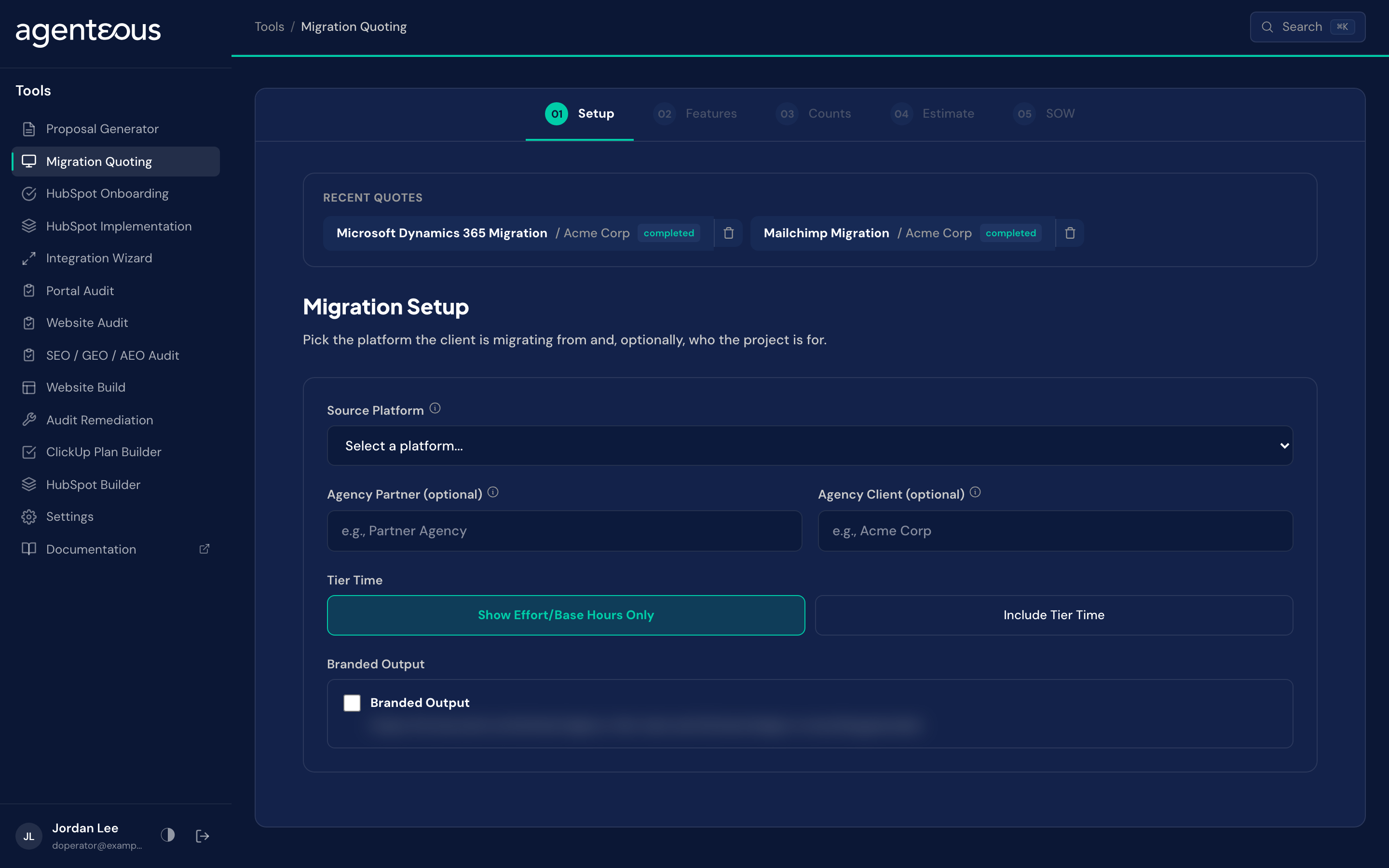
What you supply. The source platform the client is migrating from. Optionally, the agency partner name, which appears on the estimate header and the scope narrative, and the agency client name, used in document titles, the estimate header, and the exported file names. If your instance has Skill Tiers on, a Tier Time choice: "Show Effort/Base Hours Only" (the default) or "Include Tier Time"; hidden entirely when that instance-wide setting is off. A Branded Output switch adds an agency-branded PDF button to the exports. Migration does not offer AI-Assisted Delivery, on any instance.
What happens. Your platform choice determines the feature checklist, the count fields, and the migration guide you will see on the following steps. The Tier Time choice is saved with the quote; flipping it later re-prices the same quote without touching your feature selections or counts. See the tools overview for what it does across the whole estimate.
Behind the scenes. No model runs on this step. It is a lookup against the catalog for the platform you picked.
Features
What you supply. Which features are in scope. Every migratable feature for the chosen platform starts checked; you uncheck anything the client will not need. Items marked No Equivalent or Built-in start unchecked and are locked, because they carry no hours.
What happens. Features are grouped by functional category, each with its own selected count and a select-all or deselect-all control, so you can work through a large checklist a category at a time.
Behind the scenes. No model runs on this step. It is the catalog for your chosen platform, filtered by category.
Counts
What you supply. How many of each in-scope item exist in the source platform: how many workflows, how many lists, how many custom objects, and so on, depending on what that feature actually counts. Sync-handled items need no count. One-time setup tasks are locked at a count of 1.
What happens. Each count you enter is what turns a feature from a checkbox into an hour figure once you move on to the estimate: the count multiplies that feature's per-item minutes.
Behind the scenes. No model runs on this step. It is data entry against the rates already defined in the catalog.
Estimate
What you supply. Optional adjustments: hours per week, the testing percentage, and the contingency percentage, all defaulted (5% and 5%) but yours to change. You can also override the tier on any individual line item.
What happens. The estimate shows base hours (with tier-adjusted hours alongside when Tier Time is on), fixed deliverables, testing, contingency, a grand total, a timeline band, and a complexity label. There is no project-management line for a migration quote; the grand total is the sum of everything else. Export buttons are Print PDF, Branded PDF (when Branded Output is on), Copy Markdown and Download XLSX. Watch for the quarter-hour rounding on individual lines: a line that looks like it should read 1.67 hours will read 1.75, because line hours round to the nearest quarter hour.
Behind the scenes. No model runs on this step. The entire estimate is arithmetic over your counts and the catalog rates.
SOW
What you supply. Nothing to generate the first draft. After that, you can trigger a regenerate, a humanize pass, or switch between the agency version and the client version.
What happens. You get a professional scope narrative covering inclusions, exclusions, and risks, citing the actual feature counts, category counts, total hours, and timeline band from your estimate, and specifically flagging any partial matches where HubSpot's equivalent is not an exact one-to-one replacement.
Behind the scenes. This is the only step where a model runs. It receives the already-computed numbers as fixed facts and writes the narrative around them; it does not recalculate anything.
Recent Quotes
Each quote you save appears under Recent Quotes on the Setup screen so you can reopen it, adjust it and regenerate the document.
What Good Looks Like
A migration estimate should feel proportional to what the client actually has to move, and the narrative should read like someone who understands both platforms wrote it, not a template with the platform name swapped in.
The grand total looks inflated. Before assuming the estimate is wrong, revisit the Features step. It is easy to leave a Manual Rebuild item checked that the client genuinely does not need, and unlike a locked item, an unnecessary checked feature adds real hours once you enter a count for it.
A feature you expected to be free shows real hours. Check its class tag in Features. If it is Manual Rebuild rather than Syncs Natively, that platform's connector does not actually handle that feature automatically, and the hours are a real cost, not a bug.
A line item's hours do not match your own quick math. That is very likely the quarter-hour rounding described above: line hours always round to the nearest quarter hour, so a raw figure like 1.67 will display as 1.75. It is expected, not an error to chase.
Who Uses It
Anyone on your team who can sign in to the tools, usually whoever scopes and prices platform migrations. Administrators set the migration defaults in Tools Settings.
Related
- Tools Overview: the estimate spine, Tier Time and the document steps.
- ClickUp Plan Builder: turn a saved quote into a project plan.
- Tools Settings: the migration defaults.