HubSpot Builder
Register a client's HubSpot portal once, then build inside it by describing what you want to an AI assistant. Every call the assistant makes against a registered portal, successful or not, is written to a permanent record.
What It's For
Use this when the work is hands-on portal building rather than pricing or planning: creating a workflow, a property, a page, an email, or another HubSpot asset inside a specific client's portal, and you would rather describe it in conversation than click through HubSpot's own builders yourself.
This is not a wizard, and there is no stepper. It is a short setup page plus a connection the assistant uses elsewhere. If you instead need to price a build before you do it, that is the HubSpot Implementation wizard.
It is also a different thing from the Marketing Landing Pages agent. That agent builds landing pages; see Marketing Landing Pages. This tool registers a portal so an AI assistant of your own can work in it directly.
How It Works
There are three phases, and only the first happens on this page.
Register is what you do here: you connect a client's portal by giving the tool a token created inside that portal, and the tool confirms with HubSpot that the token actually belongs to the portal you say it does before it will store anything.
Build does not happen on this page. It happens in a conversation with an AI assistant, which reaches a registered portal through a connection offering exactly two abilities: listing the registered portals, and making one request against one of them. A request can read from HubSpot (a GET) or write to it (a POST, PUT or PATCH). There is no browsing, editing, or reviewing screen for this phase; the conversation is the interface.
Audit is not a page you visit. Every request the assistant makes, whether it succeeds or fails, is recorded. You do not maintain it; it accumulates in the background as the trail for everything built this way.
Register
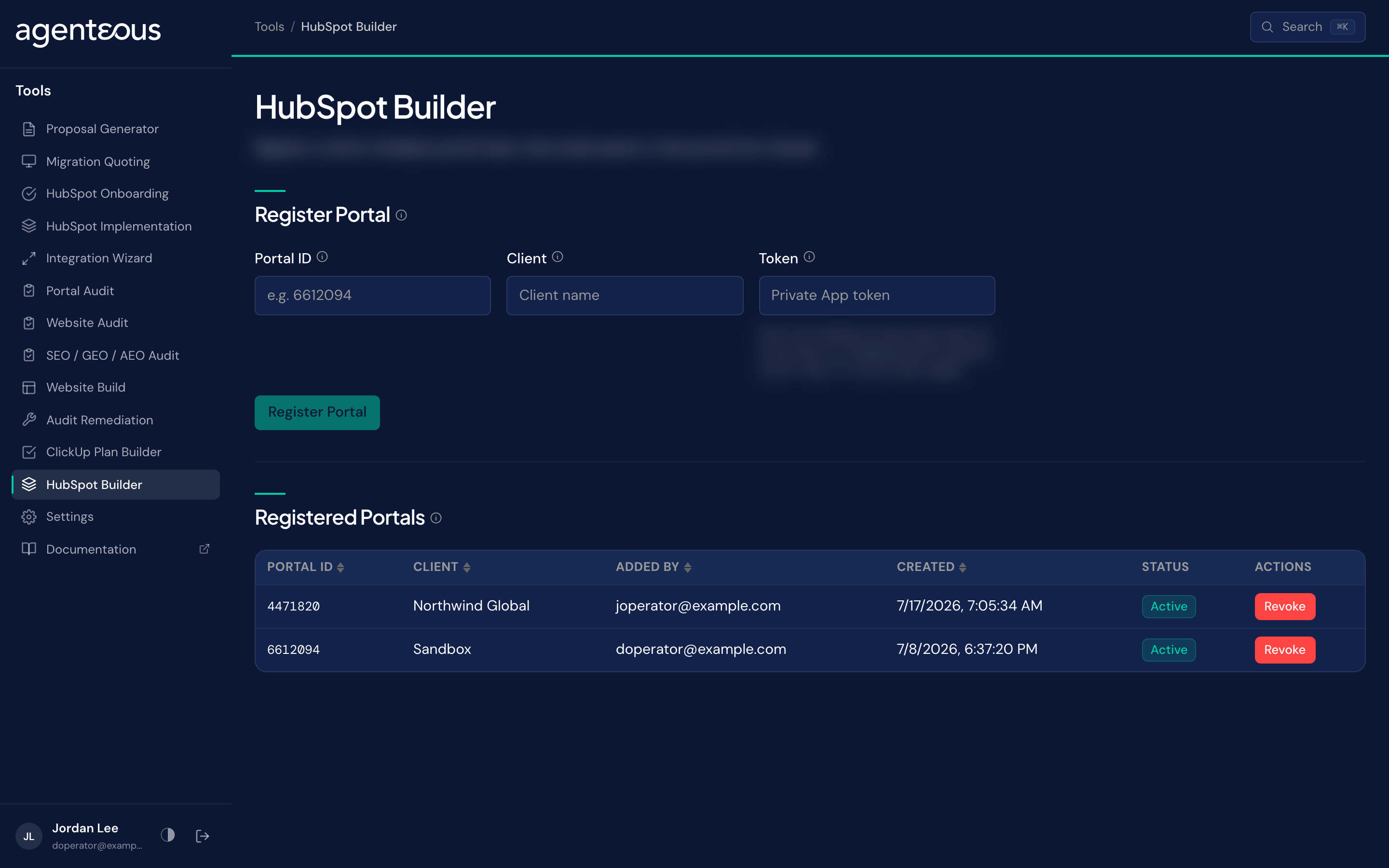
What you supply. A HubSpot Private App token, created inside the client's own portal (under its Settings, then Integrations, then Private Apps), along with that portal's ID and a client label to identify it in your own list.
What happens. Before anything is saved, the tool checks the token against HubSpot directly and confirms it belongs to the portal ID you entered. A token that does not match is rejected. Only a confirmed token is stored, encrypted, and it is never displayed again to you or anyone else.
Registered Portals
What you see. A table with the portal ID, the client label, who added it, and its status, Active or Revoked. Each active row has a Revoke action that asks you to confirm with a second click. Revoking takes effect immediately: nothing can use that portal again afterward. There is no delete; a revoked portal stays in the list as a record.
Build
Connecting your assistant. Your administrator gives you the connection address and setup steps. You add the connection to your AI assistant as a custom connector, sign in with the same sign-in you use for the tools, and approve a one-time consent screen. After that, asking the assistant to list the portals you can build in is a quick way to check it works.
What you supply. Plain language, in conversation with the assistant: which portal you mean (if more than one is registered) and what you want built. State the whole intent before you tell it to proceed, since the next thing that happens is real.
What happens. The assistant can list the portals registered to your team and make one request against one of them. The connection does not send DELETE requests, but HubSpot also removes and archives records through ordinary write requests, and the connection does not limit which part of HubSpot a request can reach. So the assistant can still remove data if asked, and writes can overwrite or change existing assets. Treat every request as able to change or remove anything the portal's token allows. Requests to one portal are throttled to 150 every 10 seconds, and a transient failure is retried automatically, up to three times, with a longer wait before each retry.
Whether something the assistant creates is a draft or goes live depends on what it asks HubSpot to do. The connection does not force a draft state for you. If you want a page or email created as a draft, say so in your request and check the result in HubSpot.
Unlike the ClickUp Plan Builder, there is no confirmation screen between a request and a write. The moment the assistant makes a request, it happens in the client's portal. The safety net is only a portal you registered and a record of everything, not a review step beforehand. Do your first pass in a sandbox portal, and say exactly what you want built before you tell the assistant to go.
Audit
What you supply. Nothing. This runs automatically behind every request.
What happens. Each request is recorded: who ran it, which portal it touched, what kind of asset was involved, which endpoint and method were used, the resulting status, and a classification. That record is what makes work done in a client's portal this way auditable afterward.
Who Uses It
Anyone on your team who builds in client HubSpot portals and has access to the tools. Only people on your agency's allowed list can use the connection, and portals are listed to everyone on that list, not just the person who registered one.
What Good Looks Like
Treat the first request against any new portal as a test of the connection: ask for something small and check it in HubSpot directly before asking for anything bigger. A sandbox or internal portal is the right place to learn how specific you need to be, since there is no review screen to catch a misunderstanding before it lands.
State the full scope of what you want before you say go. The assistant can only act on what you tell it, and the write happens the instant it acts.
A registered token gives real, standing access to a client's portal until you revoke it. Revoke portals your agency is no longer actively building in, and treat each row in the registered-portals table as a live credential, not a historical note.
Related
- HubSpot Implementation: price a portal build before you do it.
- HubSpot integration: how HubSpot connects to the rest of the product.
- Tools Overview: all the tools and how they fit together.