Integration Wizard
Price a connection between HubSpot and another system, choosing the approach that fits how that system actually talks to HubSpot, then turn the priced scope into a client-ready statement of work.
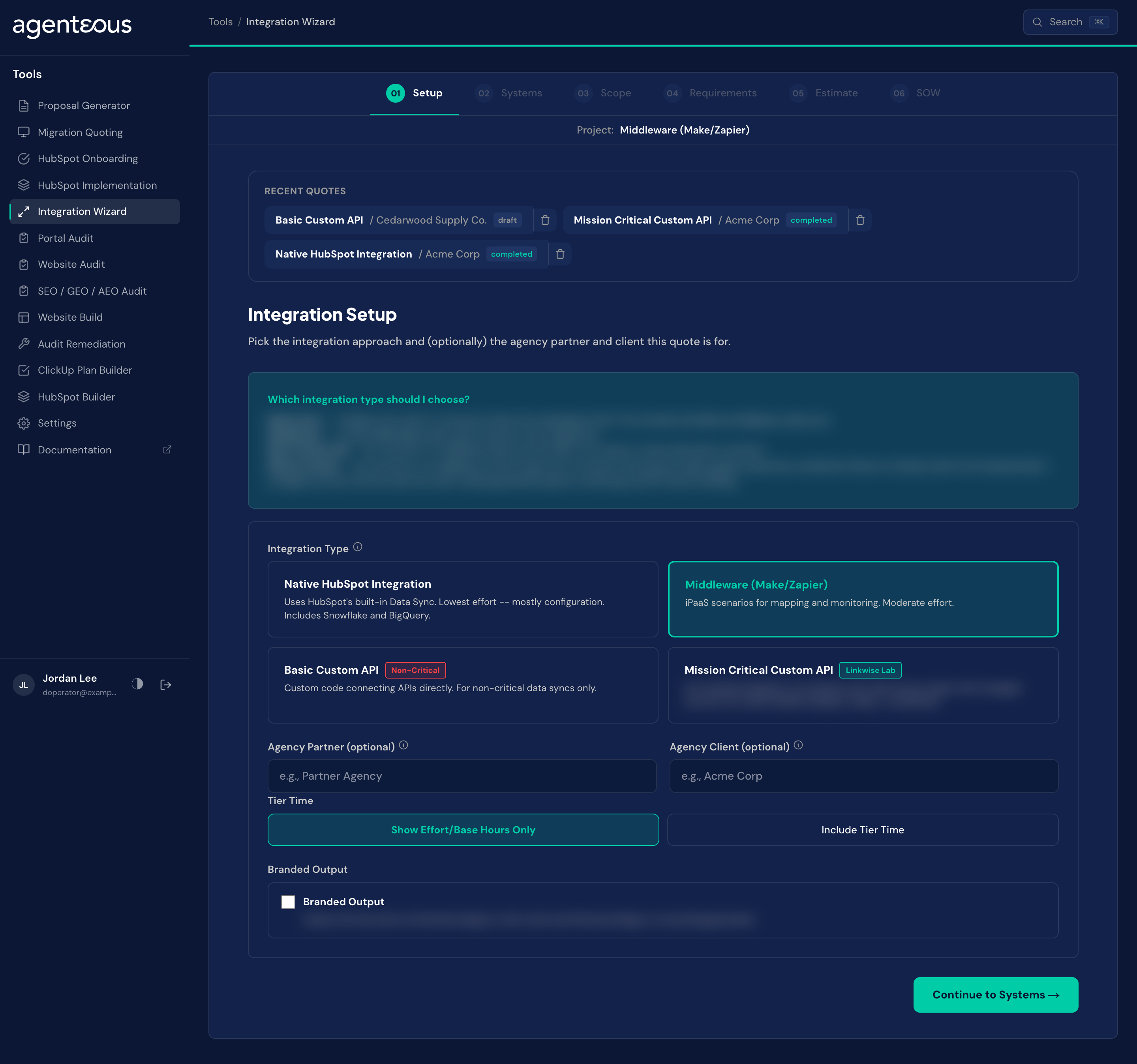
What It's For
Run the Integration Wizard when the work is about moving data between HubSpot and an outside system: a billing platform, an ERP, a data warehouse, a help desk, or anything else that needs to stay in sync with HubSpot for one of your clients. When the work is instead about building out HubSpot itself, its properties, pipelines, and automations, use the Implementation Wizard. Many engagements need both.
How It Works
Like the platform's other catalog-based estimate tools, base hours here come from what you configure, not from a model, and only the final narrative is model written. See the tools overview for the shared mechanics of skill tiers, overhead, the timeline band, and the complexity label.
What makes this wizard different is the first decision you make: the integration approach. There are four, and the choice does not just move the price, it changes the shape of the whole estimate: which deliverables appear, which source systems you are even offered, and in one case, whether you get an hours estimate at all.
- Native HubSpot Integration. HubSpot already has a built-in connector for this system (check the marketplace first). This category also covers direct data sync to a warehouse like Snowflake or BigQuery.
- Middleware. No native connector, but a clean path exists through a tool like Make or Zapier. This fits most integrations.
- Basic Custom API. No connector and no middleware path, but the data is not mission-critical, so it gets built directly.
- Mission Critical Custom API. No connector, no middleware, and the sync is critical to the business, a sales pipeline, payments, or enrollment, something the business cannot run without. This path routes the build to a specialist partner for an SLA-backed build with managed services: monitoring, guaranteed uptime, and someone watching for API version changes.
Switching the integration type clears any systems you already selected, because the systems on offer differ by type: the native approach only shows systems with a built-in HubSpot connector, while the other three approaches let you add anything by name.
The Mission Critical path deserves its own callout, because it changes the pricing model rather than just the price. Everywhere else in this wizard, the deliverable is an hours estimate. On this path it is not: the specialist partner's portion becomes a fixed fee per object, and your agency's own HubSpot-side hours are costed separately from that fee. The percentage overhead lines do not apply on this path. If a build routes down this path, expect a differently shaped estimate: a fee alongside a smaller hours line, not one combined hours total for the whole integration. The Estimate screen shows the fee; treat it as a distinct pricing conversation, not a variant of the hours estimate.
Setup
What you supply. The integration approach (the four options above), and optionally the agency or partner name and the client name. If your instance has Skill Tiers on, a Tier Time choice: "Show Effort/Base Hours Only" (the default) or "Include Tier Time". If your instance also has AI Acceleration on, a Delivery Model choice: "Manual Delivery" (the default) or "AI-Assisted Delivery". Either choice is hidden entirely when its instance-wide setting is off. A Branded Output switch adds an agency-branded PDF button to the exports.
What happens. The approach you pick determines everything the rest of the wizard shows you: the deliverable list, the pricing model, and which systems appear on the next step. Tier Time and Delivery Model are saved with the quote; see the tools overview for what each does across the whole estimate.
Behind the scenes. No model runs on this step.
Systems
What you supply. Every source system that will exchange data with HubSpot, picked from a catalog grouped by category (ERP, Data Warehouse, Billing and Subscriptions, Help Desk, and more), or typed in as free text if it is an in-house or niche system the catalog does not carry.
What happens. Under the native approach, the catalog only shows systems that actually have a built-in HubSpot connector; the other three approaches let you add anything by name. Changing the integration type back on Setup clears this list, so settle the approach before you build out the systems.
Behind the scenes. No model runs on this step.
Scope
What you supply. For each system, the objects that will sync (contacts, companies, invoices, whatever applies), and for each object the direction (one-way or bidirectional), the number of fields involved, and how complex each field mapping is.
What happens. Each object becomes its own line item on the estimate, priced by its field count, its direction (bidirectional costs more than one-way), its complexity, and its record volume: past 10,000 records a volume multiplier applies, rising for very large datasets.
Behind the scenes. No model runs on this step.
Requirements
What you supply. Four choices, and each one adds hours directly to the total:
- Authentication method: API Key, OAuth 2.0, OAuth 1.0, Basic Auth, Service Account, or Custom.
- Error handling level. Basic logs errors, retries once, and emails an alert. Standard adds a dead-letter queue, three retries with backoff, and dashboard alerts. Advanced adds a circuit breaker, a replay queue, automatic recovery, and paging. Pick the level that matches how much downtime this client can tolerate, not the highest one by default.
- Historical backfill, whether existing data needs to be pulled in alongside new records going forward.
- Deduplication mode: none, simple (exact match on a key field), fuzzy, or complex. Fuzzy and complex catch more duplicates than an exact match will, but both need more tuning to avoid flagging records that only look alike.
What happens. Each choice adds hours on top of whatever the Scope step already priced.
Behind the scenes. No model runs on this step.
Estimate
What you supply. Nothing new. Adjust Hours per Week, Testing percent, Contingency percent, or PM percent if the defaults do not fit. The defaults are 5% testing, 5% contingency, and 10% PM, and all three are adjustable, so trust the figure on the screen over any default you remember. Moving one of these sliders recomputes the estimate but keeps any hours you already edited by hand; changing the Systems, Scope, or Requirements steps still recalculates fully.
What happens. The screen shows a Grand Total, a complexity label, a timeline, and a systems count, followed by a per-system table (object, direction, fields, base hours, tier, tier hours) and a Fixed Deliverables table: Discovery & Requirements Documentation (1 hour), Technical Specification Document (1.5 hours), Testing & Validation Plan (1 hour), and Go-Live & Cutover Support (1 hour), always included and totaling 4.5 hours. Approach-specific items, such as middleware platform setup, can appear as well. Two further items, an Operational Runbook and a Team Training Session, can be marked "not included": they still show their hours and tier in the table, but drop out of the grand total. On an AI-assisted quote, an "AI Acceleration Adjustment" line appears before the Grand Total, and ClickUp receives the AI-assisted hours rather than the manual figure. On the Mission Critical path, this step looks different by design: a fixed third-party fee sits alongside a smaller hours line for your own work, rather than one combined hours total.
Behind the scenes. No model runs anywhere in this step, on any path, including Mission Critical. Every figure, the fixed fee included, is arithmetic over what you configured on the earlier steps.
SOW
What you supply. Nothing to produce the first draft. After that, Regenerate, Humanize, and (when Tier Time is on) Client Version work the same way they do on every other wizard's document step.
What happens. You get a professional narrative that names the approach you chose and justifies it, for example explaining why no native connector exists for a given system, or why a system with a native integration was still ruled out for another reason.
Behind the scenes. A model writes the narrative from numbers handed to it as fixed facts it cannot recalculate. Its job is to justify the approach, not to price it.
Recent Quotes
Saved quotes are listed under Recent Quotes on the Setup screen. The estimate's export buttons are Print PDF, Branded PDF (when Branded Output is on), Copy Markdown and Download XLSX.
What Good Looks Like
The systems list is empty after you pick a type you used a moment ago. Switching the integration type clears the systems list by design, since each type offers a different catalog. Re-add the systems under the new type; nothing was lost, it was reset on purpose.
The estimate looks like a fee plus a separate hours line instead of one total. That is expected on the Mission Critical path, not a defect. Confirm the approach chosen on Setup before treating the shape of the estimate as wrong.
The narrative names a dollar figure or explains how a total was derived. The narrative is instructed to justify the chosen approach in prose, never to show its own arithmetic or a price. If it does either, use Regenerate rather than editing the text by hand.
Who Uses It
Anyone on your team who can sign in to the tools, usually whoever scopes and prices integration work. Administrators set the integration estimation constants in Tools Settings.
Related
- Tools Overview: the estimate spine, Tier Time and the document steps.
- HubSpot Implementation: price the portal build around the integration.
- Tools Settings: the integration estimation constants.