ClickUp Plan Builder
Turn a document, a saved estimate, or a ClickUp work order into a real project plan: a named list, a set of tasks with full descriptions, hours, and phases, ready to push into ClickUp. You pick a source, the tool plans the work, you review and adjust it, then you push.
What It's For
Use this once a scope of work exists and someone needs to actually run the project in ClickUp. That scope can come from three different places, which is what makes this tool the hinge between pricing and delivery: a signed SOW or proposal document, a saved estimate from any of the other wizards in this product, or an open ClickUp work order you were handed by someone else.
If you have not yet priced the work, start with the wizard that fits the job (see the tools overview) and come back here once you have a number you are ready to build a plan against.
How It Works
The tool separates two jobs the same way the estimate wizards do: something has to read the source and decide what the tasks are, and something has to work out the hours. The first job is judgment. The second is arithmetic, and arithmetic is never left to a model here.
When the source is a document or a ClickUp work order, a model reads it and proposes the task list: names, descriptions, skill tiers, phases, and which tasks block which. When the source is a saved quote from one of the estimate wizards or a portal audit, the tasks are built straight from the saved line items, deterministically, with no model involved. The exception is a saved Proposal: loading one asks a model to draft its tasks, because a proposal has no line items to copy.
Whichever way the tasks arrive, the hours on them are never the model's number. The estimation method is code, and it is chosen by a single rule: how many total base hours the plan adds up to.
- Under 8 hours total, each task keeps its base hours, gets a small flat allowance for onboarding (5 minutes at the Standard tier, 10 minutes at Advanced or Expert), and then 25% on top to cover QA, troubleshooting, and coordination. No separate overhead tasks are added; that 25% lives inside each task's own hours.
- 8 hours or more, each task instead gets its base hours plus a flat 5% contingency, and the plan gains two extra tasks: an Onboarding task sized at 15 minutes per team member, and a Project Administration task sized at 15% of the plan's total base hours.
Every task's hours round up to the next quarter hour before anything is pushed.
Skill tiers here are the same three used across the rest of the product (see the tools overview for what each multiplier means). If a document or work-order source does not specify a tier for a task, it defaults to Advanced; tasks loaded from a saved quote default to Standard.
When the source is an existing quote, the hours that come across are always that quote's base hours, never the tier-adjusted total, regardless of whether that quote's own Tier Time choice was set to Include Tier Time. If the quote was priced with AI-Assisted Delivery, the hours that come across are the AI-assisted hours actually being delivered, not the struck-through manual figure. See the tools overview for what both of those per-quote choices mean.
Source
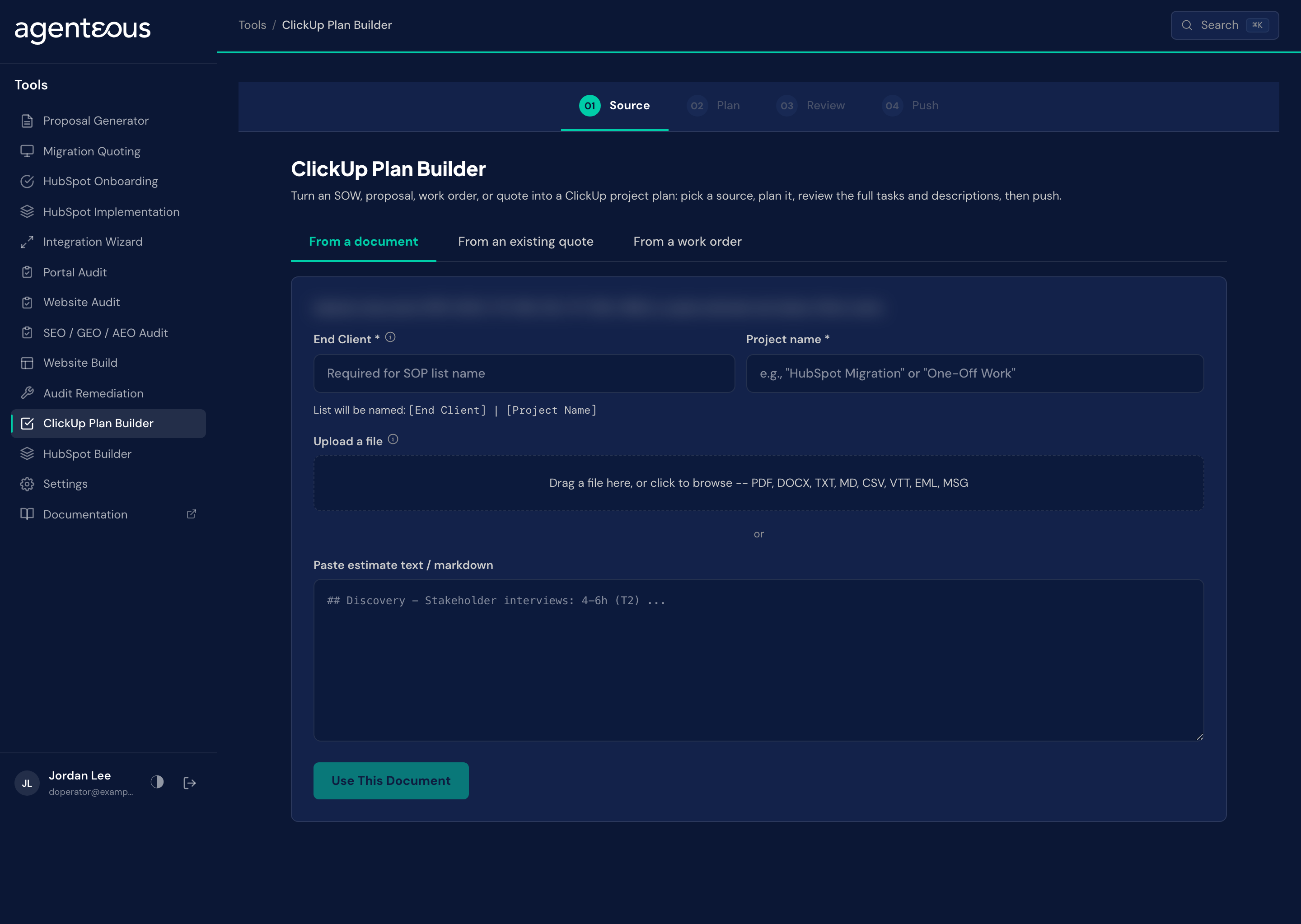
What you supply. One of three sources. A document or a work order also asks for an End Client and a Project name here, and the two together fix the name of the list this plan will become: End Client, a vertical bar, then Project Name. A saved quote brings its project name and end client from the quote instead. The three sources:
- A document. Upload a file (PDF, DOCX, TXT, MD, CSV, VTT, EML, or MSG) or paste text directly, such as a proposal or an SOW.
- An existing quote. Every non-archived saved proposal, estimate from any of the six estimate wizards, and portal audit, searchable and filterable by which tool produced it. Pick one and its tasks load.
- A work order. Paste the URL of a ClickUp task. The tool reads that task's description, its subtasks, and its checklists as the source material.
What happens. The document and quote sources work for any client. The work-order source only works for tasks that live in a workspace your firm has allow-listed; a URL from anywhere else fails closed rather than reading partial or wrong data.
Behind the scenes. No model runs on this step, except that a saved Proposal has its tasks drafted by a model as it loads. Otherwise it is a read: fetching the document text, the saved estimate, or the ClickUp task's content.
Plan
What you supply. A short form: End Client, prefilled from the Source step and required (Generate Plan stays disabled until it is filled); Agency Code, which is the stable code this client carries across your other tools and records, so use the same one everywhere; the Agency point of contact and the End-Client point of contact (name and email each), which are copied into the pushed list's description and never reach the model; and optional additional instructions that go straight to the model to steer phasing, scope or structure. Then you click Generate Plan, which takes 20 to 60 seconds. A saved-quote source skips this step and goes straight to Review.
What happens. You get a full task list. Every task carries a name, a five-section description (Objective, Requirements, Acceptance Criteria, Assets & Access, and Client Context), a skill tier, an hours range, a phase, and any dependency where one task has to finish before another starts.
Behind the scenes. For a document or work order, a model does the reading and drafts the tasks: what needs doing, in what order, at what skill level, and it runs only when you click Generate Plan. For a saved estimate or audit, the tasks are built directly from what you already approved. Either way, the hours you see already reflect the code-driven method described above, not a number the model chose.
Review
What you supply. A look at the full plan, and optionally a plain-English instruction to change it: "split the migration task into three," "move onboarding earlier," "combine the two content tasks."
What happens. The plan updates to match your instruction. Because an edit can change the total base hours, it can also change which overhead method applies; the tool re-runs the whole overhead calculation from scratch after every edit, so a plan that crosses the 8-hour line partway through review never ends up with both a flat 25% baked into task hours and a separate Onboarding or Project Administration task layered on top of it.
Behind the scenes. A model applies your instruction to restructure the plan. The hour math that follows is, again, code: not the model re-guessing totals.
Push
What you supply. A destination folder in ClickUp, a list name (which must follow the End Client, bar, Project Name shape you set in Source), a CEM Owner email, and the end client. The push button stays disabled until all four are in place.
What happens. This is the point of no return for the plan: the push writes real tasks into your ClickUp workspace. ClickUp gets a new list, and every task is created in it with status "Processing" (if the destination list has no such status, the tasks are created without one). If you push the same task set a second time, nothing is duplicated: you get back the result of the first push instead of a second copy of the plan.
Behind the scenes. No model. This step is a plain, deterministic write to ClickUp using exactly what you approved in Review.
What Good Looks Like
A plan is ready to push when every task reads like something a person could pick up cold: a clear objective, requirements that do not assume context nobody has, and acceptance criteria specific enough to know when the task is actually done. If a task's five sections feel generic, that usually means the source document was thin in that area; go back to Source and add detail rather than fixing it task by task in Review.
Every task lands in ClickUp with its hours, tier, and phase set, but with no start date, due date, or priority. That is deliberate. Scheduling is not something the source material can tell the tool, so it is left to you, and "Processing" is the honest status for a task that is scoped and estimated but not yet slotted into anyone's week. Plan to walk through the pushed list and set dates before anyone is expected to start on it.
Because a model writes the task descriptions for document and work-order sources, skim the pushed descriptions before a client-visible board goes live, and check that the Client Context sections read the way you would want a client to read them directly.
Who Uses It
Anyone on your team who can sign in to the tools, usually whoever sets up delivery once a scope is signed. Administrators manage the ClickUp assignee list in Tools Settings.
Related
- ClickUp: how ClickUp connects to the rest of the product.
- Tools Overview: the tools whose saved quotes feed this one.
- Tools Settings: the ClickUp assignee list.